 GOM Mix 10
Latest News
User Guide
Timeline
Exporting Selected Area
Exports only the selected area instead of exporting the entire audio or video. You can quickly extract and save only necessary sections as separate files, increasing editing efficiency.
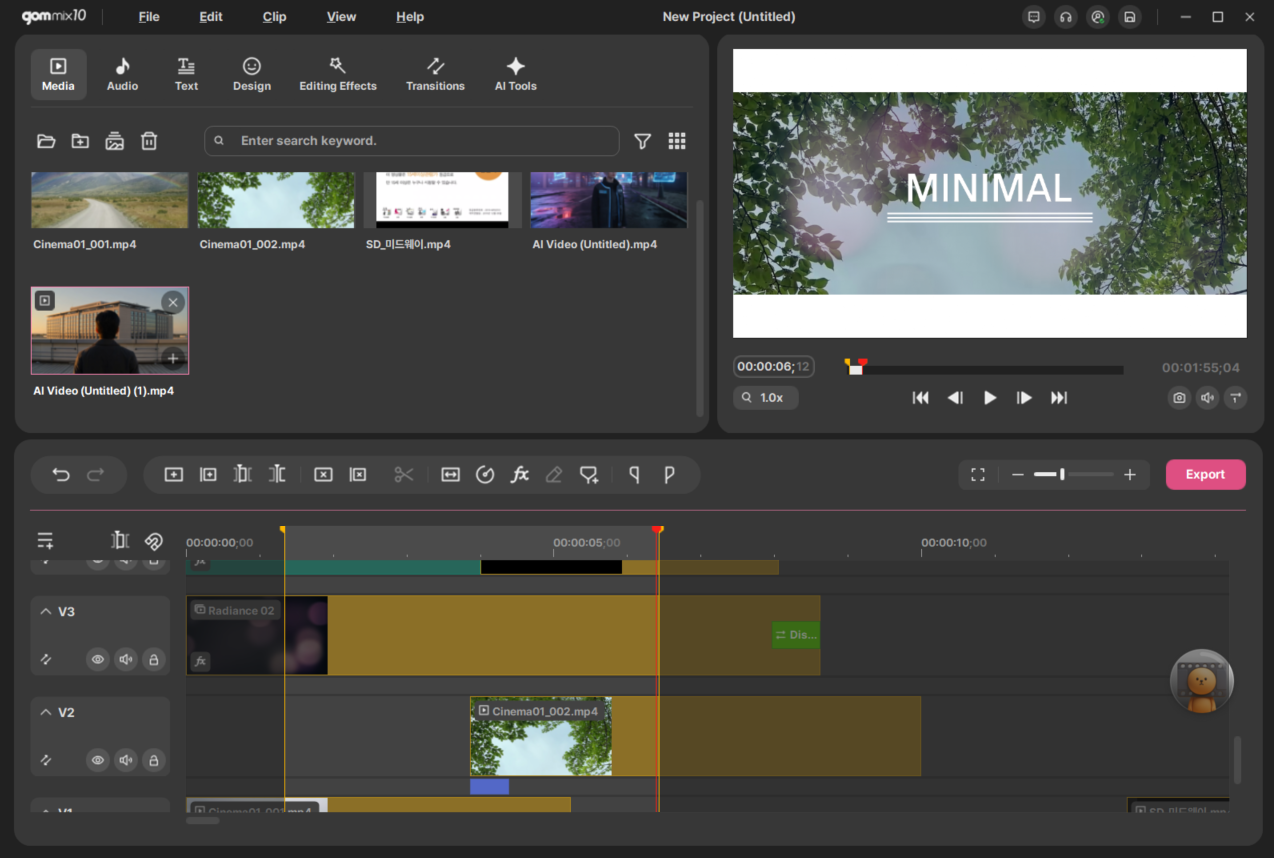
Click  in the timeline area to set the export start point and end point. The configured area will be the video section to be exported. Click the [Export] button to export the video.
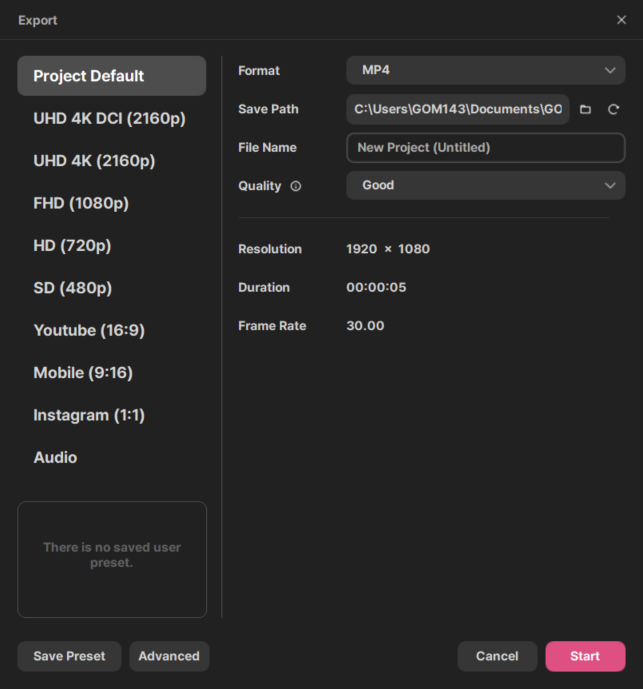
The Export settings window configures the video format, file name, resolution, and quality. It provides not only resolution-based presets, but also YouTube, Mobile, and Instagram presets. You can select configuration values from presets or add your own preset using custom settings. Clicking the [Save Preset] button at the bottom displays a dialog box showing the current preset name. Enter a name and click the [Save] button to register it to the Export dialog. Video resolution is not included when saving presets. Under Project Default, the values initially set when starting the project are displayed.
| Format | Set a format of video to be encoded. The supported formats include: generally used H.264 (MPEG-4) format called MP4 and flash video file format, FLV. |
|---|---|
| Save Path | It is the location of the folder where the video is encoded and saved. The default folder is used to retrieve the path set in environment settings. |
| File Name | It is the name of the video to be encoded. By default, the file name format is in “Project filename_export setting”. [Export Setting] can be changed in [Settings] |
| Resolution | Means the number of pixels in the horizontal and vertical direction. |
| Duration | It is the playing time of the video to be encoded. |
| Frame Rate | It is the number of screen frames per second. 25 fps means that the video is made of 25 screen frames per second. |
| Quality | Controlling the quality means that the bitrate capacity set to the screen is controlled. Generally, the higher the bitrate is, the better the quality. But also the storage capacity of memory for encoding and decoding is increased as a result. It is composed of 3 levels - Very Good/Good/Fair. |
The resolution frame count is used to retrieve the setting for the initial [Project Settings] and click the [Advanced] button to change the detailed setting.
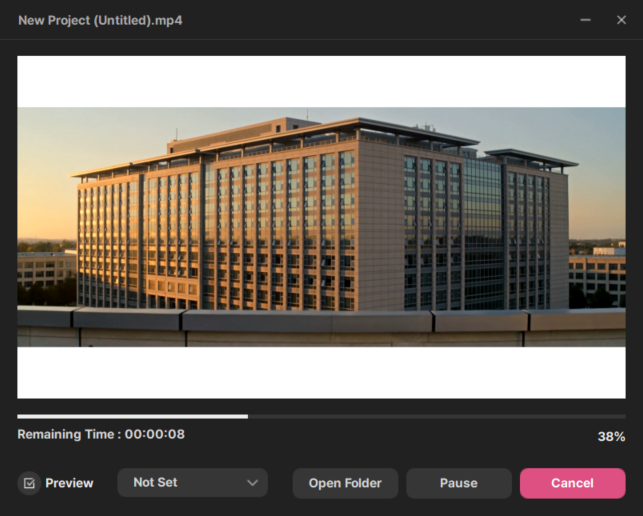
Once the encoding is finished, the 'Play' button will show up.
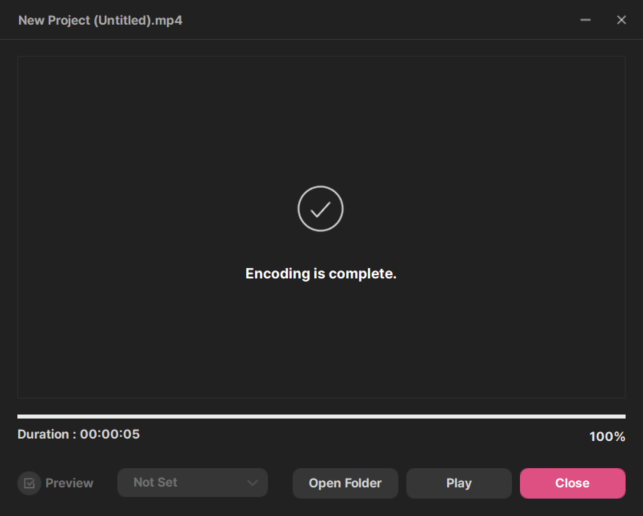
| Preview | Encode the video to be exported while watching the screen. |
|---|---|
| Open Folder | Open the folder where the video to be encoded will be saved. |
| Play | Play the encoded video in a default video player. |
| Close | Close the encoding dialog box. |
2. Export Audio
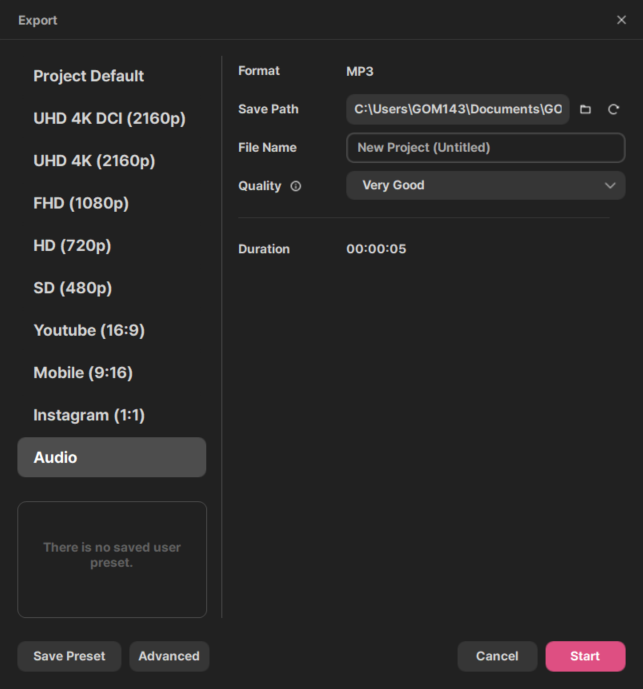
You can make edited videos or audio clips as Audio files. When exporting, click [Audio] from the preset menu. The format of the [Audio] preset is set to MP3. Audio quality can be selected as Very Good [256 kbps], Good [192 kbps], and Fair [128 kbps]. After confirming the settings, click [Start], and it will be exported to an audio file. Detailed settings can be adjusted in [Advanced].
3. Partial Export
1) Export Selected Area
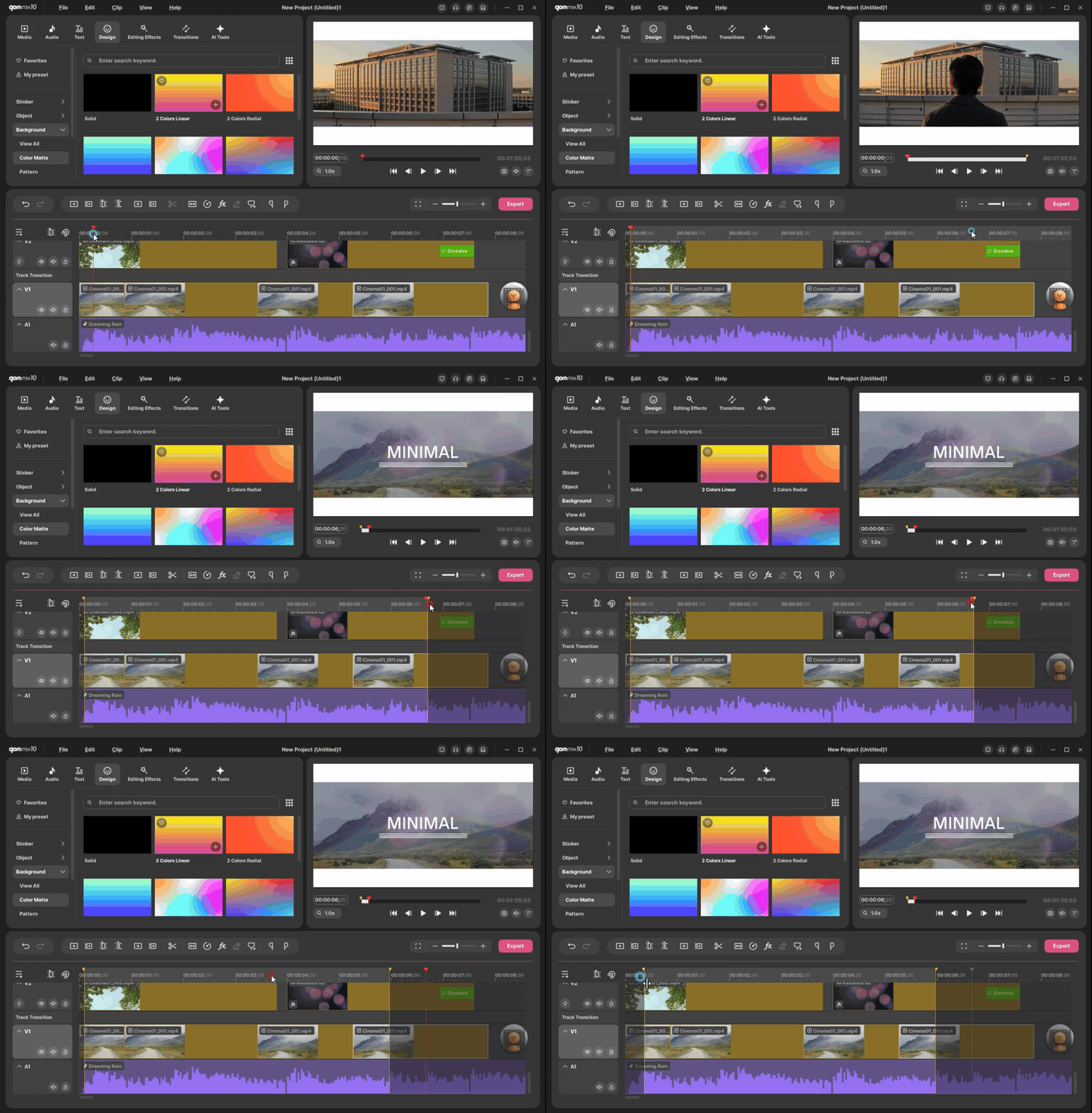
You have an option to restrict and export a specific area on the timeline.
<Select Area>
There are two ways to mark start/end point of the area
Option 1. Click  or
or  on the timeline menu bar.
Option 2. Right-click on the track and choose 'Mark starting point' or “Mark end point.”
 or “Mark starting point” or “Mark starting point” | A starting point bar |
|---|---|
 or “Mark end point” or “Mark end point” | An end point bar  will appear at the position of the playhead on the timeline, and a starting point bar will appear at the beginning of the entire clip. will appear at the position of the playhead on the timeline, and a starting point bar will appear at the beginning of the entire clip. |

<Adjust Selected Area>
There are two ways to adjust selected area.
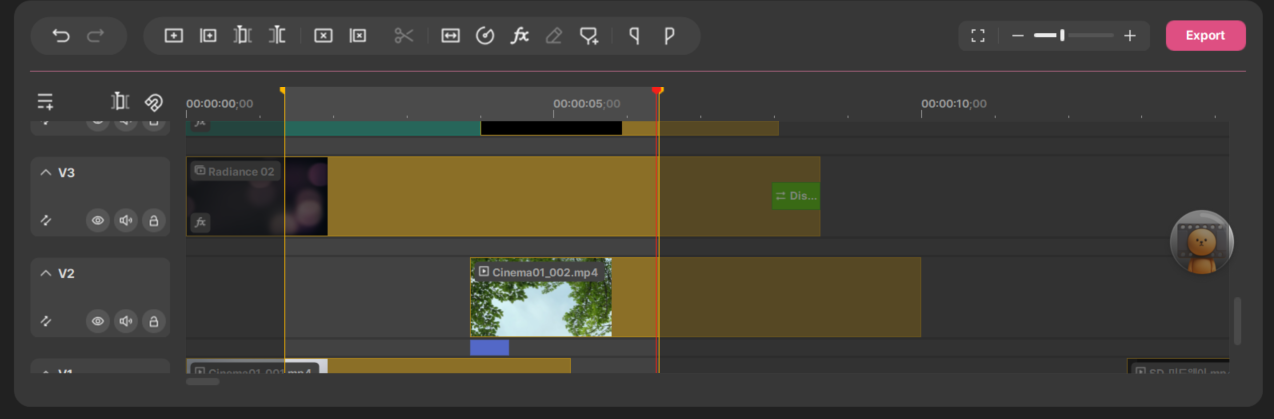
- Option 1. Drag yellow-colored point bar on the timeline.
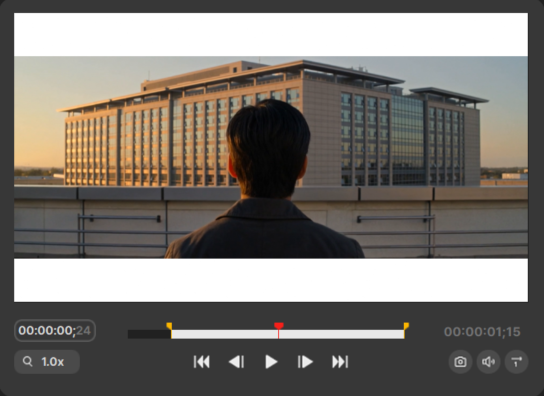
- Option 2. Drag yellow-colored point bar on the preview panel.
When you press the space bar or play button, it plays only the selected area.
<Unmark Selected Area>
There are two ways to unmark selected area
- Option 1. Right-click on the track then choose “Unmark selected spot.”
- Option 2. With the timeline selected, press Esc.
<Export Selected Area>
Exporting the selected area is the same as "Exporting a video." Once the area has been selected on the timeline, click "Export" on the menu bar above the timeline to export.
2) Export Selected Clips
You can export only a specified clip on the timeline.
<Export Selected Clips>
There are two ways to export selected clips.
- Option 1. Right-click the clip then choose [Export Selected Clips].
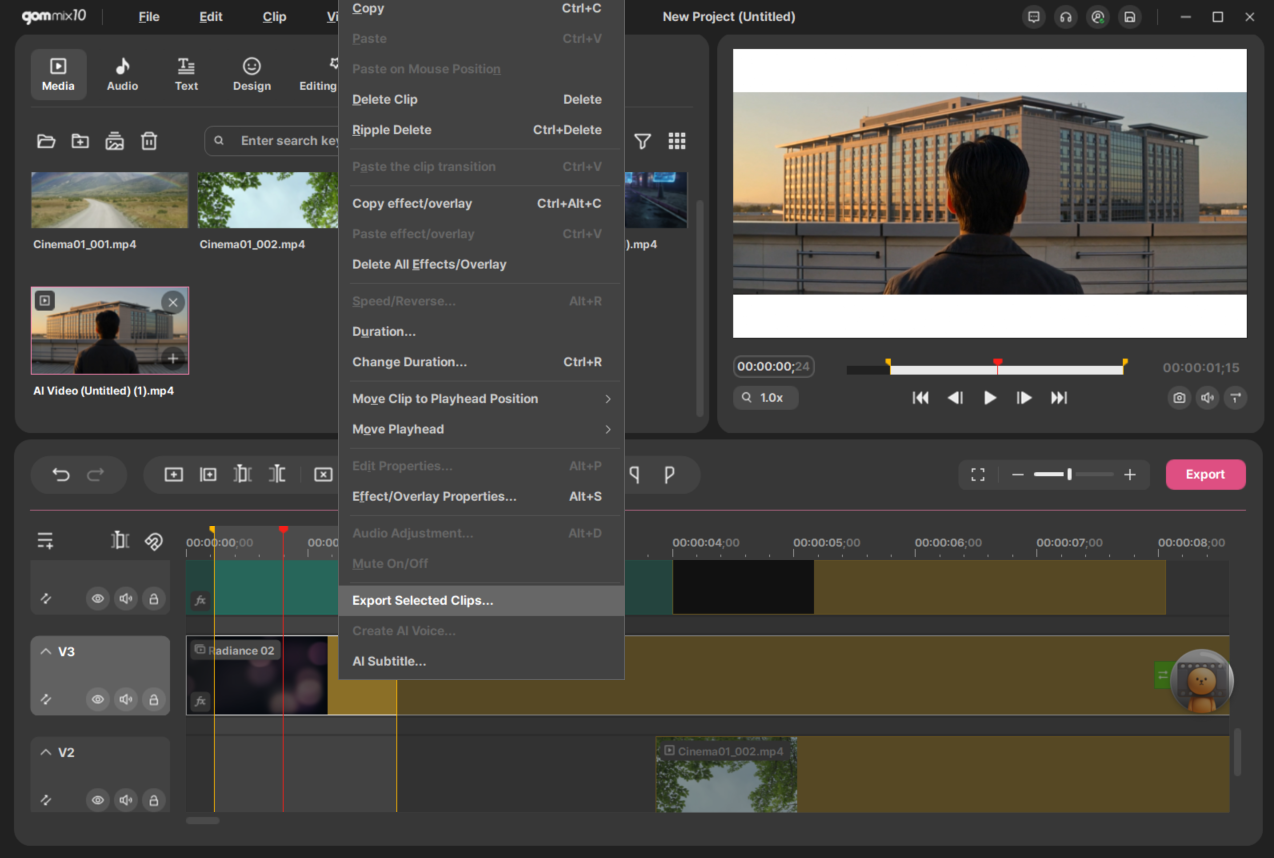
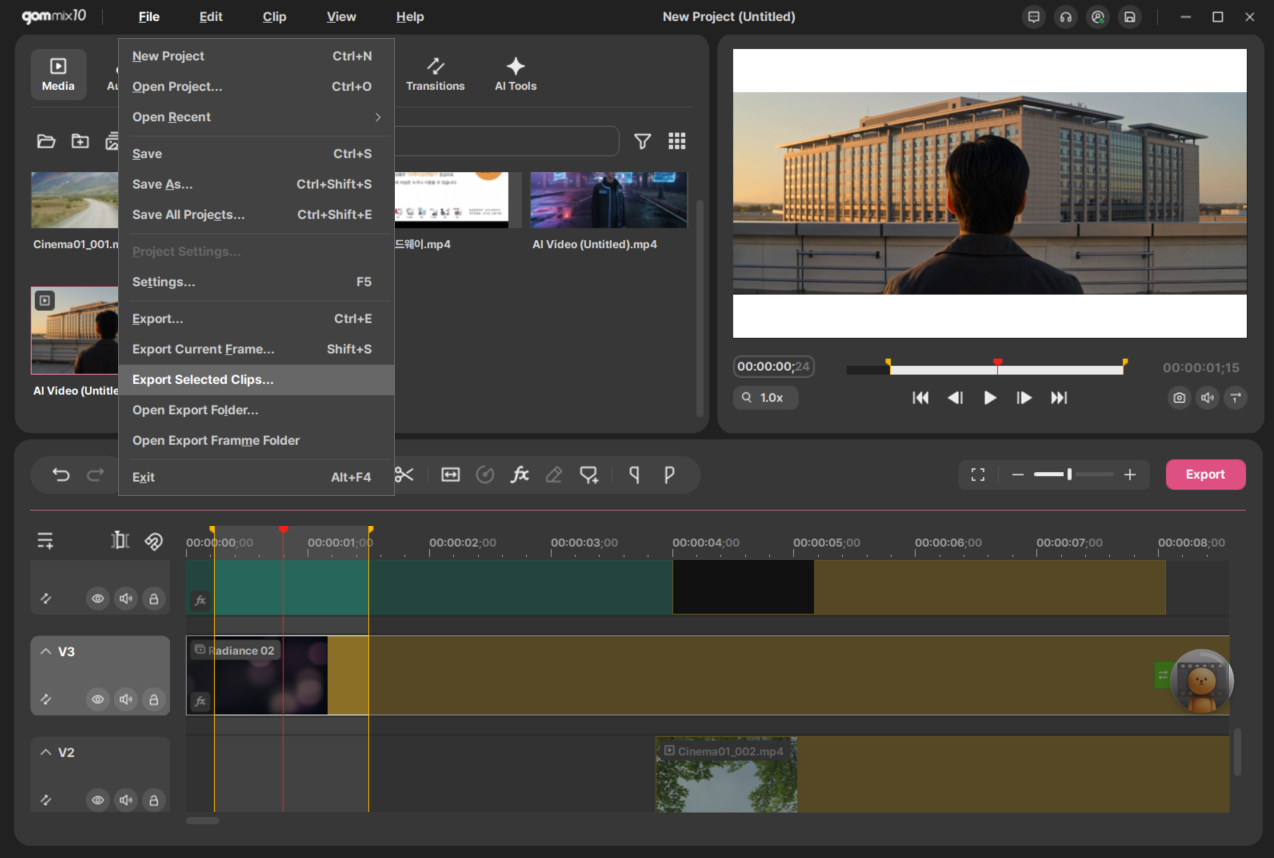
- Option 2. With the clips selected, click [File] > [Export Selected Clips].