 GOM Mix 10
Latest News
User Guide
Home
Template Storyboard Editing Mode
1. Getting Started with Storyboard Editing
Selecting Storyboard Editing Mode after choosing a template opens the corresponding workspace. If media or text exists within the selected template, a Storyboard Editing Mode pop-up window appears, allowing you to easily and quickly replace them.
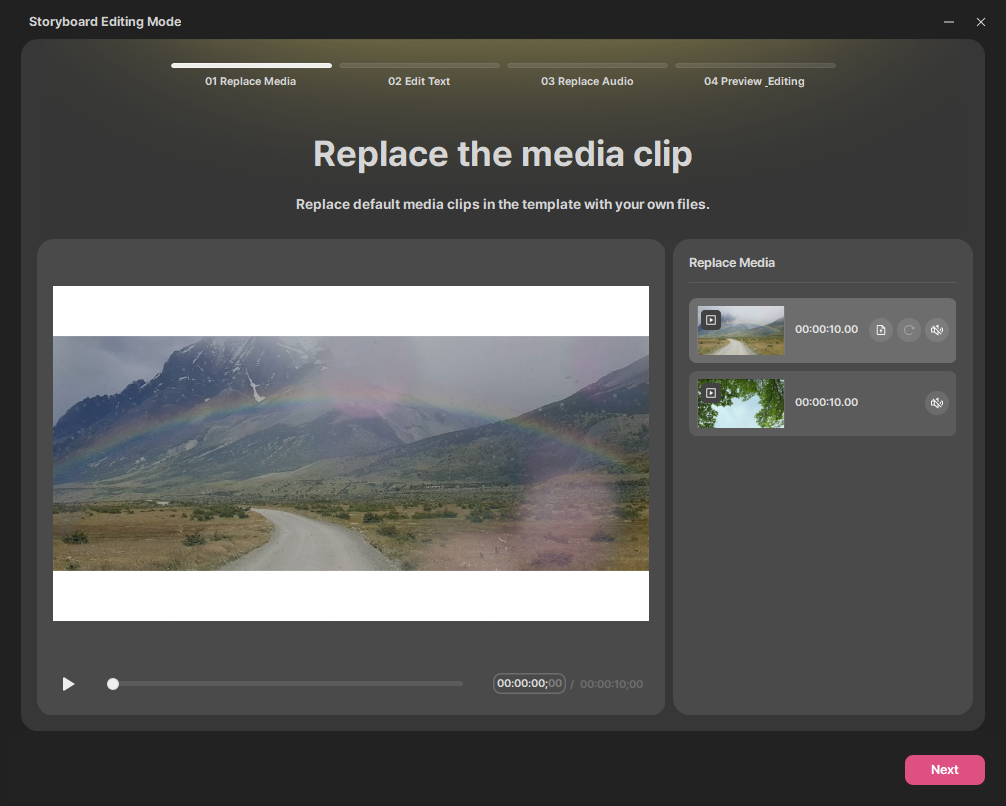
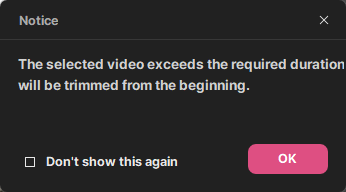
Hovering over the media you wish to replace and clicking the Replace Clip icon  allows you to load your file from File Explorer. If the selected video's duration is shorter than the sample video, it cannot be loaded; if it is longer than the sample, it will be trimmed from the beginning.
Clicking the Reset button  restores the file to its state before media replacement.
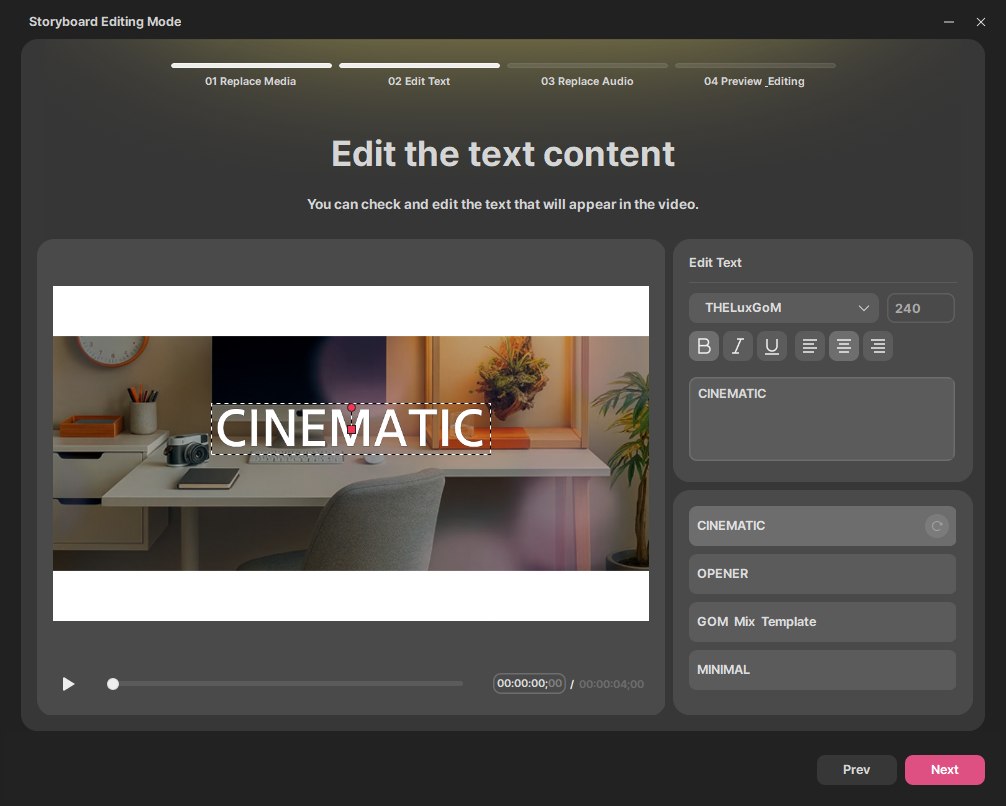
Clicking the [Next] button navigates to the Text Editing screen. You can modify the font, content, and other properties of text within the preview area for the selected clip. You can move the position of the text box via the settings window or by dragging with the mouse.
Clicking the [Next] button navigates to the Audio Replacement screen.
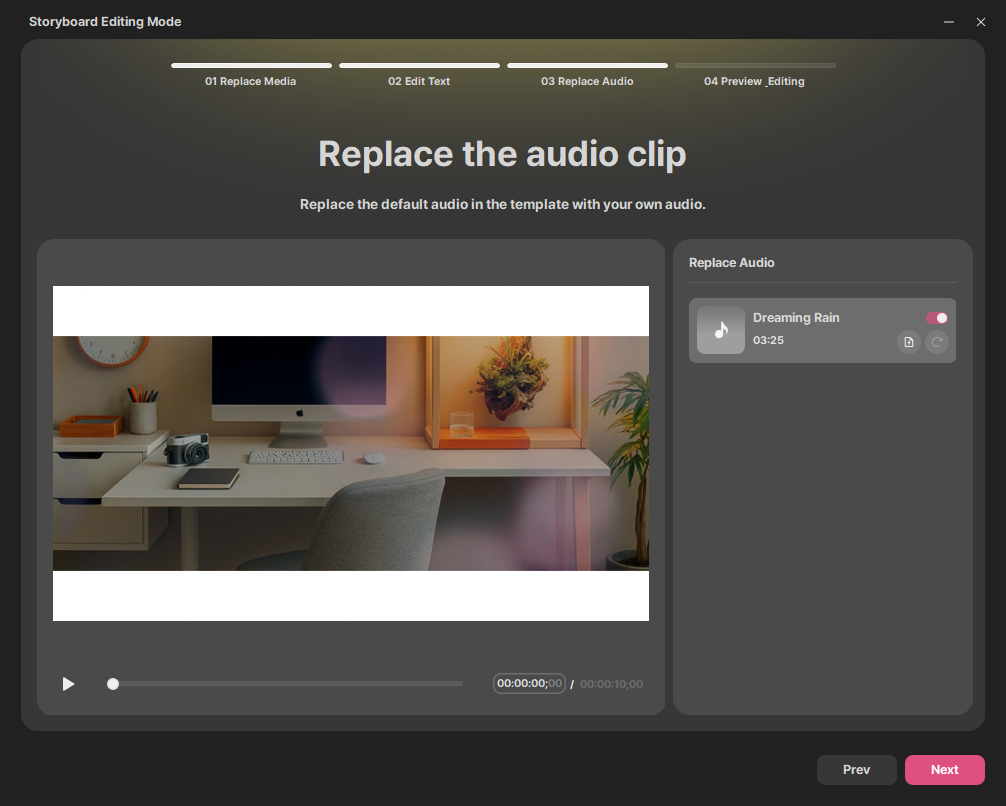
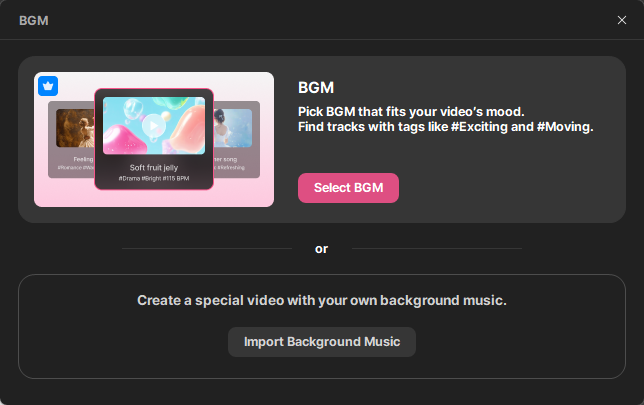
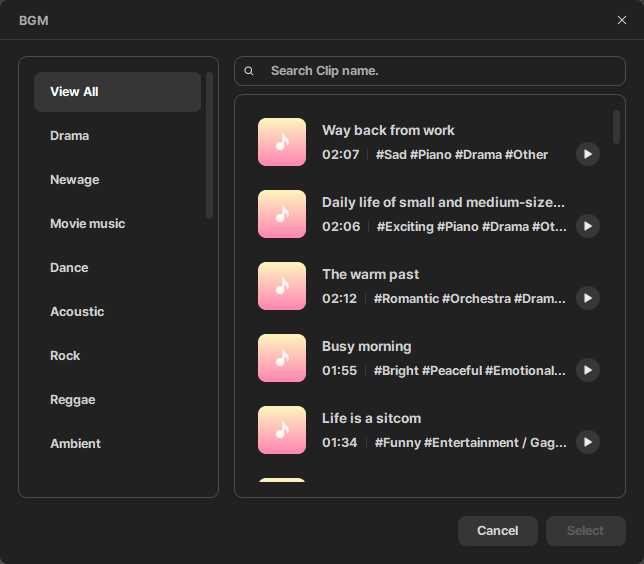
You can click the [Import Background Music] button to load audio files from File Explorer, or click the [Select BGM] button to choose from background music provided in GOM Mix's BGM categories. Note that BGM is available after purchasing a paid license.
Clicking the [Next] button navigates to the Preview & Detailed Editing screen. You can play and review the completed video. Buttons at the bottom allow you to navigate back to the Media Replacement, Text Editing, and Audio Replacement pages. After completing edits, clicking the [Done] button returns you to the Preview & Detailed Editing screen.
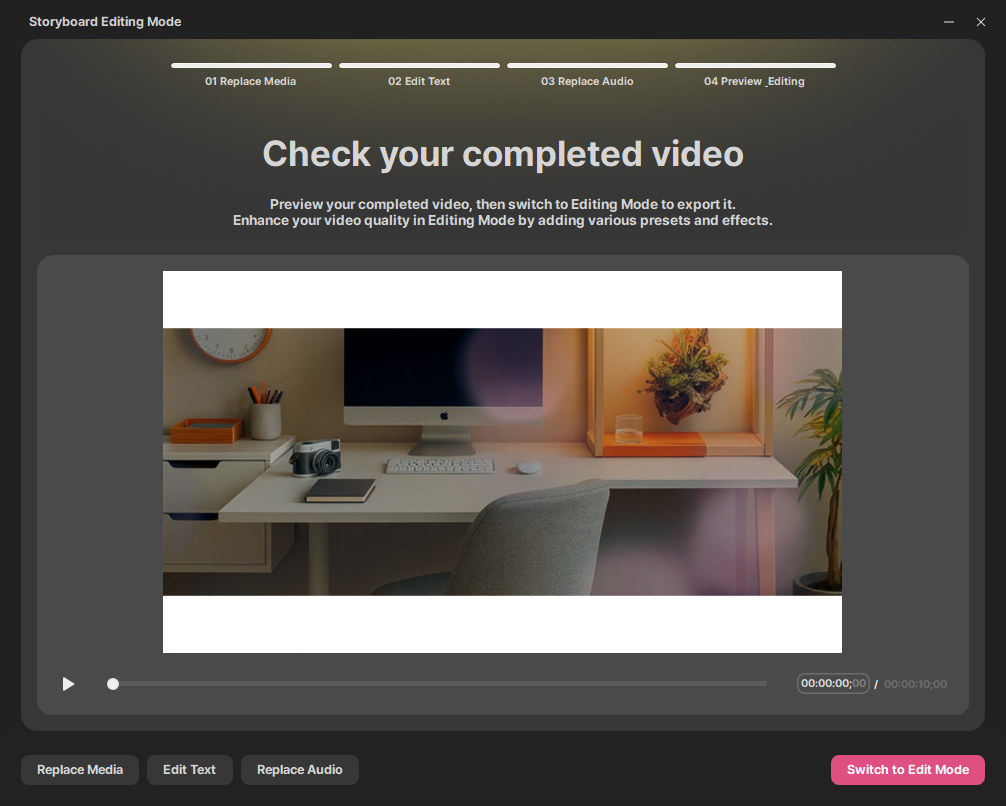
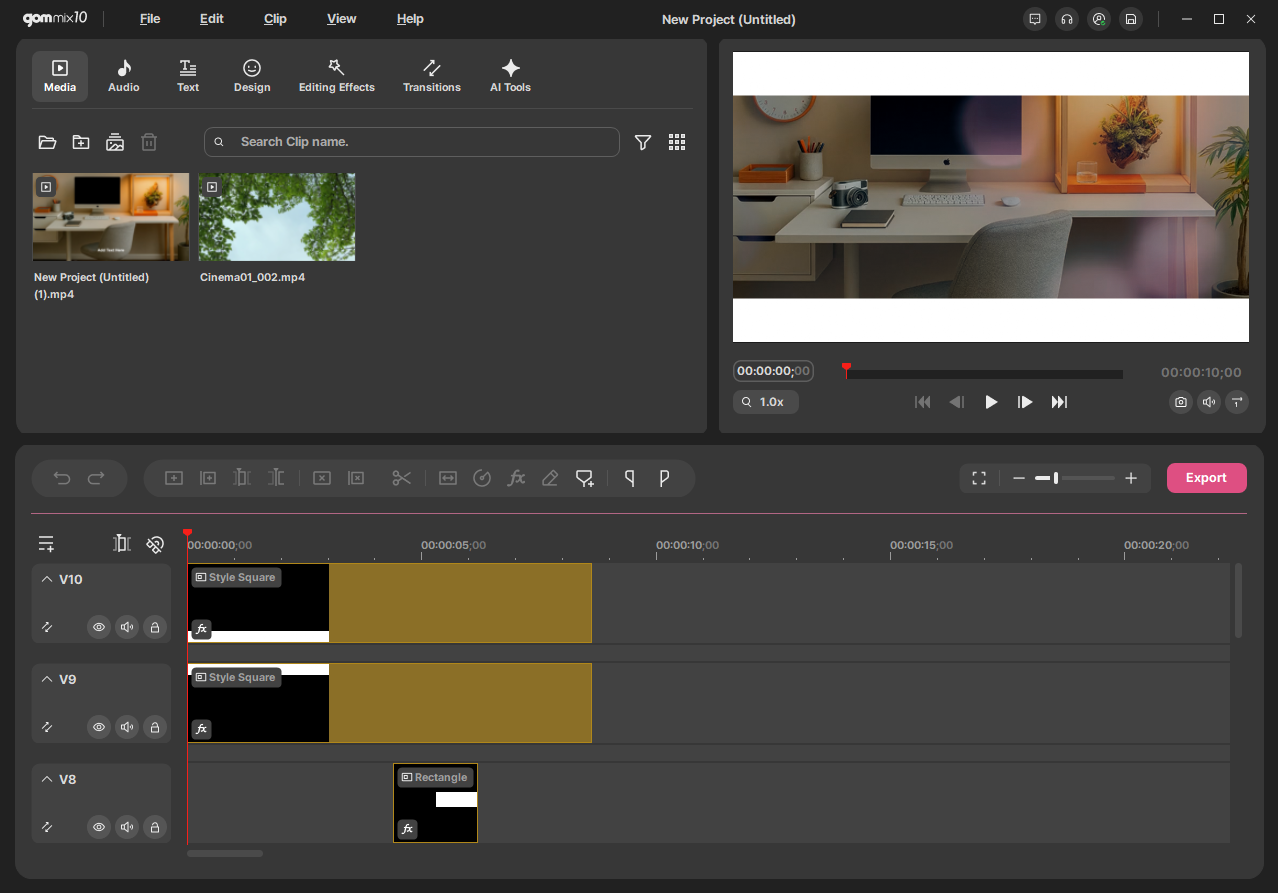
Once the video is completed, click the [Switch Edit Mode] button to switch to Advanced Editing Mode. If more detailed editing is needed, you can utilize various features in Advanced Editing Mode to refine your edit.