
 GOM Mix 10
Latest News
User Guide
Home
Slideshow Video Editing
Create a commemorative video showcasing photos and videos that record precious moments. You can produce emotional videos with background music.
1. Getting Started with Slideshow Video Editing
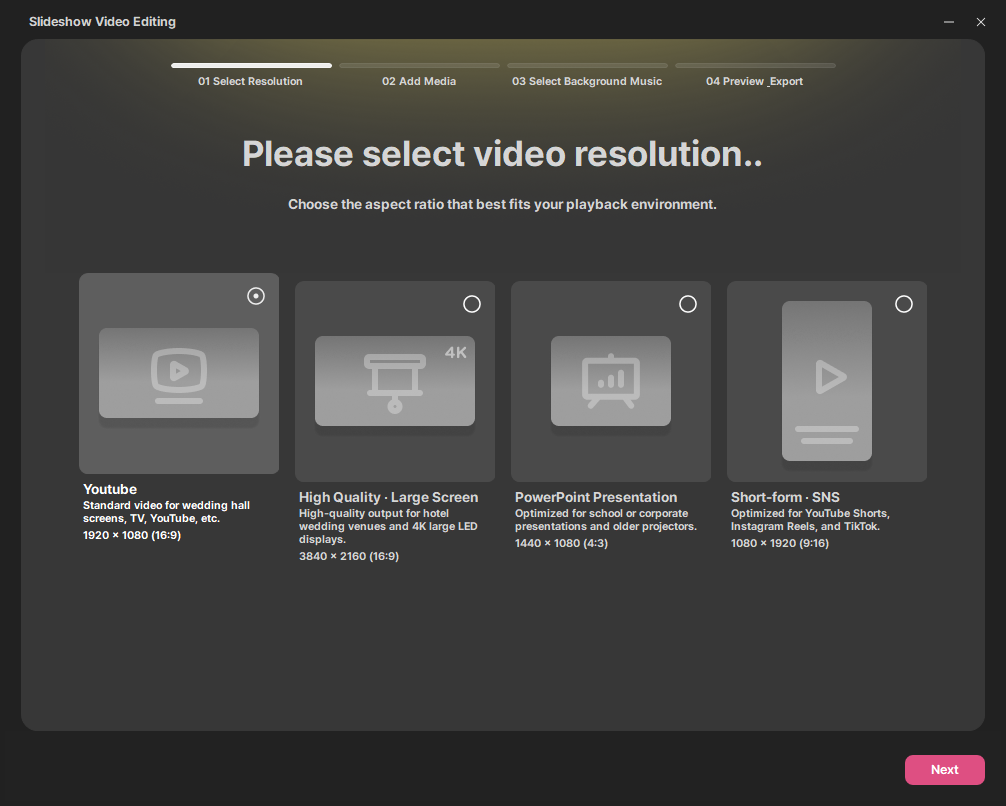
1) Selecting Resolution
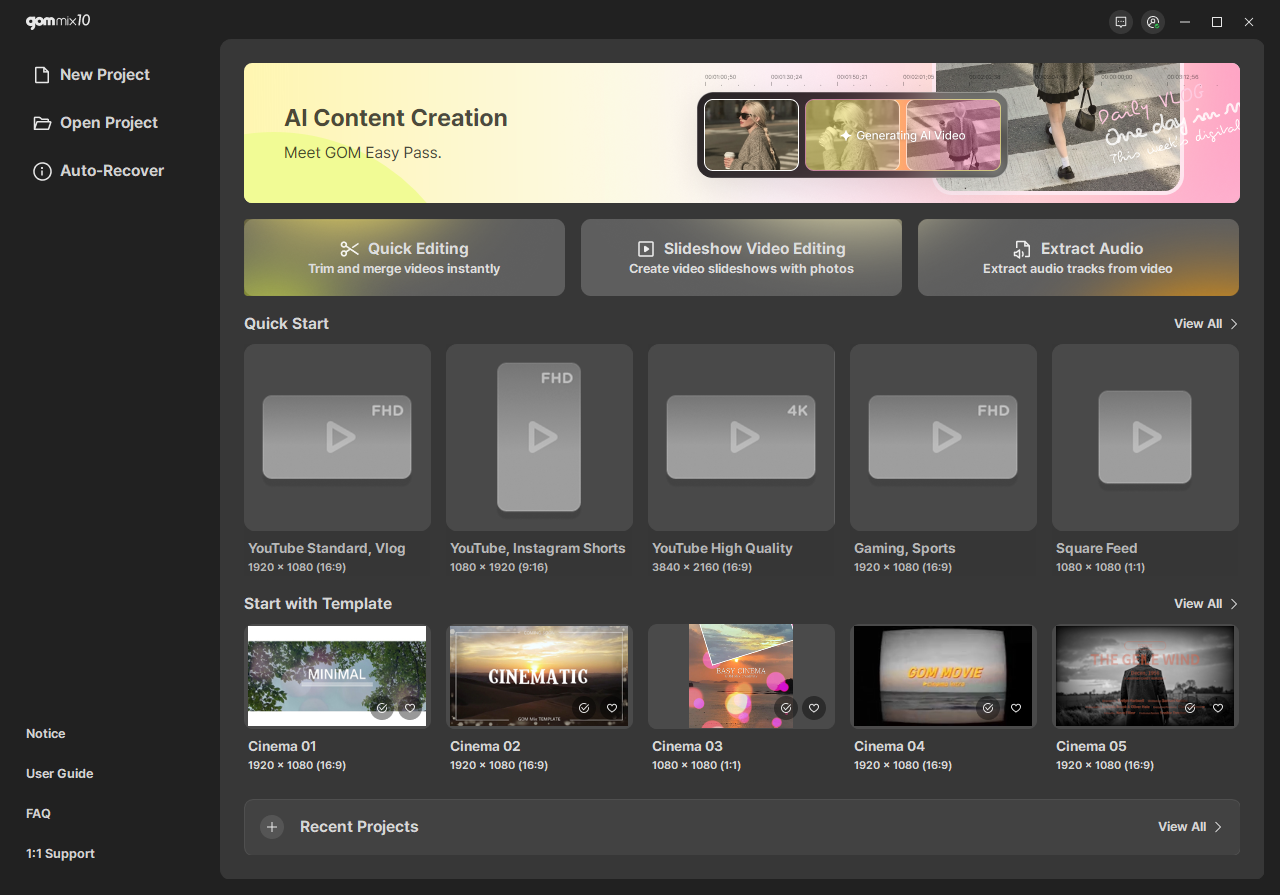
Clicking the [Slideshow Video Editing] button displays the window for slideshow video editing. First, the resolution selection screen appears so you can choose the aspect ratio best suited for your video.
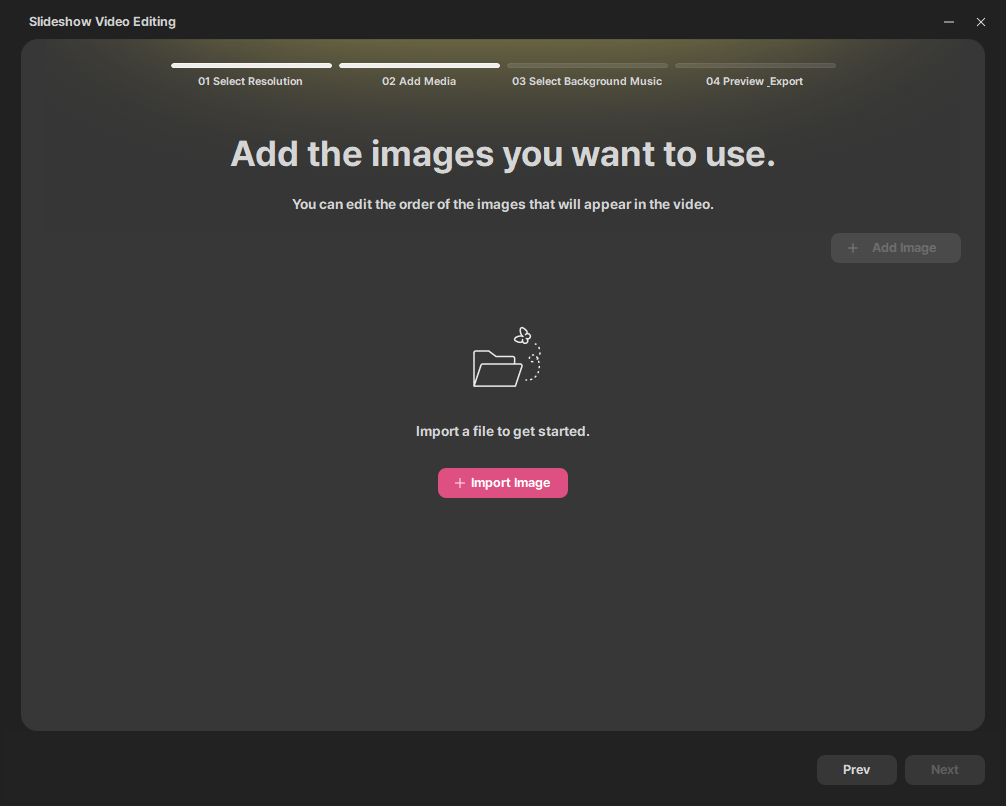
2) Importing Images
After selecting a resolution, click the [Next] button to import images to use in your video. You can click the [+ Import Images] button to load photos. You can import from a minimum of 3 up to a maximum of 100 images, in JPEG, JPG, BMP, and PNG formats only.
When you select an image card after adding images, buttons appear that allow you to change the sorting order of the selected image.
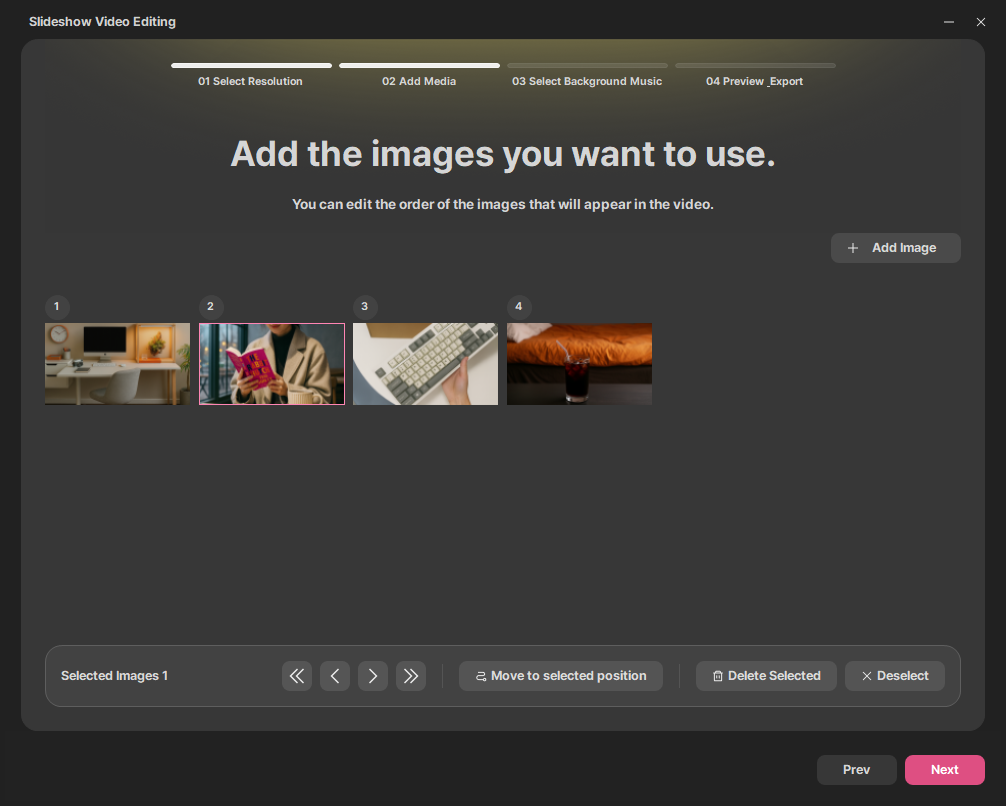
| Changes the order of the selected image to the very front, forward, backward, or very back. |
|---|---|
| Specifies the position of the card to move, moving it in front of or behind the target position card. |
| Adds more images in addition to the imported ones. |


 button to cancel the move and exit the function.
3) Selecting Background Music
Next, you can select background music.
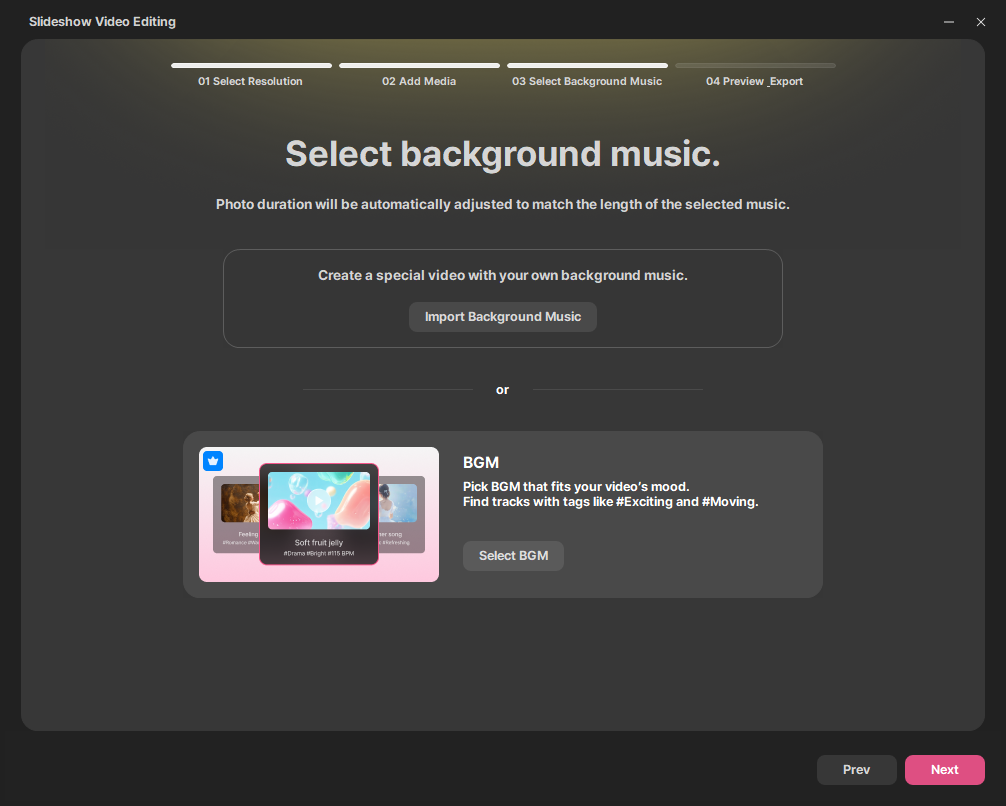
Clicking the [Import Background Music] button allows you to choose a single audio file from your device. Photo exposure duration is automatically adjusted to match the length of the selected background music. However, audio files shorter than 10 seconds cannot be imported.
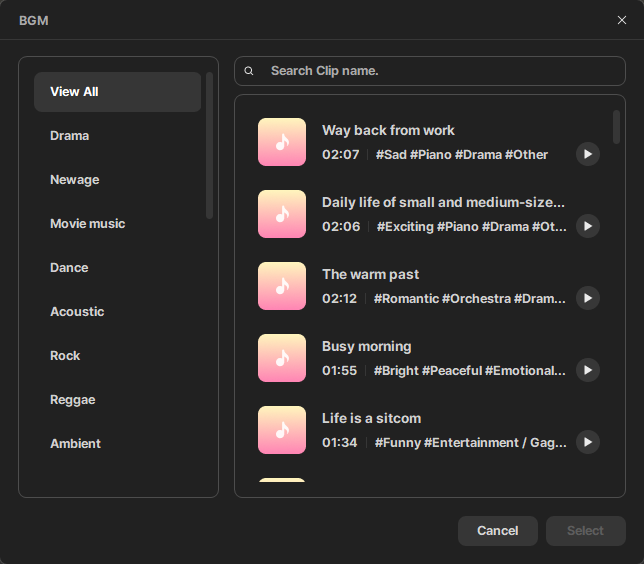
Alternatively, you can click the [Select BGM] button to choose from background music provided in GOM Mix's BGM categories. Note that BGM is available after purchasing a paid license.
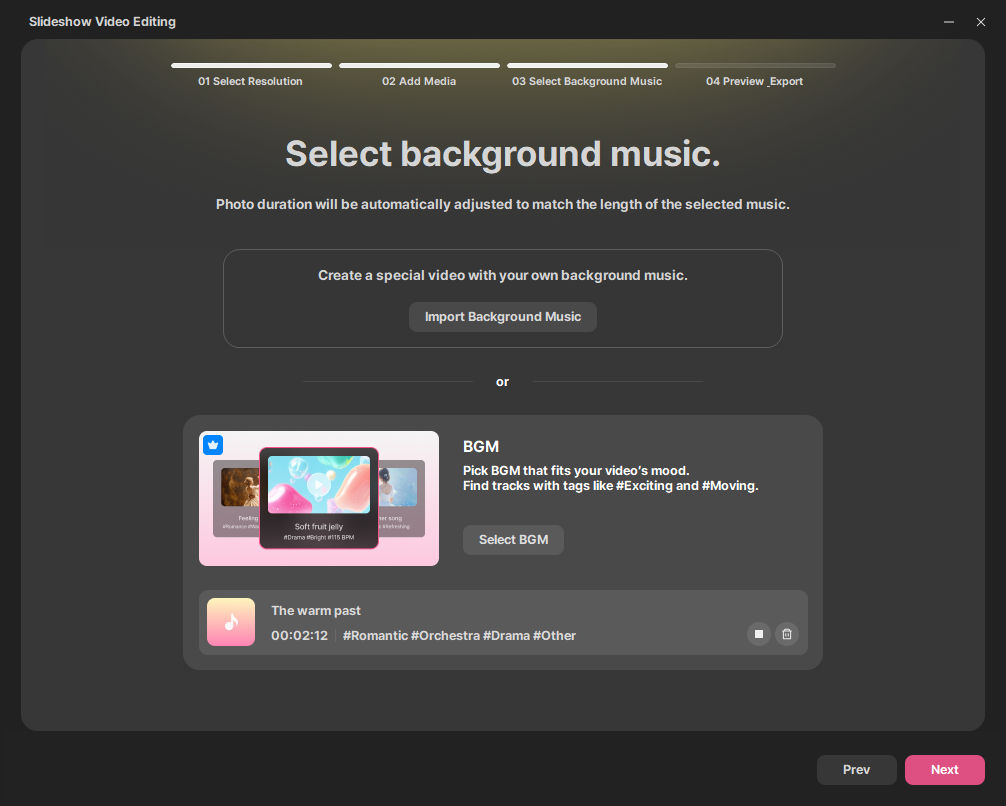
When music is selected, the file name and duration of the selected audio track are displayed. Clicking the  button plays the selected music, and clicking the
  button once more pauses it. Clicking the
  button deselects the music.
4) Preview & Export
Finally, this is the stage where you can preview and export the video created through slideshow video editing. Click the [Play/Pause] button to play/pause the video, or move the playhead to view your desired scene.
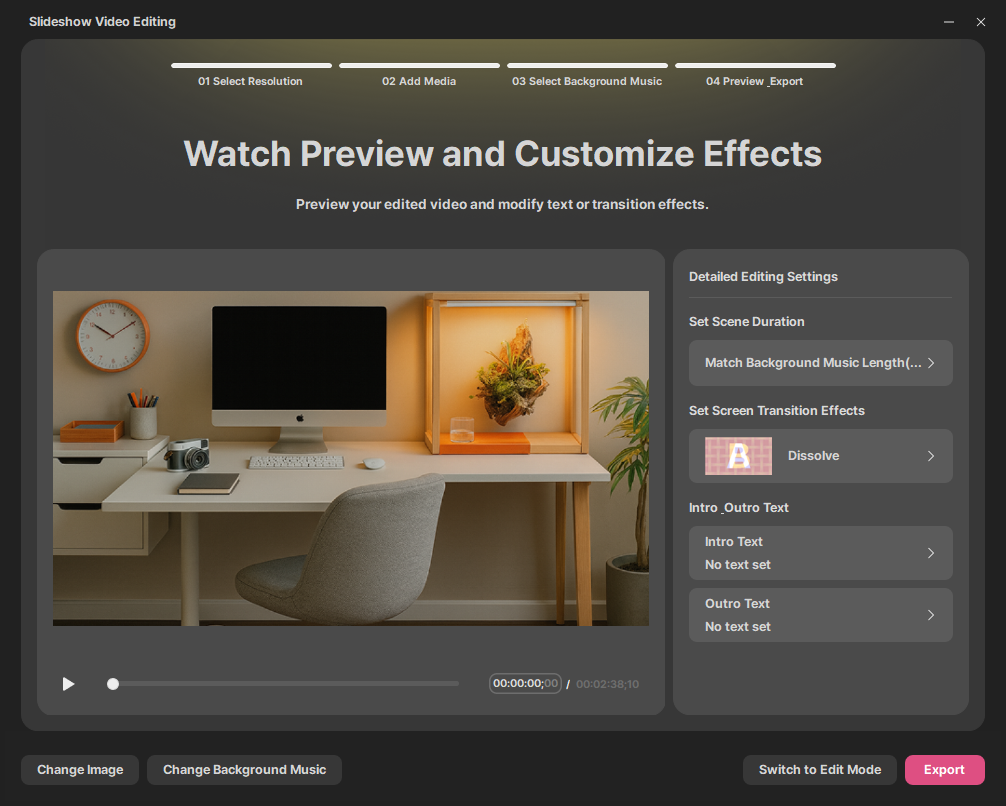
In the detailed editing settings section on the right, you can specify how long each photo will be displayed using the [Set Scene Duration] button. The image exposure duration is applied batch-wise according to the selected option.
You can batch change transition effects between images using the [Set Transition Effect] button. Transition duration is automatically applied based on the scene duration. Try configuring effects that suit the mood.
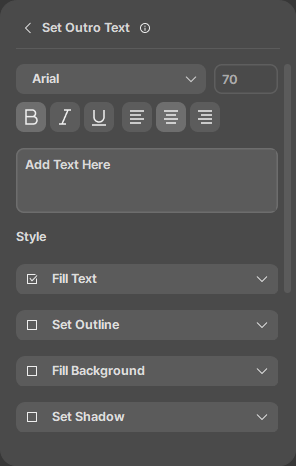
You can also click the [Opening & Ending Text] button to set text that will appear at the beginning/end of the video. Note that the text display duration is fixed at 4 seconds. After specifying text content, font, style, and entrance effect, you can adjust the text position to preview it.
Clicking the [Change Image] button at the bottom navigates to the 'Import Images' page. Clicking the [Change Music] button navigates to the 'Select Background Music' page. Completing edits on either page returns you to the 'Preview & Export' page.


When detailed editing is required, click the [Switch to Edit Mode] button to switch to Advanced Editing Mode. The contents of Slideshow Video Editing are maintained, and switching edit modes allows you to add various presets and effects to enhance the quality of your video.
Creates a video file from clips edited on the timeline through exporting. Clicking the [Export] button at the bottom opens the Export settings window.
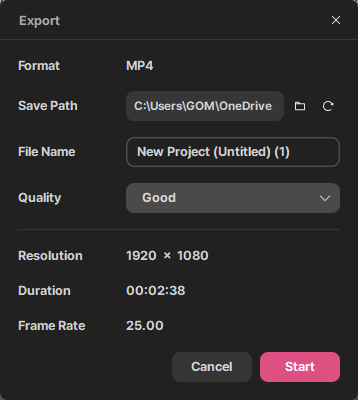
In the settings window, you can check the format, resolution, duration, and frame rate. Save Folder indicates the folder location where the encoded video will be saved. The default folder retrieves the path configured in Preferences. Clicking  in the indicated area opens a File Explorer window to specify a save location, while clicking
  resets the video save location to the default path configured in Preferences.
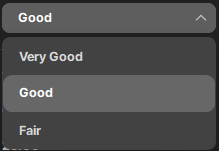
Controlling quality means controlling the bitrate capacity configured for the screen. Generally, higher bitrates yield better quality, but consume more memory and storage space during encoding/decoding. Quality consists of three options: High, Good, and Standard.
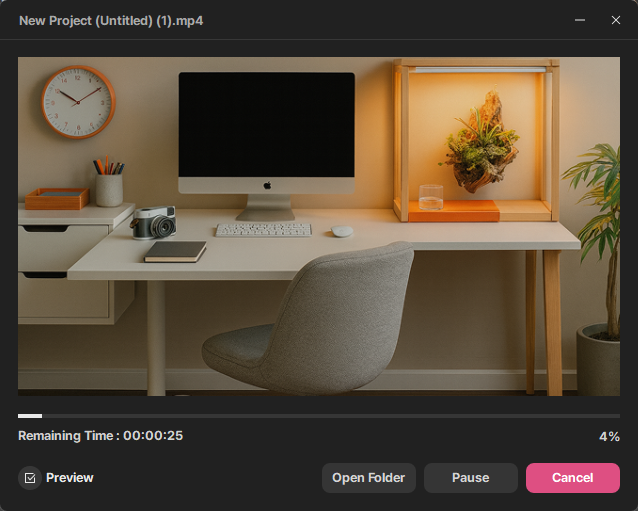
When exporting is complete, the 'Play' button appears.
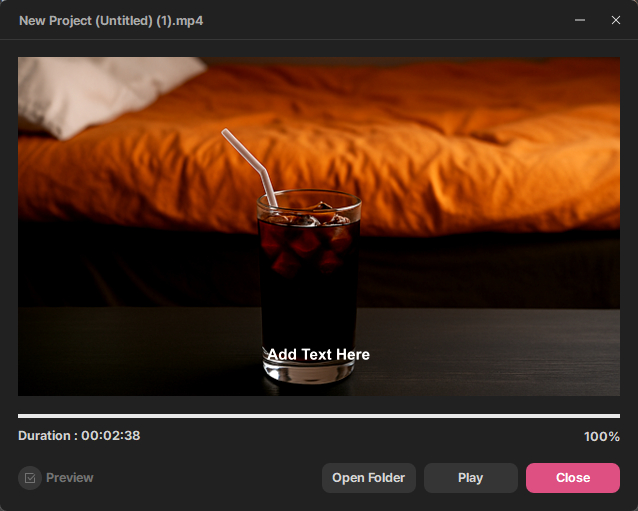
| Preview | Displays and encodes the exporting video on the screen. |
|---|---|
| Cancel | Cancels export and returns to the edit screen. |
| Pause | Pauses the export. Clicking [Export] once more resumes the export process. |
| Close | Closes the encoding dialog box. |
| Play | Plays the encoded video using the default video player. |
| Open Folder | Opens the folder where the encoded video is saved. |