
 GOM Mix 10
 AI Features
Check the Generative AI features available in GOM Mix 10.


AI Voice
Turn text into voice, easily create AI Voice.
Simply enter text to create natural-sounding AI voices in a variety of languages.
Use AI Voice like this!
Easily create the right voice for your video in a variety of voices and languages.
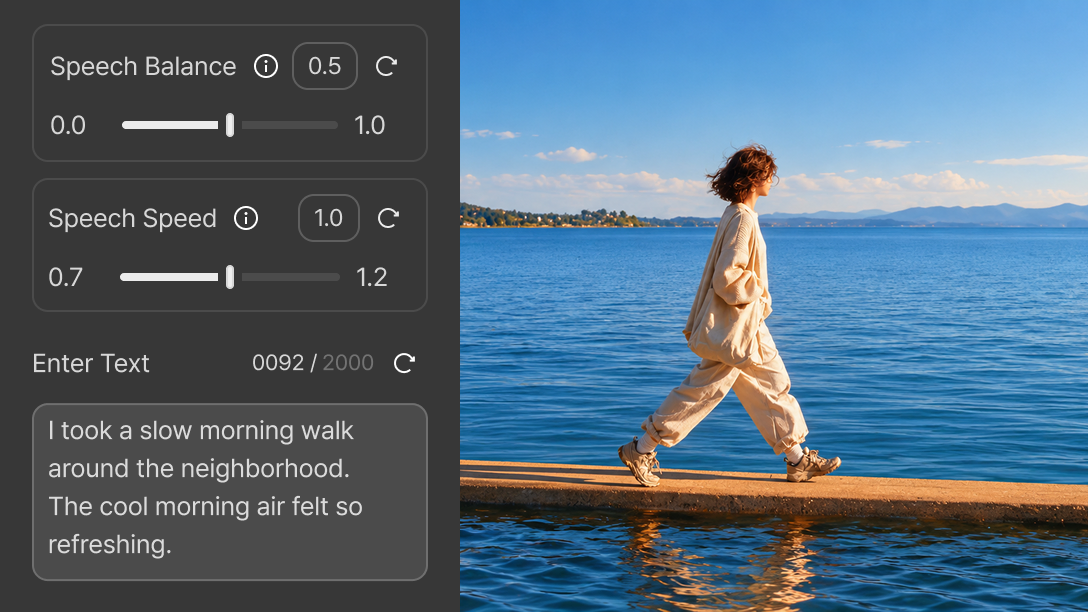
When you want to create voiceovers easily without recording or special equipment
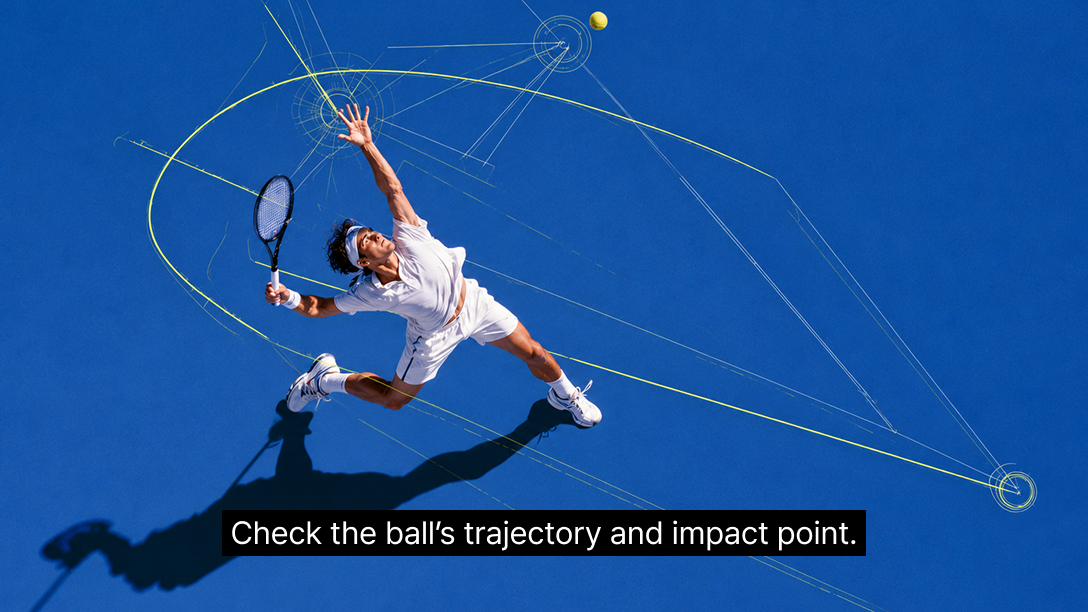
When you want to easily deliver instructions or explanations through voice
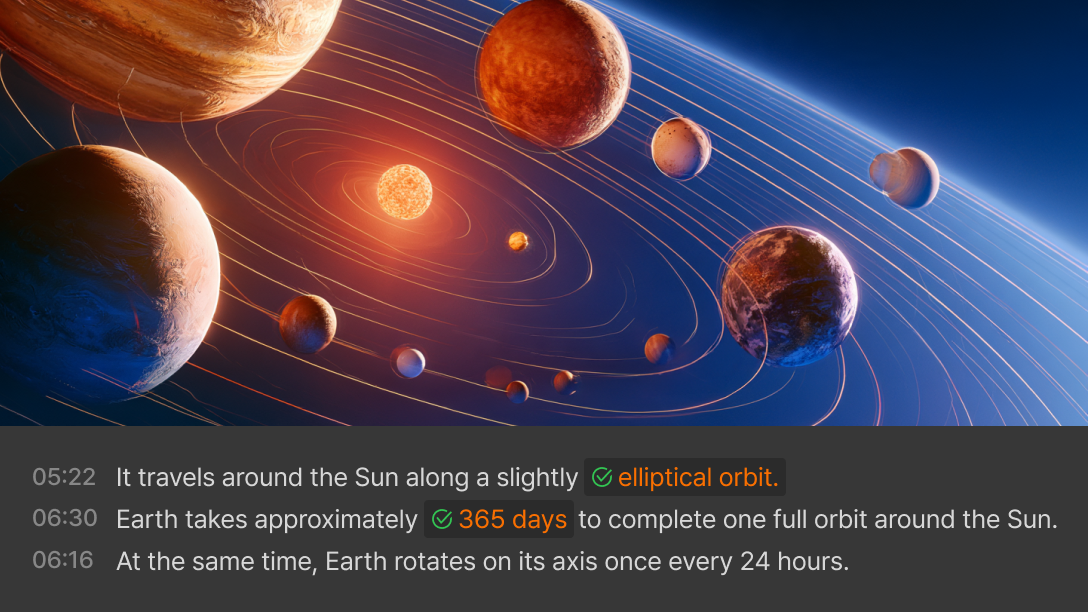
When you want to quickly change the voice in videos that require frequent revisions
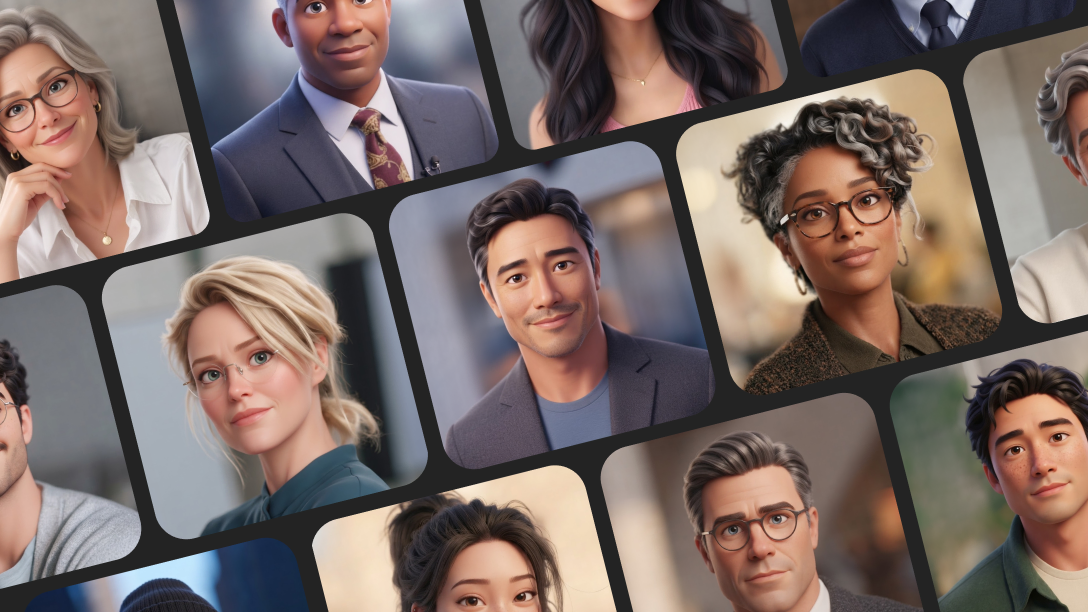
When you want to reach more people with multilingual voiceovers
| Supported characters | 21 types |
|---|---|
| Supported language | 17 Languages Korean, German, Russian, Vietnamese, Spanish, Arabic, English, Italian, Indonesian, Japanese, Chinese, Czech, Thai, Turkish, Portuguese, French, Hindi |
| Speech Stability | 0.0 ~ 1.0 |
| Speech Speed | 0.7 ~ 1.2 |
| Text characters | Minimum : 1 characters Maximum : 600 characters |
How to use AI Voice
In the GOM Mix 10 editing screen, click [AI Tools > AI Voice],
then select the character whose voice you want to create.

Select a language for the voice, enter your text, then adjust the speech stability and speed.
* Selecting a different language may have incorrect outcomes.
Click [Create AI Voice] to deduct the required credits and start creating the voice.

AI Subtitles
Turn voice into AI subtitles,
easily add subtitles to your videos.
Automatically generate subtitles by recognizing the audio in your video.
Use AI Subtitles like this!
Automatically generate subtitles by recognizing your video’s audio, and easily use them across a variety of videos.
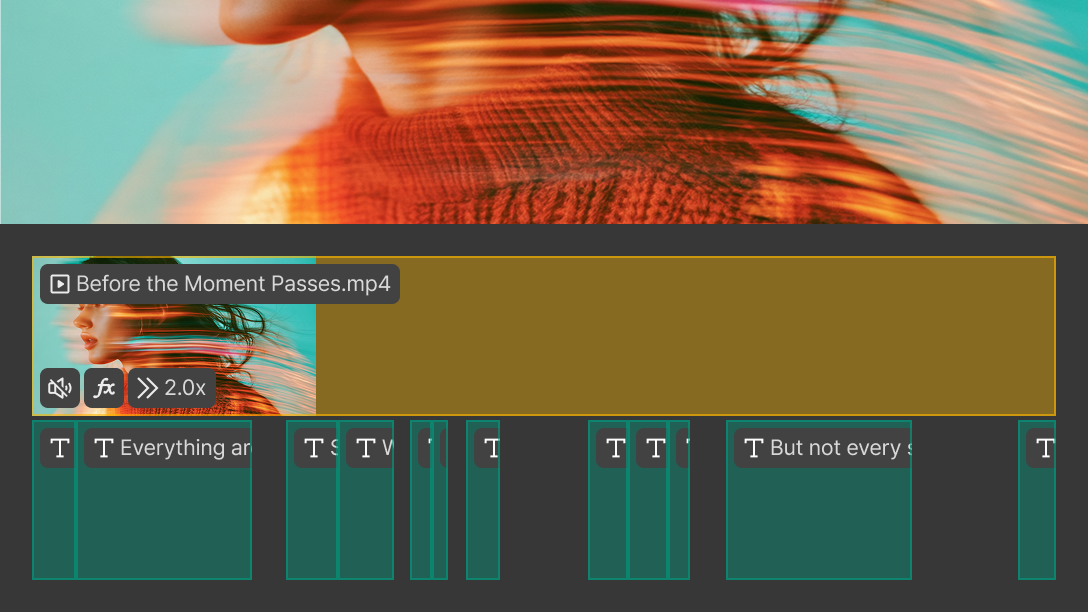
When you want to reduce the editing time spent on subtitles
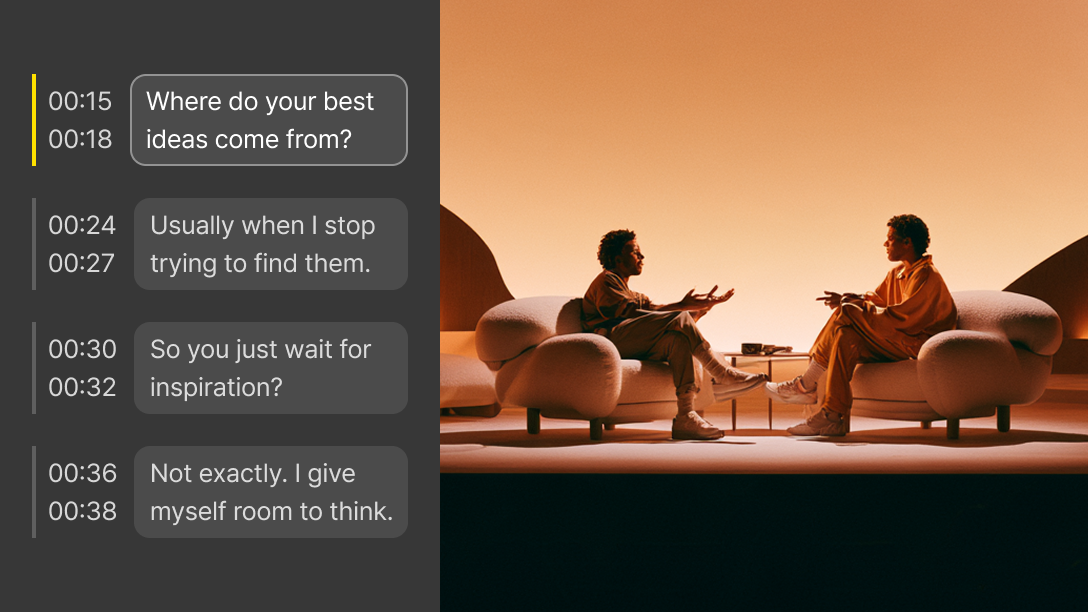
When you want to organize the content of interviews or conversation videos into subtitles
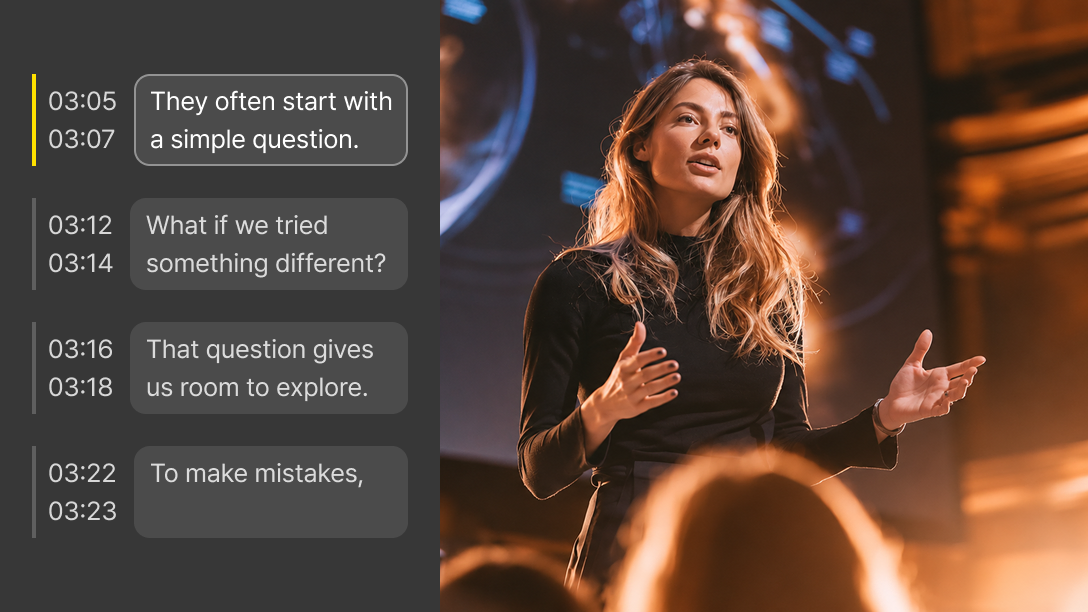
When you want to add subtitles to lectures or tutorial videos
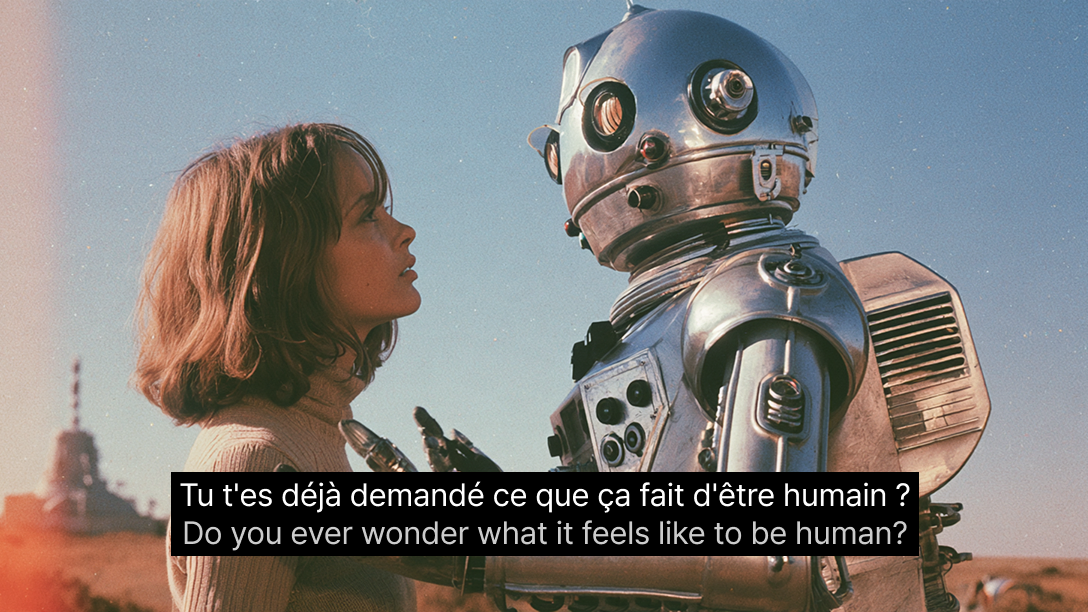
When you want to add subtitles to videos in foreign languages
AI Subtitles,
Easily edit the parts you need.
Before generating text clips, you can freely edit the subtitles to your desired format.
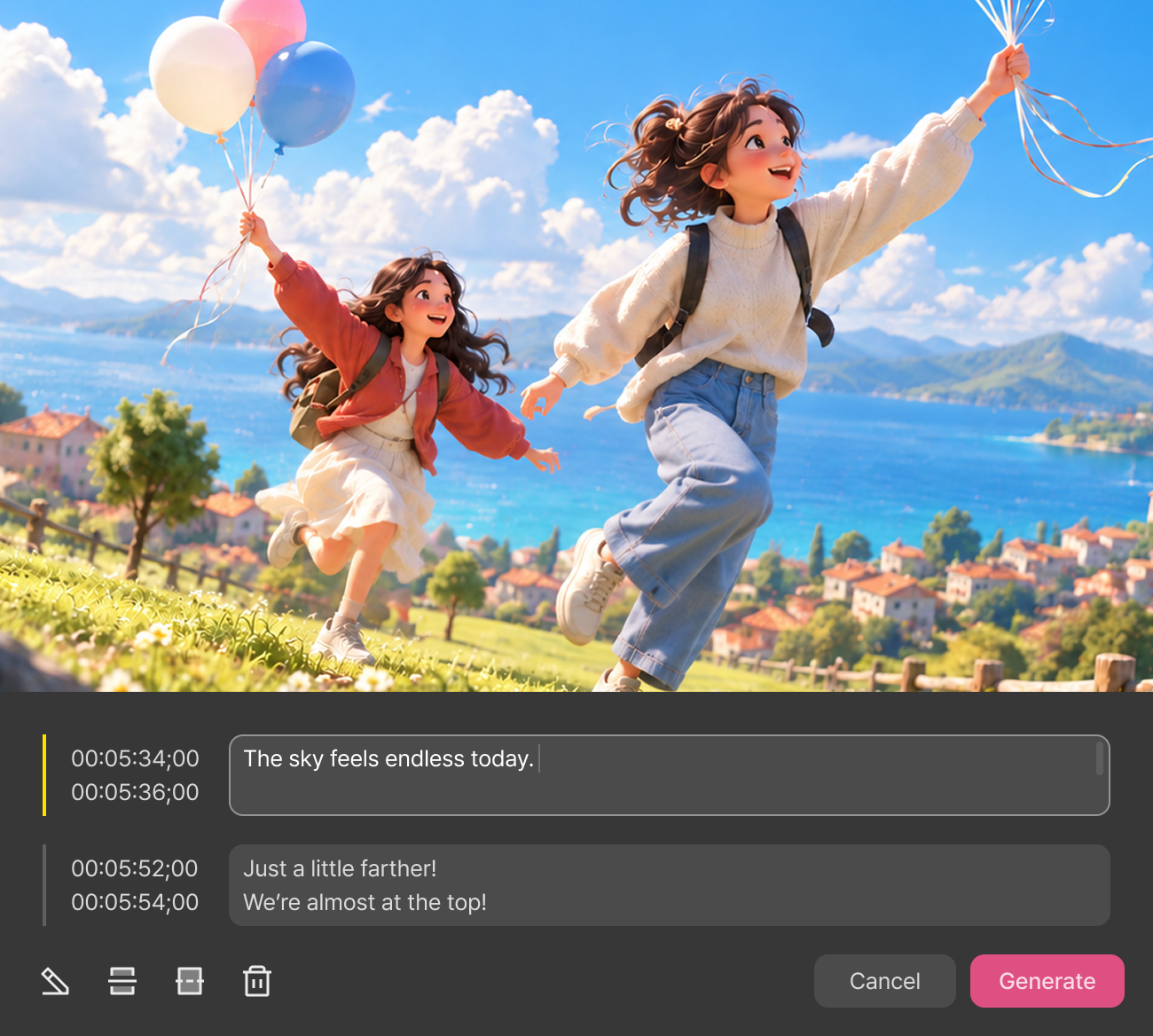
- Line
- Display subtitles in one or two lines.
- Edit
- Quickly edit completed subtitles.
- Split
- Split a subtitle into two clips.
- Merge
- Merge two or more subtitles into one.
- Delete
- Delete subtitles you don't need.
| Supported duration | Maximum : 4 hours |
|---|---|
| Supported file size | Maximum : 2GB |
| Supported language | 18 Languages Korean, Korean+English, English, Japanese, Chinese (Simplified), German, Spanish, French, Italian, Russian, Vietnamese, Dutch, Hindi (India), Thai, Indonesian, Swedish, Persian (Iran), Czech |
| Line | Line 1, Line 2 |
How to use AI Subtitles
In the GOM Mix 10 editing screen, click [AI Tools > AI Subtitles],
then select the clip you want to generate subtitles for.

Select the language of the audio for the subtitles, then choose the Line (subtitle display) setting.
* Selecting a different language may have incorrect outcomes.
Click [Generate AI Subtitles] to deduct the required credits and start generating subtitles.

AI Text to Video
Bring your ideas to life with AI-generated videos.
Create high-quality AI-generated videos with just a text prompt.
Use AI Text to Video like this!
Turn your ideas into videos by simply entering a prompt.
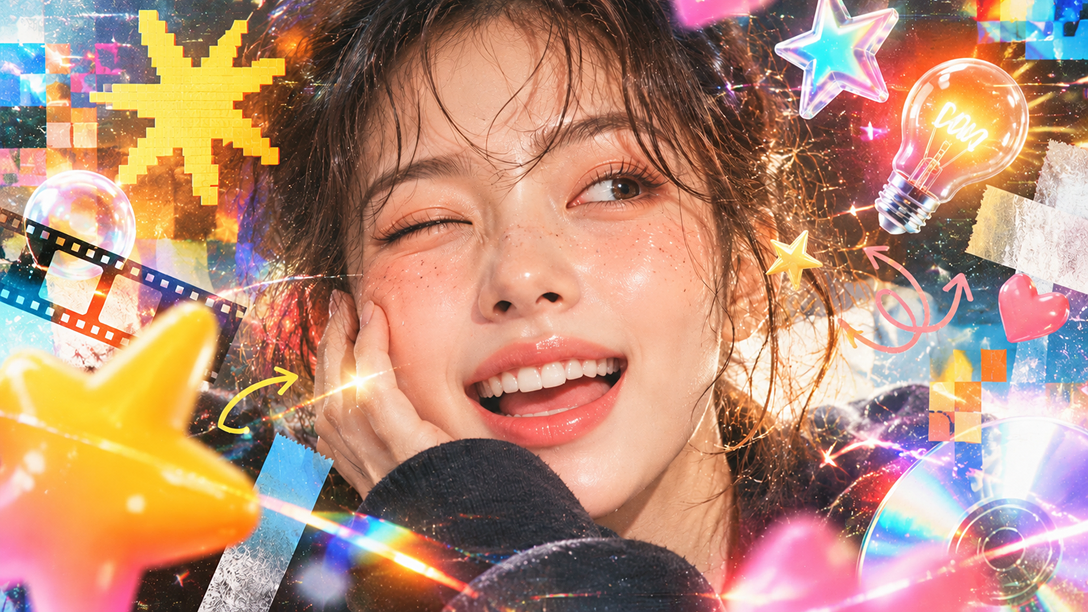
When you want to quickly turn your ideas into videos
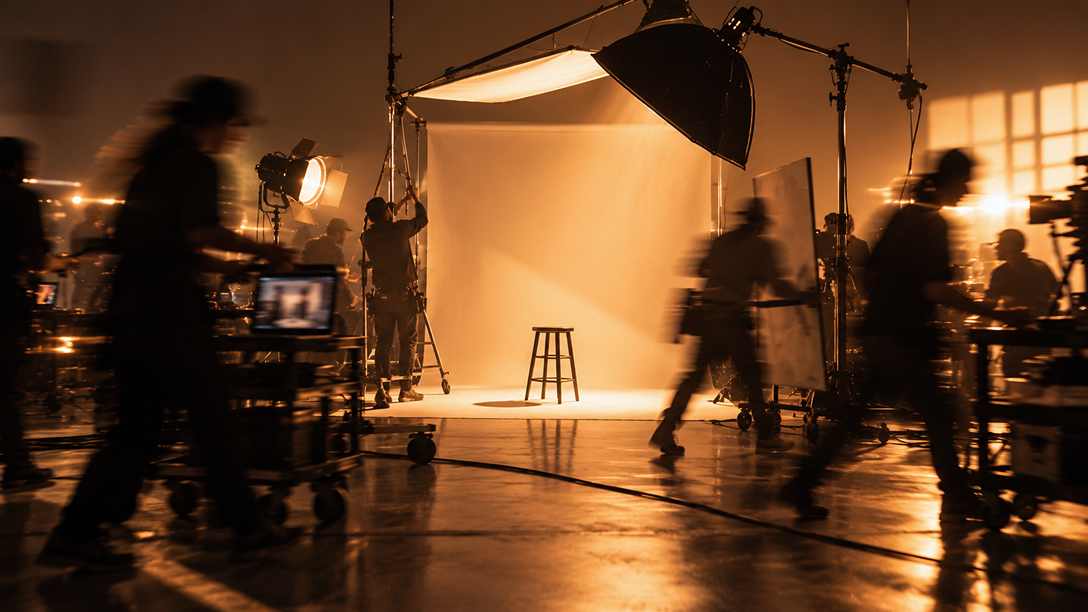
When you want to reduce the hassle of finding video footage or shooting it yourself
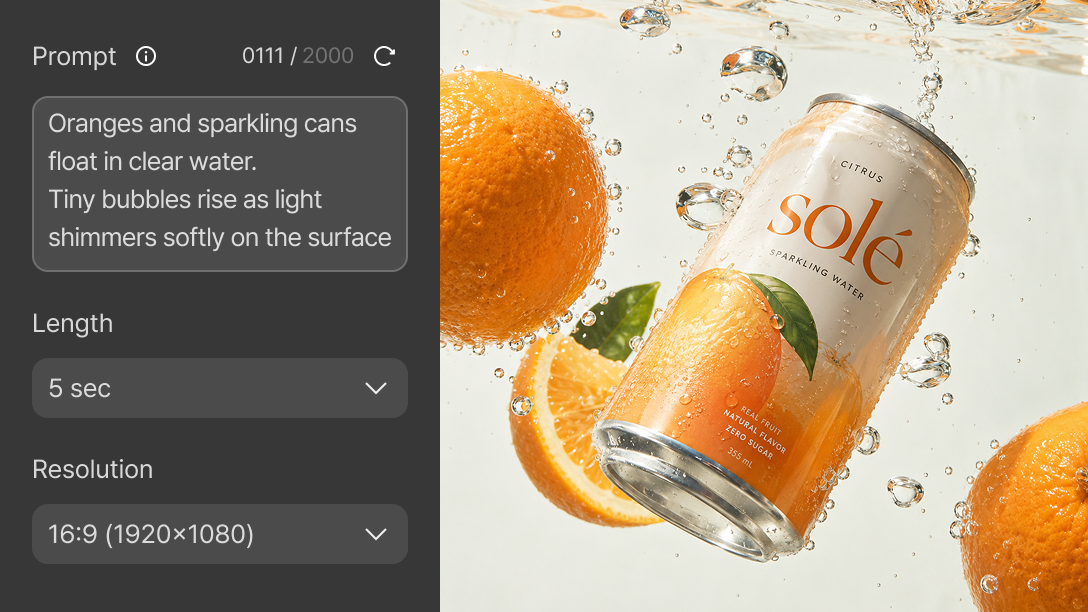
When you want to visualize a product or service concept in a video
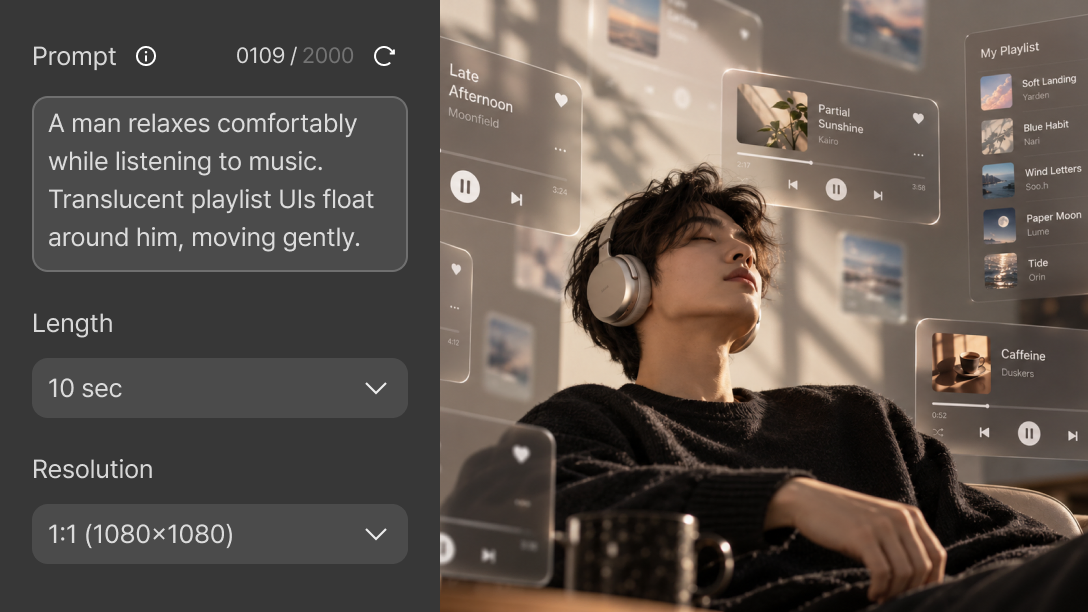
When you want to create short, unique videos for social media
Create the videos you want with AI Text to Video,
faster with a variety of presets.
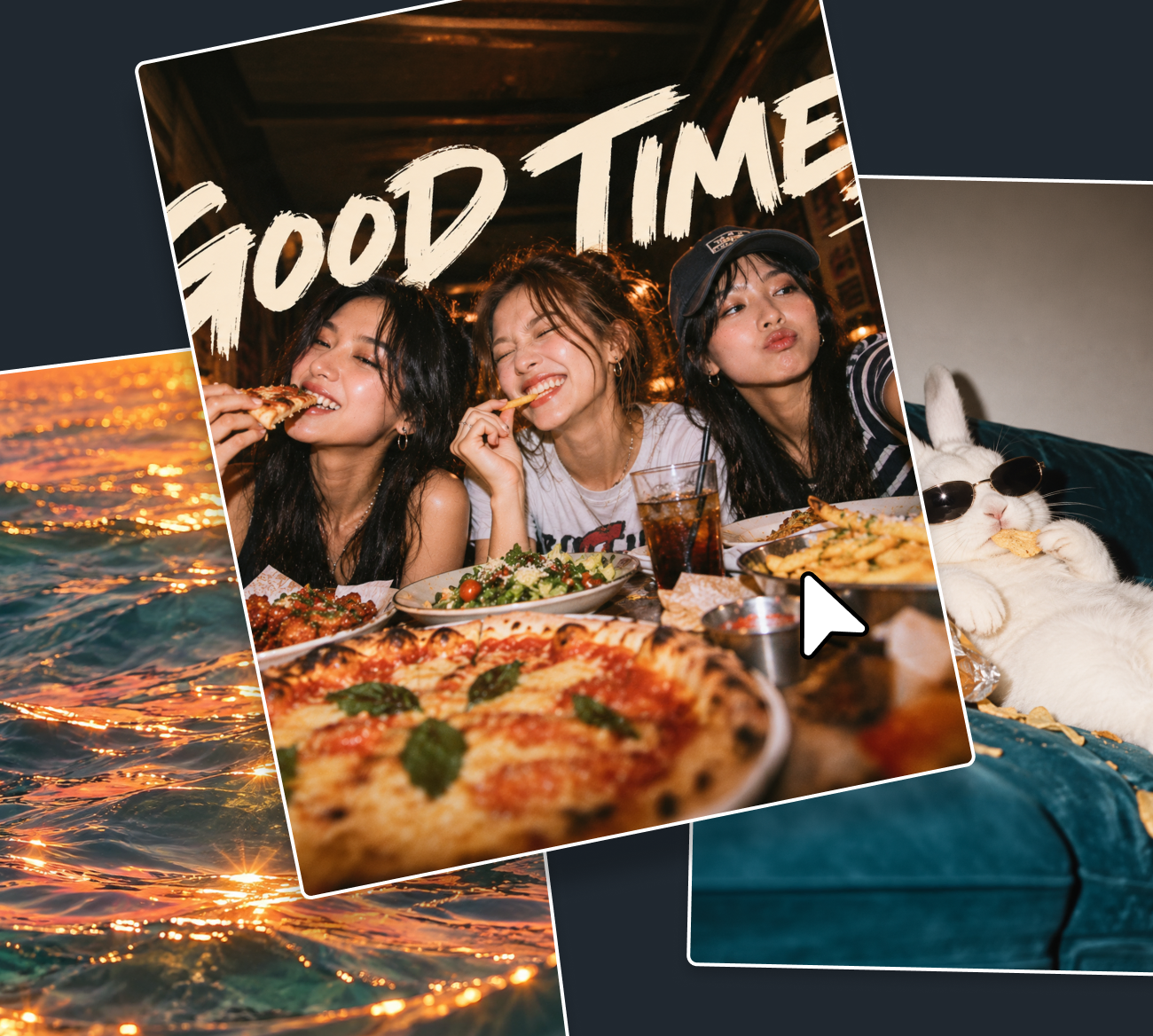
- People
- Presets focused on people’s actions, expressions, and movements
- Animals
- Presets featuring a variety of animals, from photorealistic styles to 3D animation
- Scenery
- Presets capturing the overall view of spaces, from nature to urban environments
- Food
- Presets capturing everything from the cooking process to finished shots and detailed close-ups
- Daily Life
- Presets centered on everyday objects and actions, including hand movements and surrounding spaces
| Output extension | MP4 |
|---|---|
| Output resolution (px) | 16:9 (1920×1080), 9:16 (1080×1920), 1:1 (1080×1080) |
| Supported preset | People, Animals, Scenery, Food, Daily Life |
| Supported duration | 5 sec, 10 sec |
| Prompt characters | Minimum : 1 characters Maximum : 2,000 characters |
How to use AI Text to Video
In the GOM Mix 10 editing screen, click [AI Tools > AI Text to Video].
* Please recharge your credits to use AI Text to Video.
Enter your desired result in the prompt, then select the duration.
* When you select a preset, a prompt optimized for that preset is provided.
Click [Generate AI Video] to deduct the required credits
and start generating a video with AI Text to Video.

AI Image to Video
Bring your images to life with AI video.
Add a sense of motion and vitality.
Create a video with just one photo and a simple description.
Use AI Image to Video like this!
Add motion to static images and turn them into versatile video content.
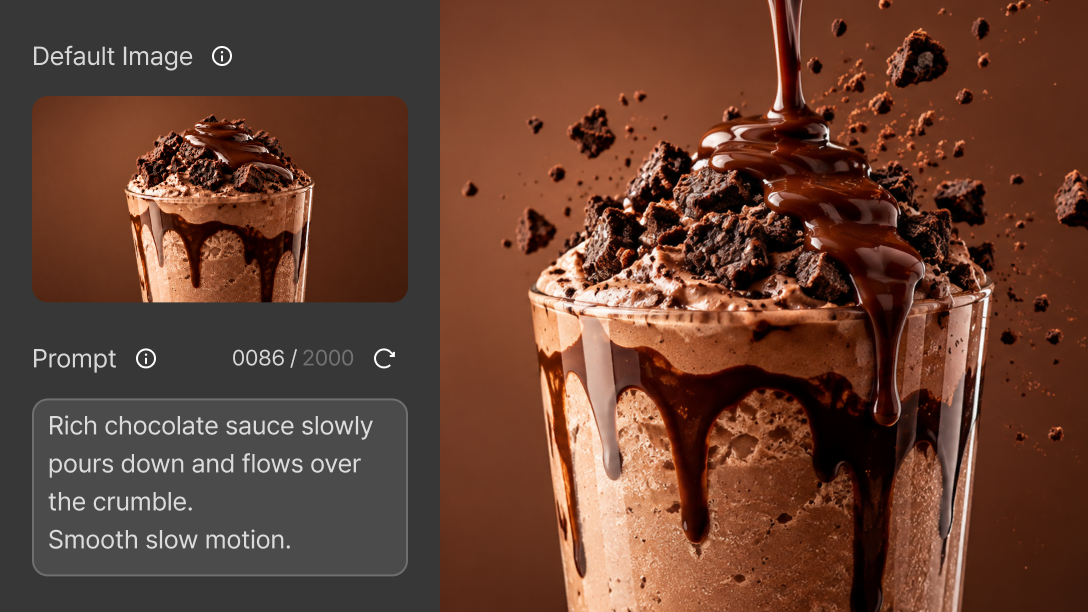
When you want to turn product or food photos into video content
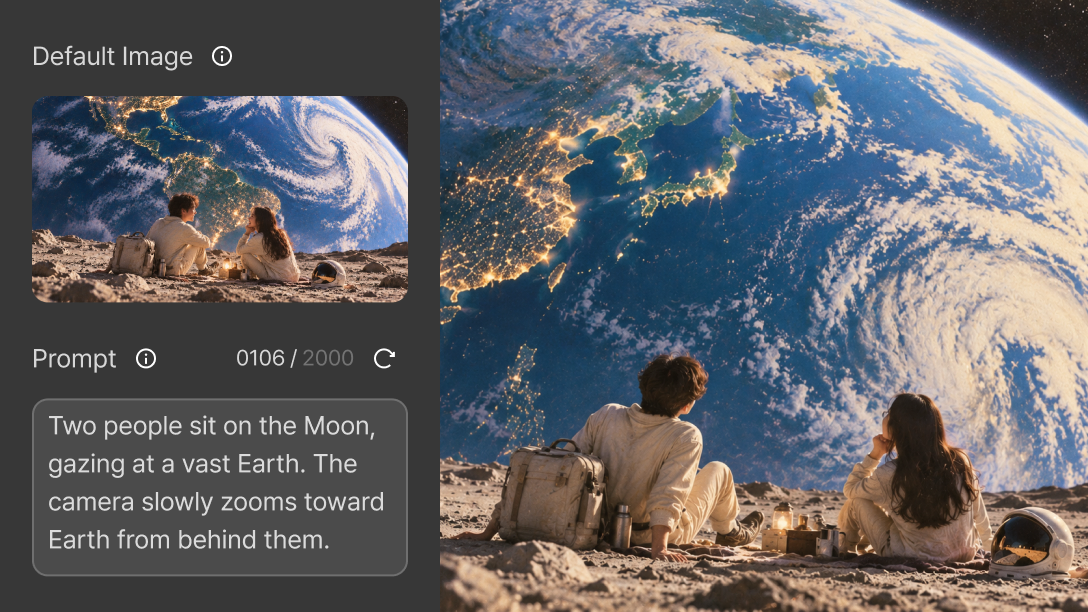
When you want to create eye-catching, stylish videos for social media
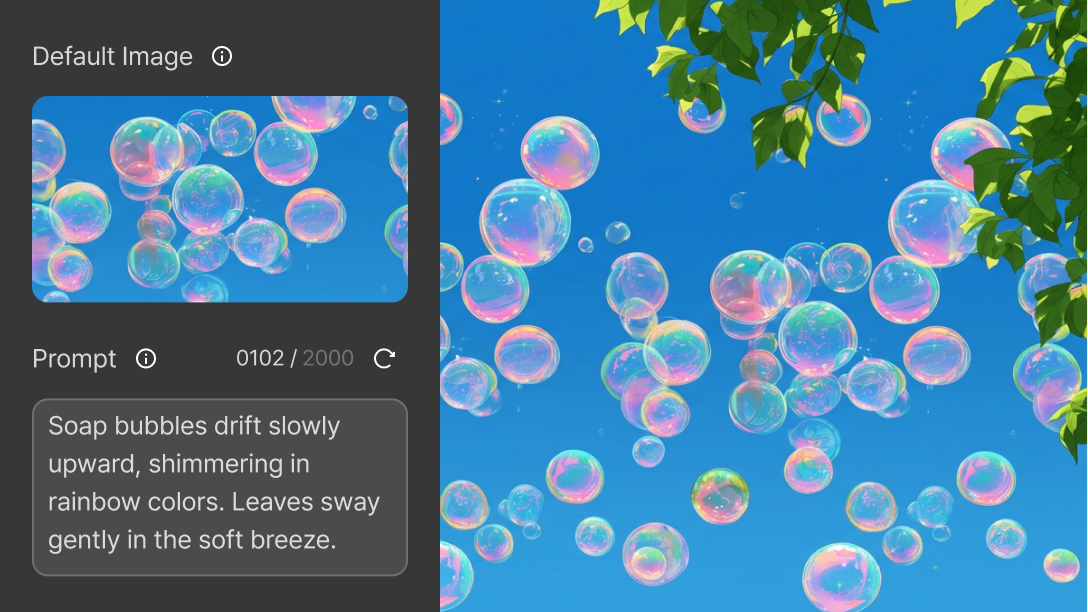
When you need inserts or additional video footage for your project
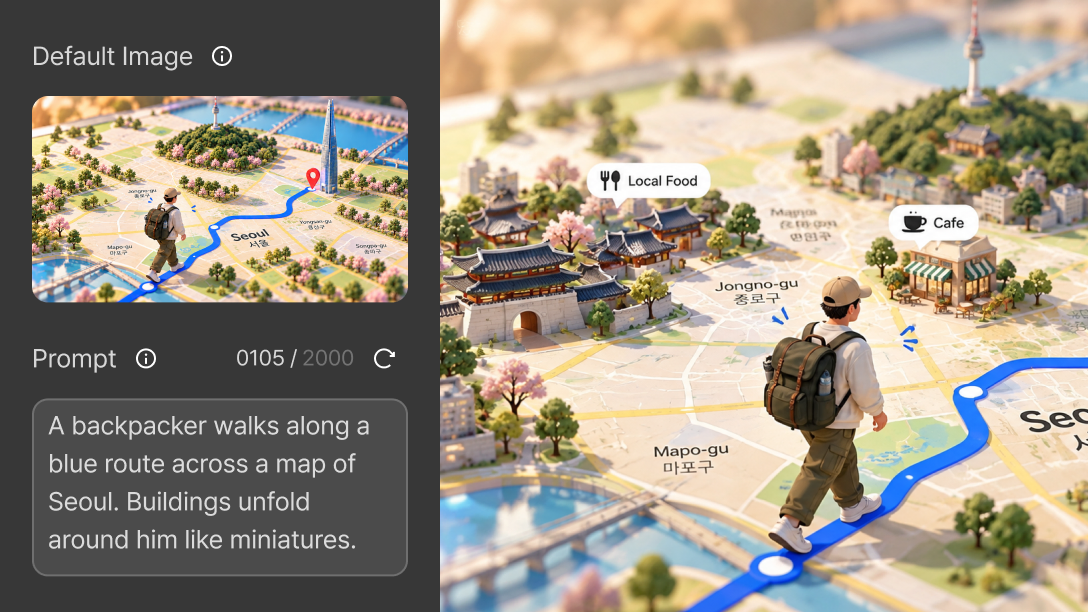
When you want to add a sense of motion to travel or scenery photos
Create the videos you want with AI Image to Video,
faster with a variety of presets.
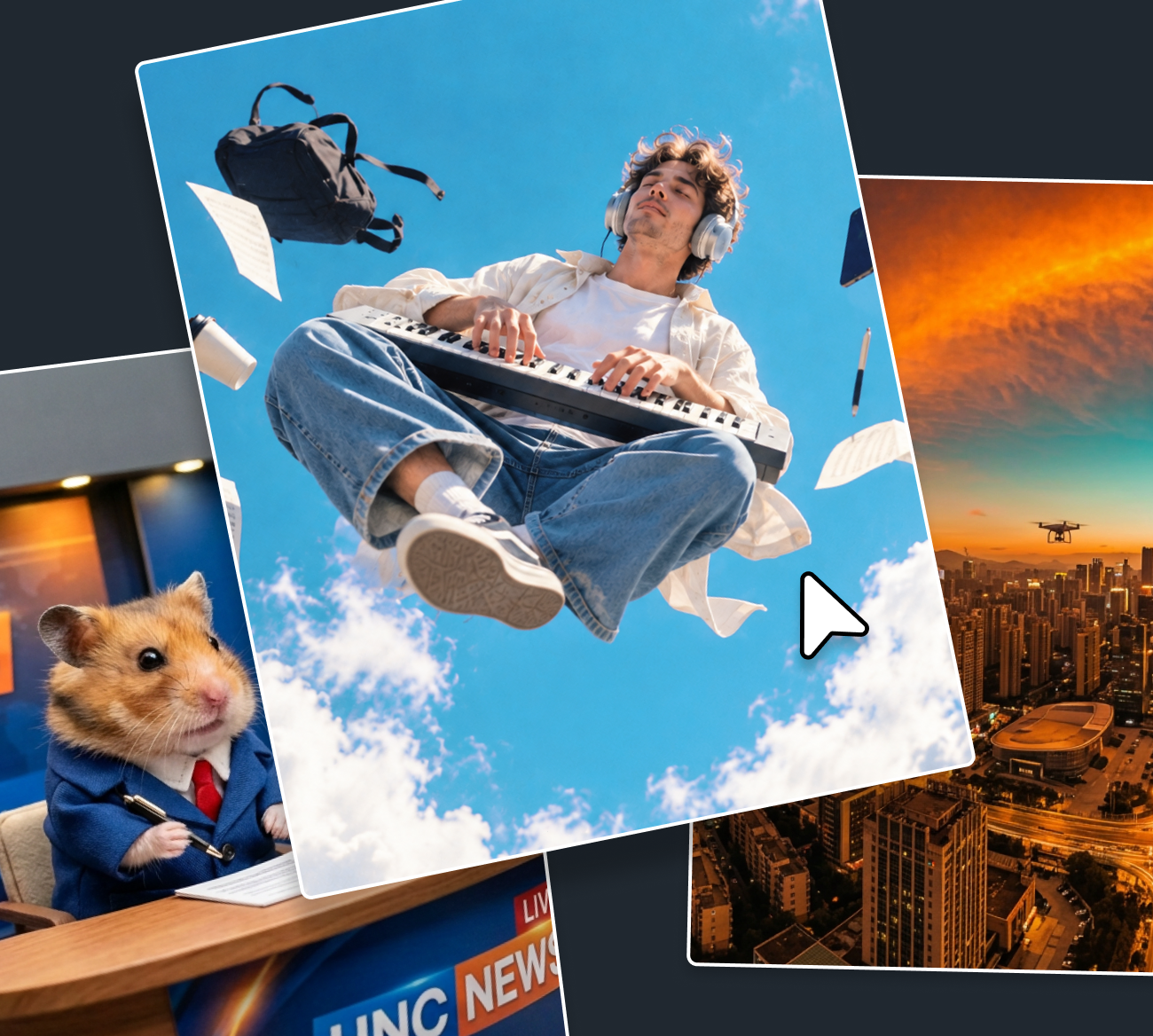
- People
- Presets focused on people’s actions, expressions, and movements
- Animals
- Presets featuring a variety of animals, from photorealistic styles to 3D animation
- Scenery
- Presets capturing the overall view of spaces, from nature to urban environments
- Food
- Presets capturing everything from the cooking process to finished shots and detailed close-ups
- Daily Life
- Presets centered on everyday objects and actions, including hand movements and surrounding spaces
| Input extension | JPEG, JPG, PNG |
|---|---|
| Output extension | MP4 |
| Input resolution (px) | Minimum : 300×300 |
| Output resolution (px) | 16:9 (1920×1080), 9:16 (1080×1920), 1:1 (1080×1080) |
| Input file size | Maximum : 50MB |
| Supported preset | People, Animals, Scenery, Food, Daily Life |
| Supported duration | 5 sec, 10 sec |
| Prompt characters | Minimum : 1 characters Maximum : 2,000 characters |
How to use AI Image to Video
In the GOM Mix 10 editing screen, click [AI Tools > AI Image to Video]
and add the image you want to turn into a video.

Enter your desired result in the prompt, then select the duration.
* When you select a preset, a prompt optimized for that preset is provided.
Click [Generate AI Video] to deduct the required credits
and start generating a video with AI Image to Video.

FAQ
How many credits are required to use the AI features?
The number of credits required varies by AI feature.
AI Voice uses 1 credit per 300 characters, and AI Subtitles uses 1 credit per 60 seconds. AI Text to Video and AI Image to Video use 10 credits for a 5-second video and 20 credits for a 10-second video.
For detailed credit usage guidelines, please refer to the Credit page.
Can I edit AI-generated results directly in GOM Mix 10?
AI-generated results can be edited in GOM Mix 10.
However, modifying the AI-generated results themselves, other than through video editing, is not supported.
Can I get a refund if I’m not satisfied with the AI-generated results?
The quality and satisfaction of AI-generated results may vary depending on individual preferences, so credits used cannot be canceled or refunded based on dissatisfaction with the results.
However, if AI-generated results are not successfully created due to software errors, API communication issues, or other technical problems, we can provide a refund for the credits consumed.
Notice
- GOM Mix AI features are only available in the official version of GOM Mix 10.
- GOM Mix AI features are only available with credits. Please recharge your credits and use AI features in GOM Mix 10.
- The rights to AI-generated results created by users through the software’s AI features belong to the users who created them, and they may be used for commercial or profit-making purposes.
- Users are solely responsible for reviewing and confirming in advance whether AI-generated results infringe any third-party intellectual property rights, including copyrights, portrait rights, and trademark rights.
- Users are solely responsible for any civil or criminal liability arising from AI-generated results that infringe upon the rights of others, and the company assumes no responsibility in such cases.
- Please be aware that, under current laws and guidelines, AI-generated results may not be fully protected under applicable laws, including copyright law.
- These features may be discontinued without prior notice due to company circumstances.