 GOM Mix 10
Latest News
User Guide
Editing Effects
Effects
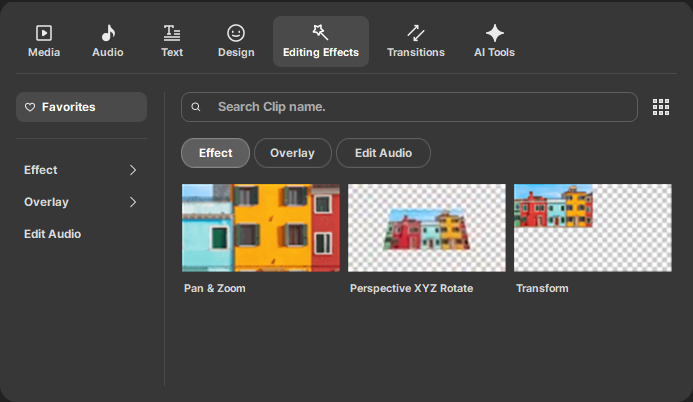
This window shows you various effects that you can add to your clips. You can change the size of the clip, as well as the colors and images, among others. It is categorized and you can set an effect after selecting a clip added to the timeline area. Several effects can be added in a clip, and the results will be reflected in the order you have set the effects. This order can be changed in the [Effects /Overlay Properties] of the properties setting window.
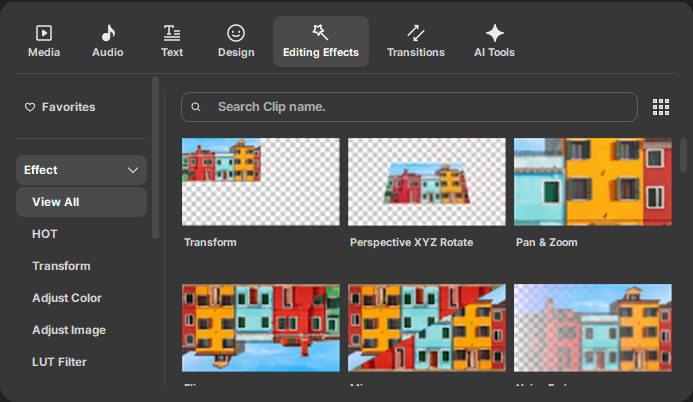
For example, if you double click the [Transform] effect for the clip selected in the timeline area, the Effect/Overlay Property Setting window will appear.
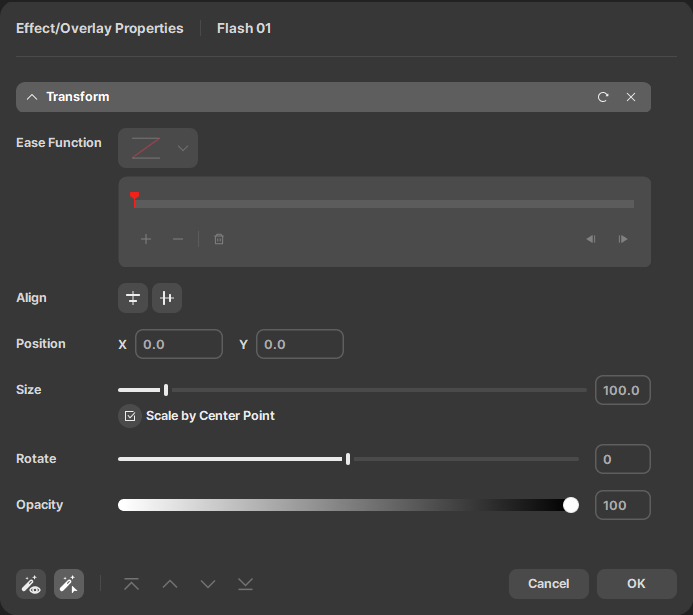
[Keyframe Control] with the playback head at the top is displayed only in the effect where the keyframe can be applied. Change the size, position, and other variables then press the [OK] button to apply an effect to the selected clip.
1. How to Add an Effect
1) Choose a clip in the timeline work area.
2) Select [Effects] in the Editing Effects tab.
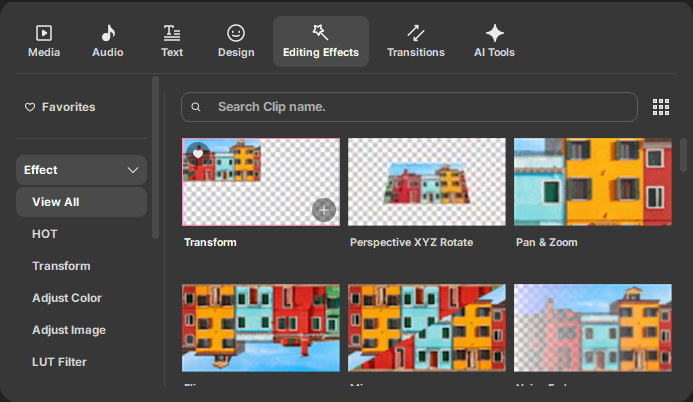
3) Choose the effect you want to add. Double click an effect to see the Effect/Overlay Property Setting window.
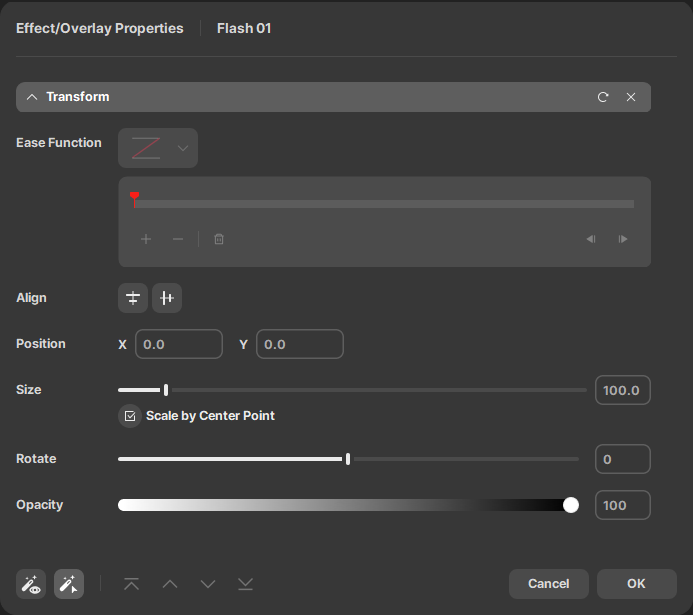
4) Once you click on the 'OK' button after you change the values, the changes will be reflected to the clip.
Even if you click on the timeline panel while the setting window for the properties is still open, the effects will still be reflected.
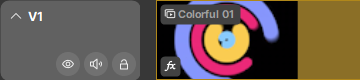
5) Clips with effects will have  .
.
💡 TIP
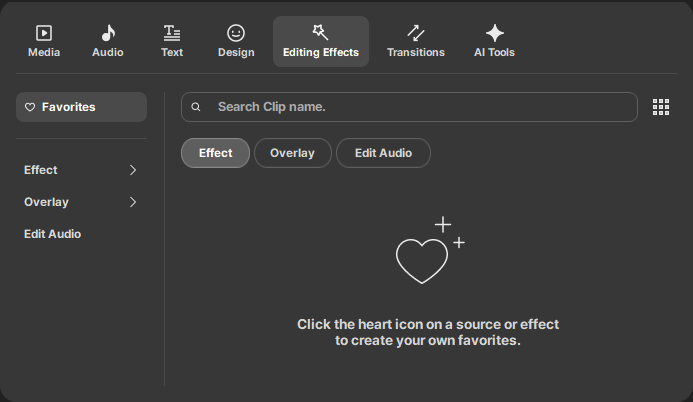
When you register frequently used clips as favorites, they will appear in Favorites clips. Click the  button at the top right to register it to Favorites clips. Click the
  button again to unregister it from Favorites clips.