 GOM Mix 10
Latest News
User Guide
Design
Background
Provides background clips useful for video creation as independent clips.
You can place them over clips you want to apply them to, creating fun and diverse looks.
1. Background
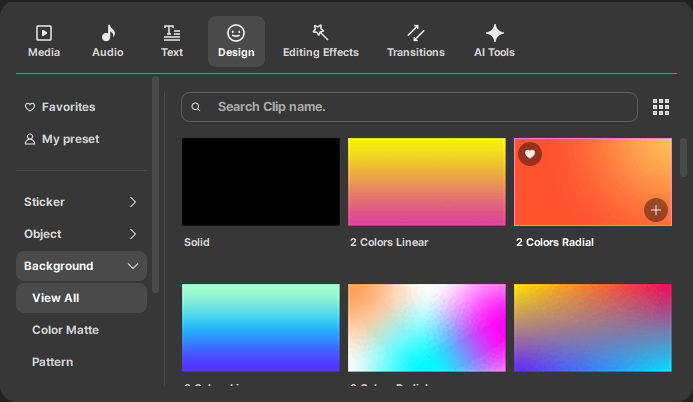
This clip can be used as a background in your video. You can change the format or property of each clip.
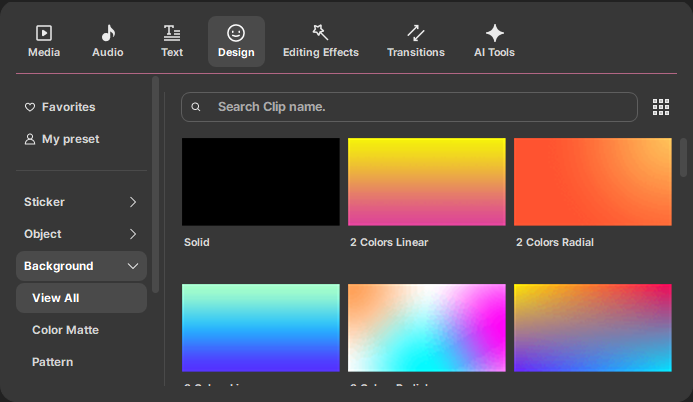
For example, if you select the “2 Colors Radial” background-clip, then the Property Setting window will appear.
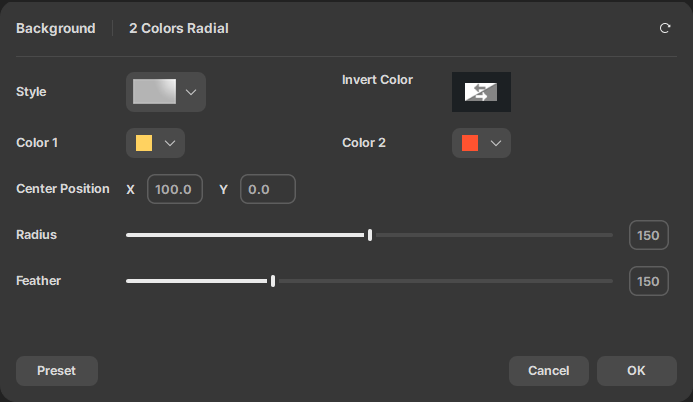
After setting variables, press the [OK] button to create a background clip.
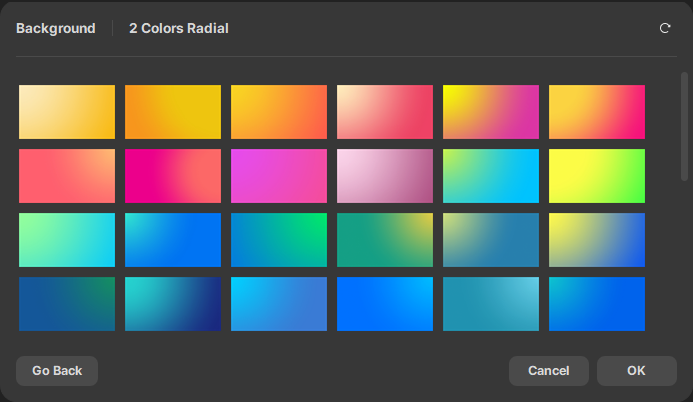
Go to [Preset] and select the type of gradation and press the [OK] button to create a clip. Press the [Back] button to return to the Property Setting window. After designating the variables in the Property Setting window, press the [OK] button to register the background clip in the project clip list.
💡 TIP
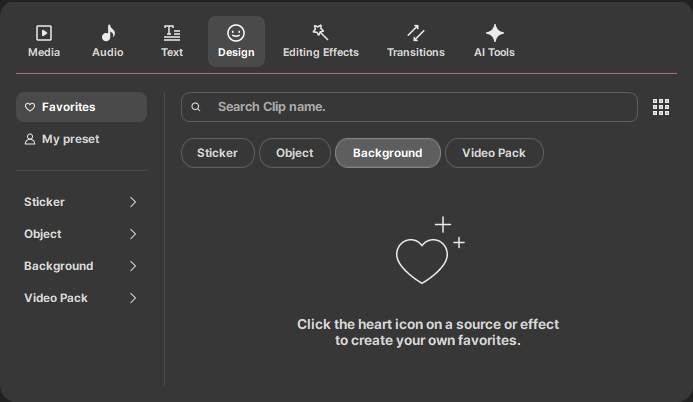
When you register frequently used clips as favorites, they will appear in Favorites clips. Click the  button at the top right to register it to Favorites clips. Click the
  button again to unregister it from Favorites clips.