 GOM Mix 10
Latest News
User Guide
Editing Effects
Audio
Supports smoother and more professional sound delivery by applying smooth fade transitions to the beginning and end of audio clips or adjusting overall volume levels.
1. Fade In
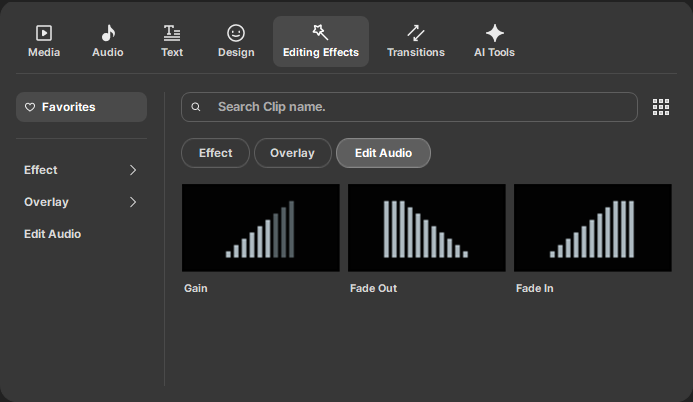
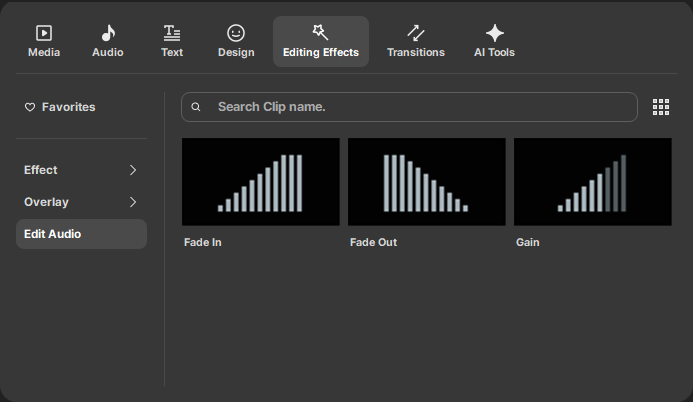
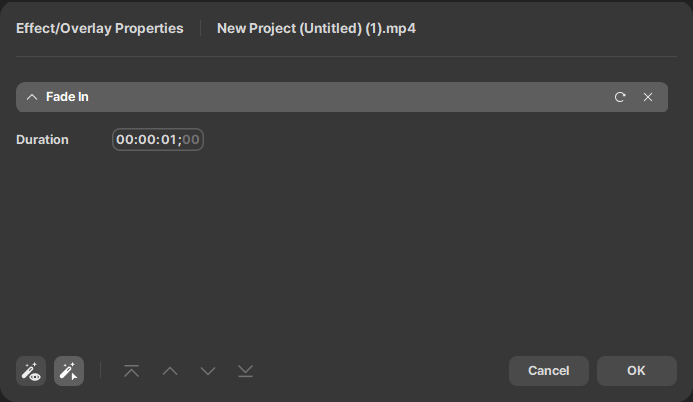
An effect that gradually increases the volume as the audio begins. After selecting an audio track, select the Fade In card to set the duration. Clicking  resets it to the default value of 1 second. Click the [OK] button to complete the setup. Alternatively, hover over the Fade In card and click the
  button to set Fade In.
2. Fade Out
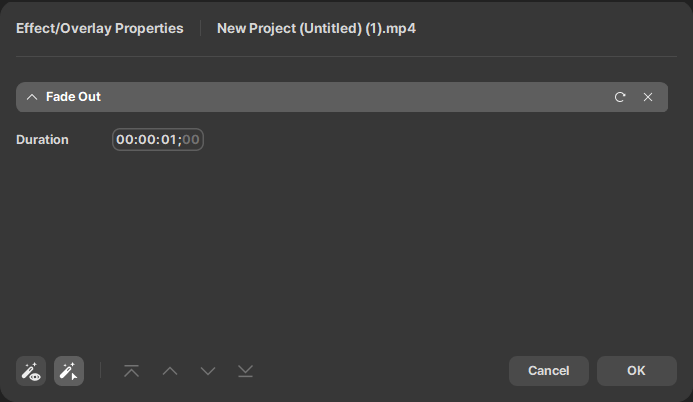
An effect that gradually decreases the volume as the audio ends. After selecting an audio track, select the Fade Out card to set the duration. Clicking resets it to the default value of 1 second. Click the [OK] button to complete the setup. Alternatively, hover over the Fade Out card and click the button to set Fade Out.
3. Gain
Allows fine-tuning of audio volume by section to achieve a more natural and balanced sound. Using motion graphs, you can raise or lower the volume at specific points and configure volume changes over time.
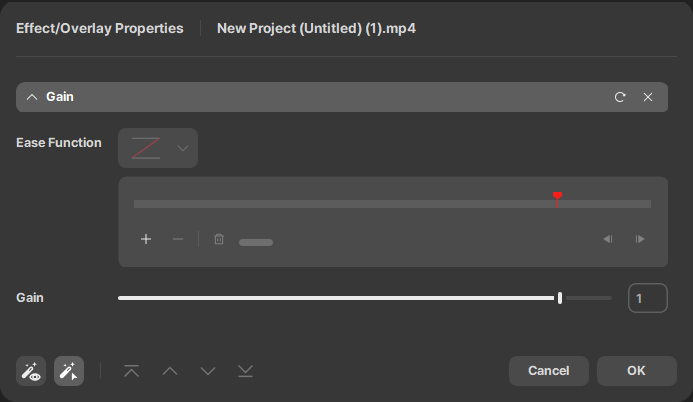
You can add or delete keyframes by selecting one of  at a desired location on the motion graph horizontal line. Adjust the position and gain value of each keyframe to set desired volume changes. Clicking the
  button deletes all settings. Click the [OK] button to complete the setup.
4. Checking Audio Effects
Press one of  to view all effects or view up to the selected effect. Select an effect and press one of
  to specify the position of that effect. Click the [OK] button to complete the setup.
💡 TIP
Registering frequently used clips to Favorites makes them visible under Favorite Clips. Clicking the  button in the upper right corner registers it to Favorite Clips. Clicking the
  button again unregisters it from Favorite Clips.