 GOM Mix 10
Latest News
User Guide
AI Tools
AI Voice
*Service available with GOM Lab Credits
A Text-to-Speech (TTS) technology that converts text into human voices, offering voice tones for 21 characters. Enhance your content with vibrant audio by selecting a voice that fits your desired gender and age. Supports 17 languages, including Korean, English, and Japanese.
1. Getting Started with AI Voice
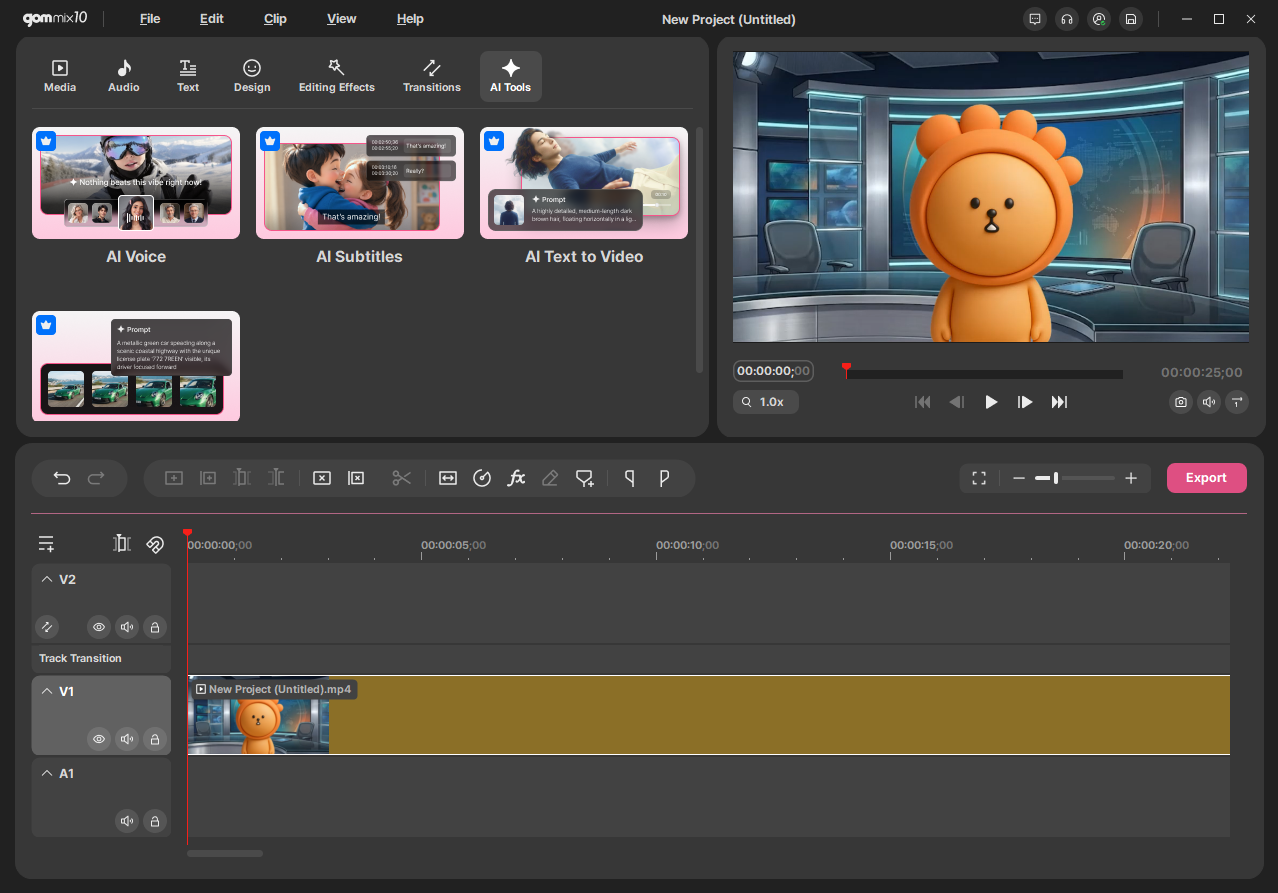
Click the AI Voice button on the AI Tools tab menu.
2. Selecting an AI Voice Character
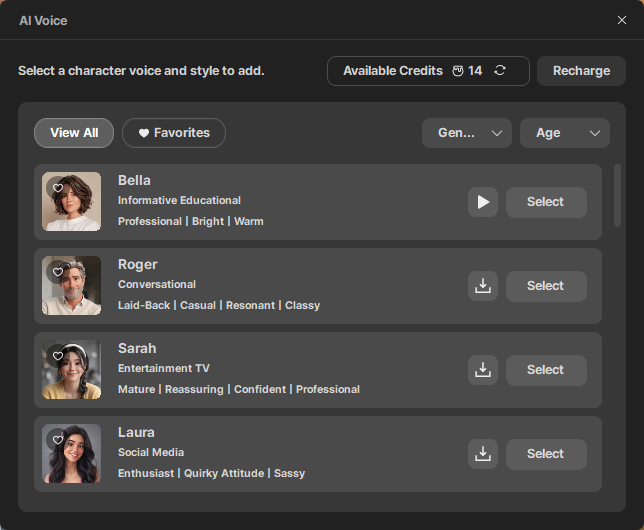
Check the character list provided in AI Voice. You can filter and select characters matching your desired gender and age using category search.
Click the  button to add the character to Favorites. Click the
  button to select your desired character.
| Category | Subcategory |
|---|---|
| Gender | Male, Female |
| Age | Young Adult, Middle-aged, Elderly |
3. Configuring AI Voice Settings
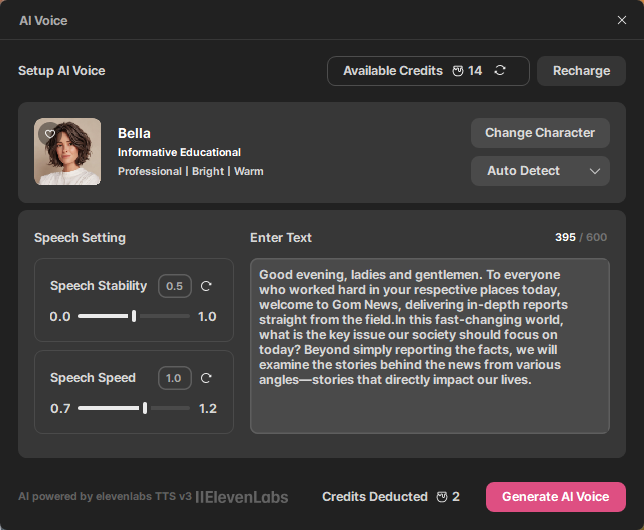
Enter the text you wish to convert into the text input box. Clicking [Change Character] returns you to the character list. 17 languages are automatically detected, and you can specify English, Japanese, or Korean by clicking  . You can adjust Voice Stability and Speech Rate. Up to 600 characters can be converted into AI Voice per generation. Once you finish entering text, click the [Generate AI Voice] button to generate a voice clip.
4. Generating AI Voice Clips
Credits are deducted based on the length of the entered text when generating AI Voice.
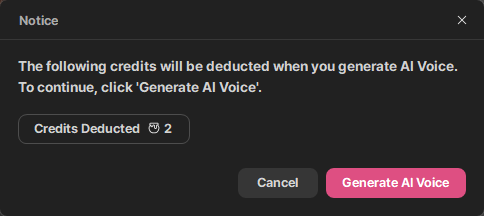
Click [Generate AI Voice] to create a voice clip.
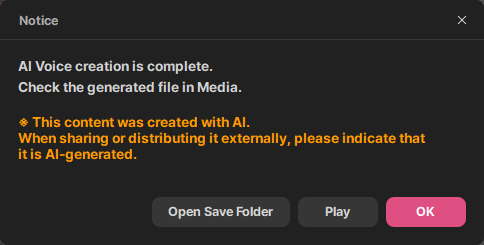
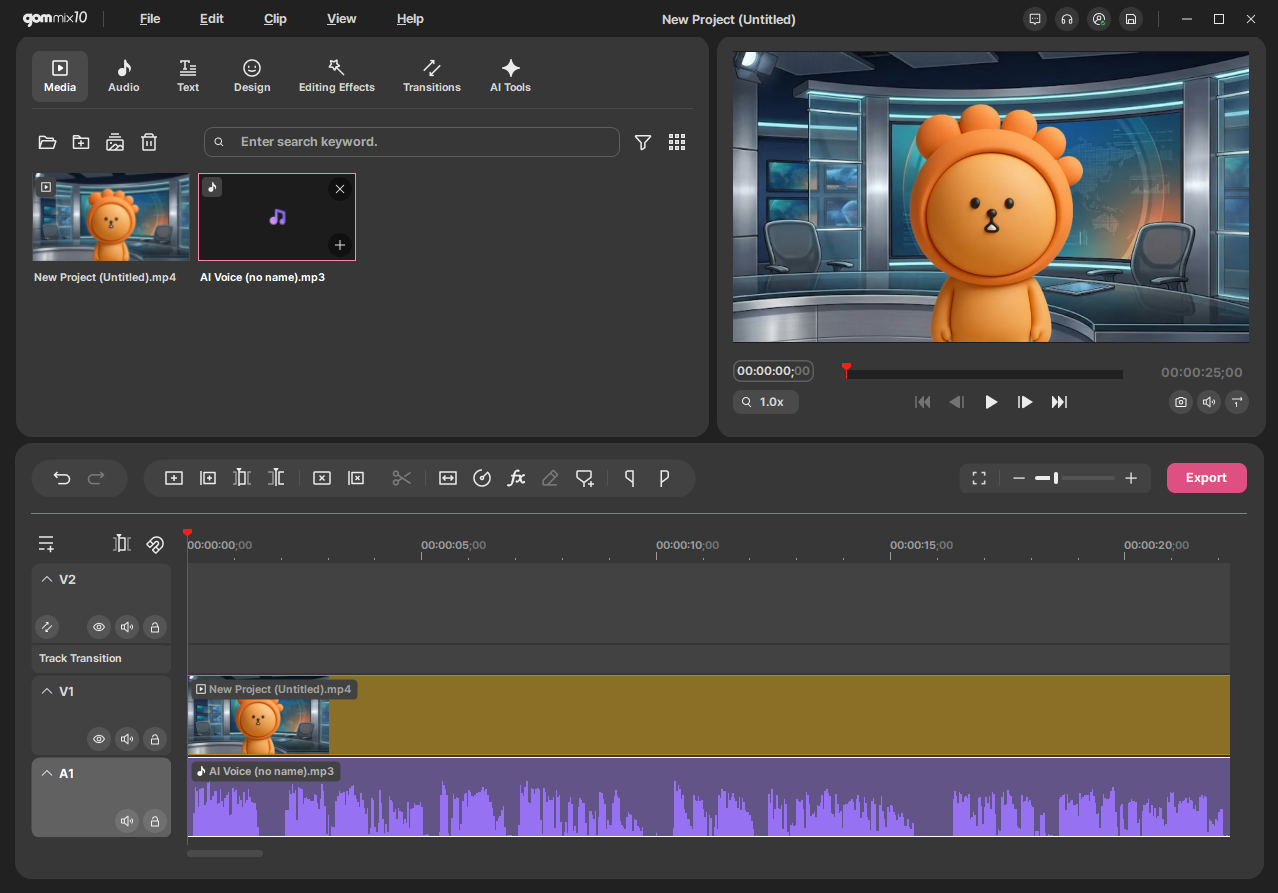
The generated clip file can be checked in the Media tab. Add the generated voice clip to your desired timeline.