 GOM Mix 10
Latest News
User Guide
Text
Text
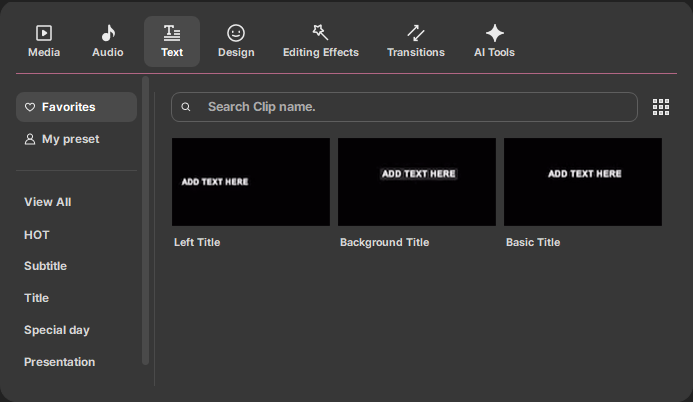
Text, a useful tool in video production, is provided as independent clips.
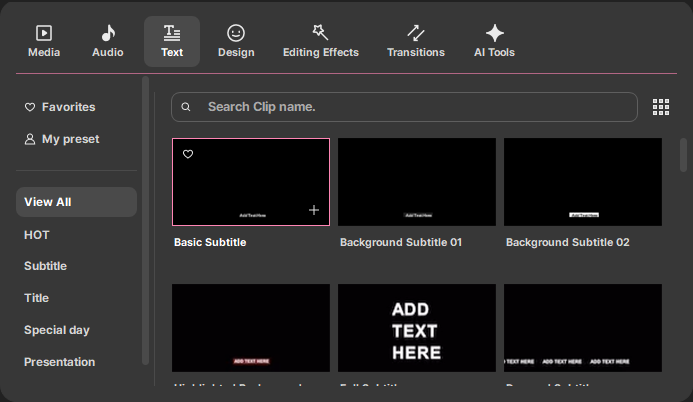
Select your desired text from the text presets and drag and drop it onto the timeline. Then, use property editing to enter text, change styles, and apply effects.
In property editing, set values for color, size, position, etc., and click [OK] to apply the changes. You can save newly created text styles using "Save Preset" for future use.
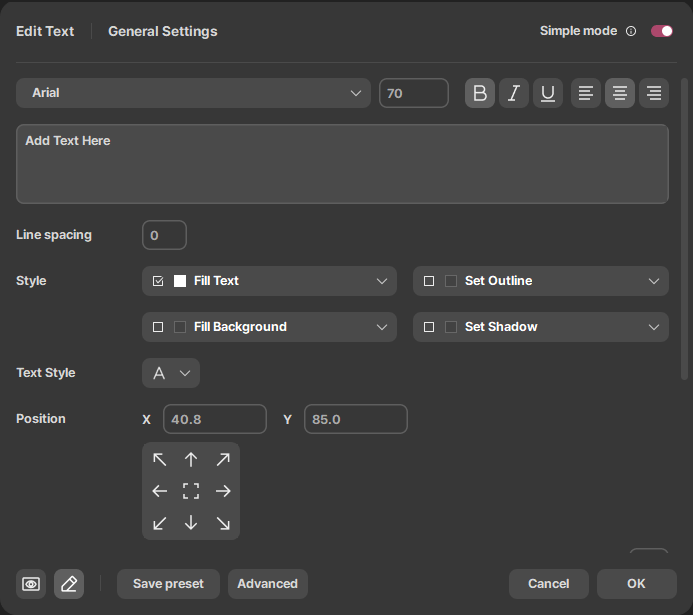
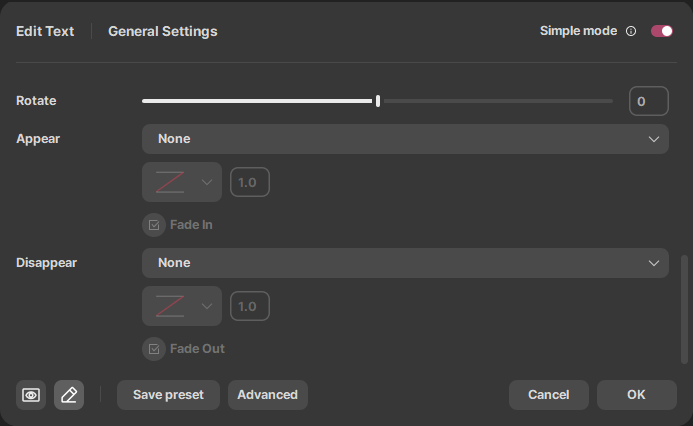
Click  in the font list to view available free fonts. Choose a font that suits your video.
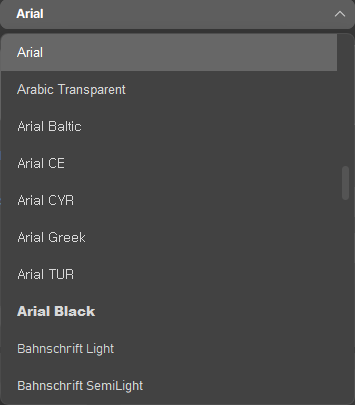
1. Text Properties Editing
| Select a font for the text. To change the default font size, go to [Settings] - [Edit] tab and change [Default Font for Text Clip]. |
|---|---|
| This is the size of text font. Enter the desired font size on your own or place the mouse pointer on edit control and hold it down and move it left and right to change the font size. |
| Sets Bold / Italic / Underline properties for text. |
| Set the arrange method for paragraphs. Arranging left/middle/right. |
| You can set a style. A checkbox for text color (solid color) style is displayed by default, which can be freely enabled/disabled. You can save a user style. |
| It is the coordinate for the left top position of the text frame. The position coordinate is in the range of (0, 0) to (100, 100). At the left top corner of the video screen, the corresponding coordinate is (0.0) and at the right bottom, it is (100, 100). Unit is in '%'. |
| Move the text frame to one of the 9 areas set ahead of time. |
| Rotate a text frame. If you want to rotate it clockwise, use the [+] angle. If you want to rotate it counterclockwise, use the [–] angle. |








This is an animation type for text frame appearing. Graph function is used to set the motion graph for the text animation. Set the time of appearing. Check [Fade In] to make them appear slowly.

This is an animation type for text frame disappearing. Graph function is used to set the motion graph for the text animation. This is the time of disappearing. Check [Fade Out] to make them disappear slowly.
Preview Mode | In this mode, you can see the progress of text frame animation in each segment of the timeline. When the effect related to text animation or movement is set, you can move the playback head of the monitor to see the animation status of each frame. |
|---|---|
Edit Mode | In this mode, you can see the editing details of the text clip. |
| Using the preset provided, you can create and use your own presets. When a user clicks Save Preset, saved as a full preset of text items set at the top. You can check the saved preset in Text > My Preset menu. |


2. Advanced
You can change default text settings in [General] and change the detailed settings in [Advanced].
1) Text Fill
The function is used to fill text with gradation, image, etc,.
Style | You can select styles from the given presets. |
|---|

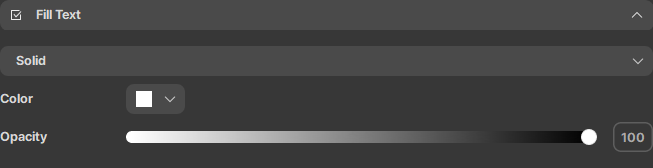
| Solid | Set the single color for text to be displayed. |
|---|
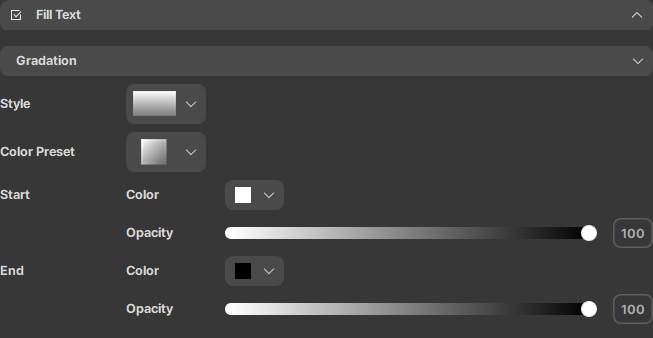
| Gradient | Apply a gradation to text. |
|---|---|
| Type | Selects the angle of the gradient. |
| Color Preset | Provide the presets of start color and end color set ahead of time. Select the desired combination of colors in the color preset. |
| Start Color / End Color | Set the start color or end color. |
| Opacity | Set the level of opacity for the selected color. |
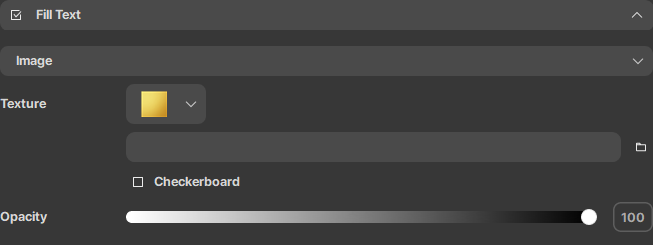
| Image | Fill the text with images. |
|---|---|
| Type | Fill the text the selects image from the provided types. |
| Fill the text with images selected by a user. |
| [Fit Frame] | Check it to fill the text frame with an image. Uncheck it to show the lattice shape of fills. |
| Opacity | It is the level of opacity for the selected image. |

If the Fill Text setting is enabled, then press the “OK” button to fill the text with the setting value.
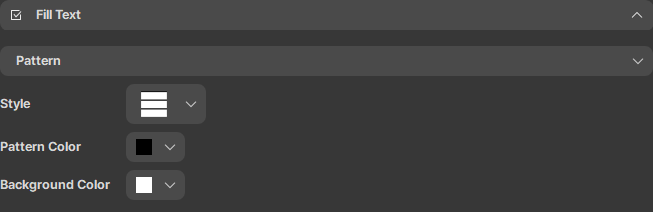
| Pattern | Fill the text with patterns. |
|---|---|
| Style | You can select styles from the given presets. |
| Pattern Color | Choose the color of the pattern. |
| Background Color | Choose the color of the background. |
2) Set Outline
Set the thickness and opacity of the outline.
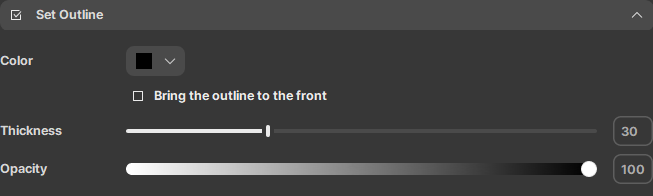
| Color | Set the color for an outline. |
|---|---|
| Bring the Outline to the Front | If the checkbox is enabled, it brings the outline layer to the front. Depending on the thickness of the outline, the text may be completely hidden. |
| Thickness | Set the thickness of the outline. Unit is in '%' and the thickness varies depending on the font size. |
| Opacity | Set the level of opacity for an outline. |
3) Background Fill
Fills the text background with gradation, images, etc.
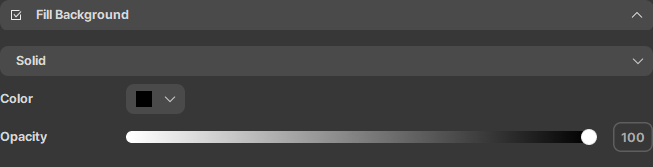
The setting method for the Property setting window is similar to “Fill Text”.
4) Shadow Settings
Apply a shadow effect to text.
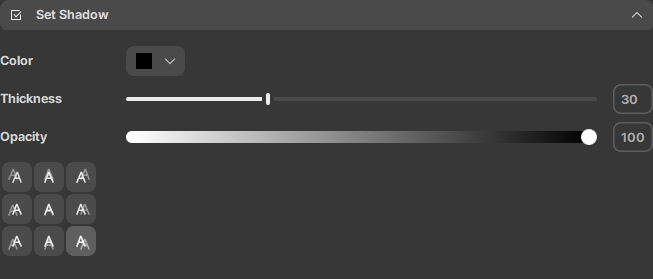
| Color | Select shadow color. |
|---|---|
| Thickness | Set the thickness of shadow. Unit is in '%' and the thickness varies depending on the font size. |
| Opacity | Set the level of opacity for shadows. |
| Set the position of shadows. |

5) Transformation and Effects
Applies advanced settings of animation properties for text frames.
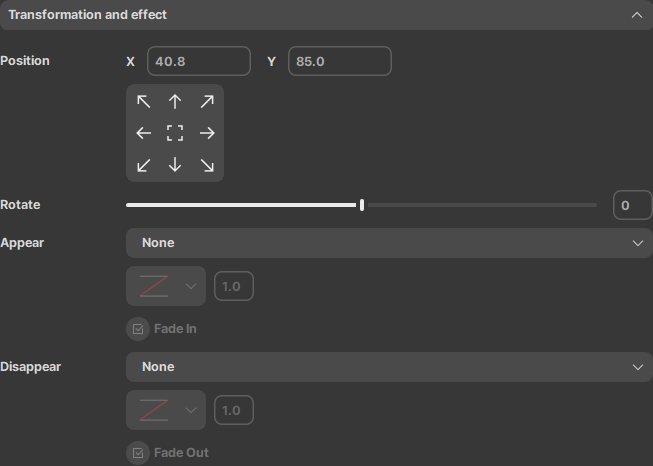
After setting the details of the animation, click the [OK] button to apply transformation and effect.
💡 TIP
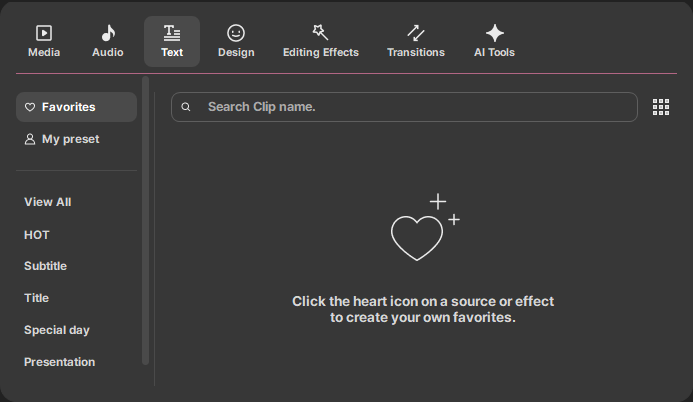
When you register frequently used clips as favorites, they will appear in Favorites clips. Click the  button at the top right to register it to Favorites clips. Click the
  button again to unregister it from Favorites clips.