
 GOM Pic
Turn Image to Video with a Prompt
AI Image Editor, Bringing Ideas to Life

GOM Pic
유료 기능

AI Features
AI Upscaling, AI Image Generator, AI Image Editing and AI Video Generator!
Use variety of editing tools to create the content you want.
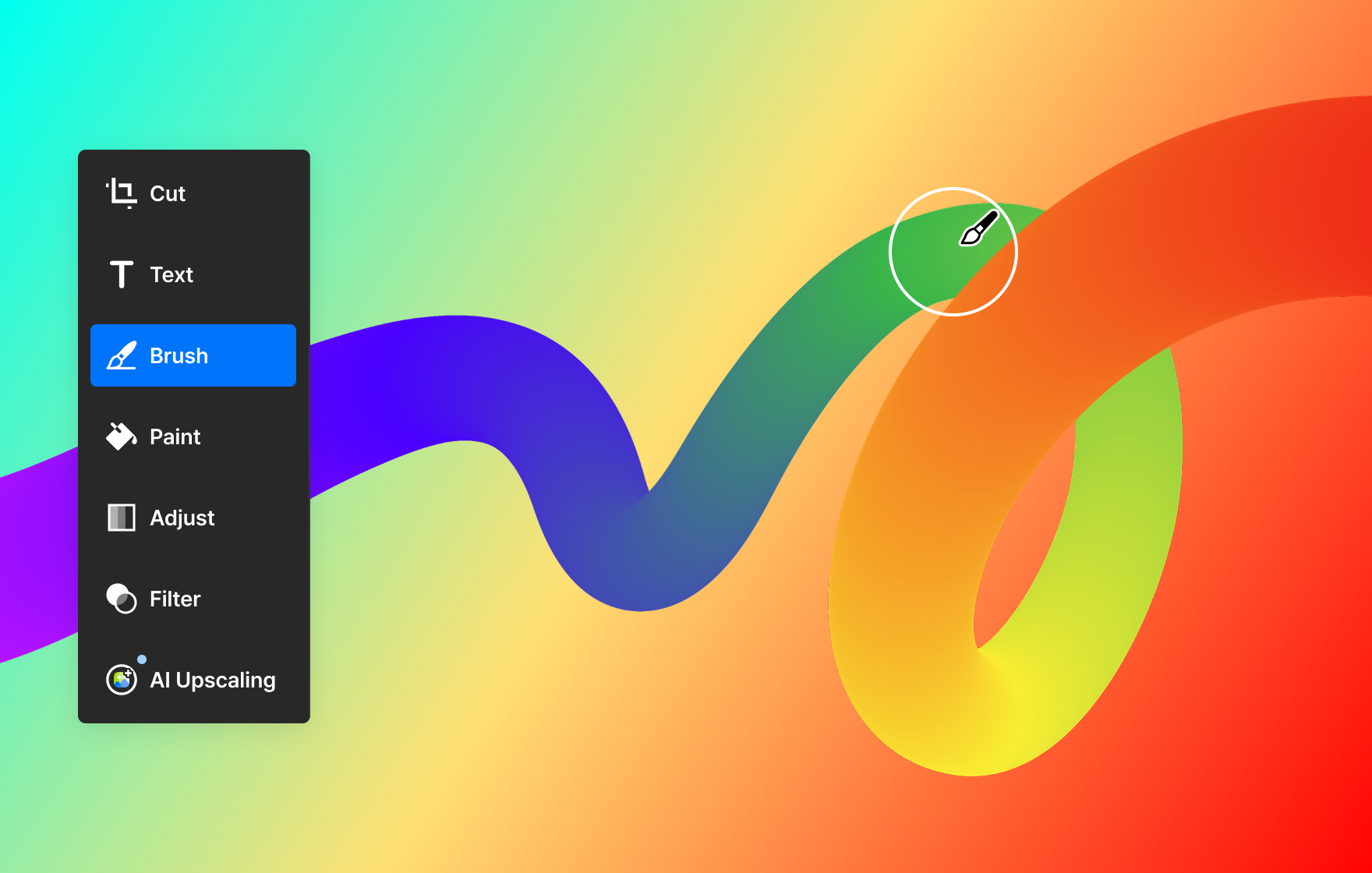
Create unique images with variety of tools
You can create the image you want using a variety of editing features from simple editing to compositing.
From simple editing such as area selection, paint, brush, size change, and eraser to compositing using magic wand, adjustment effects, chroma key are all possible.
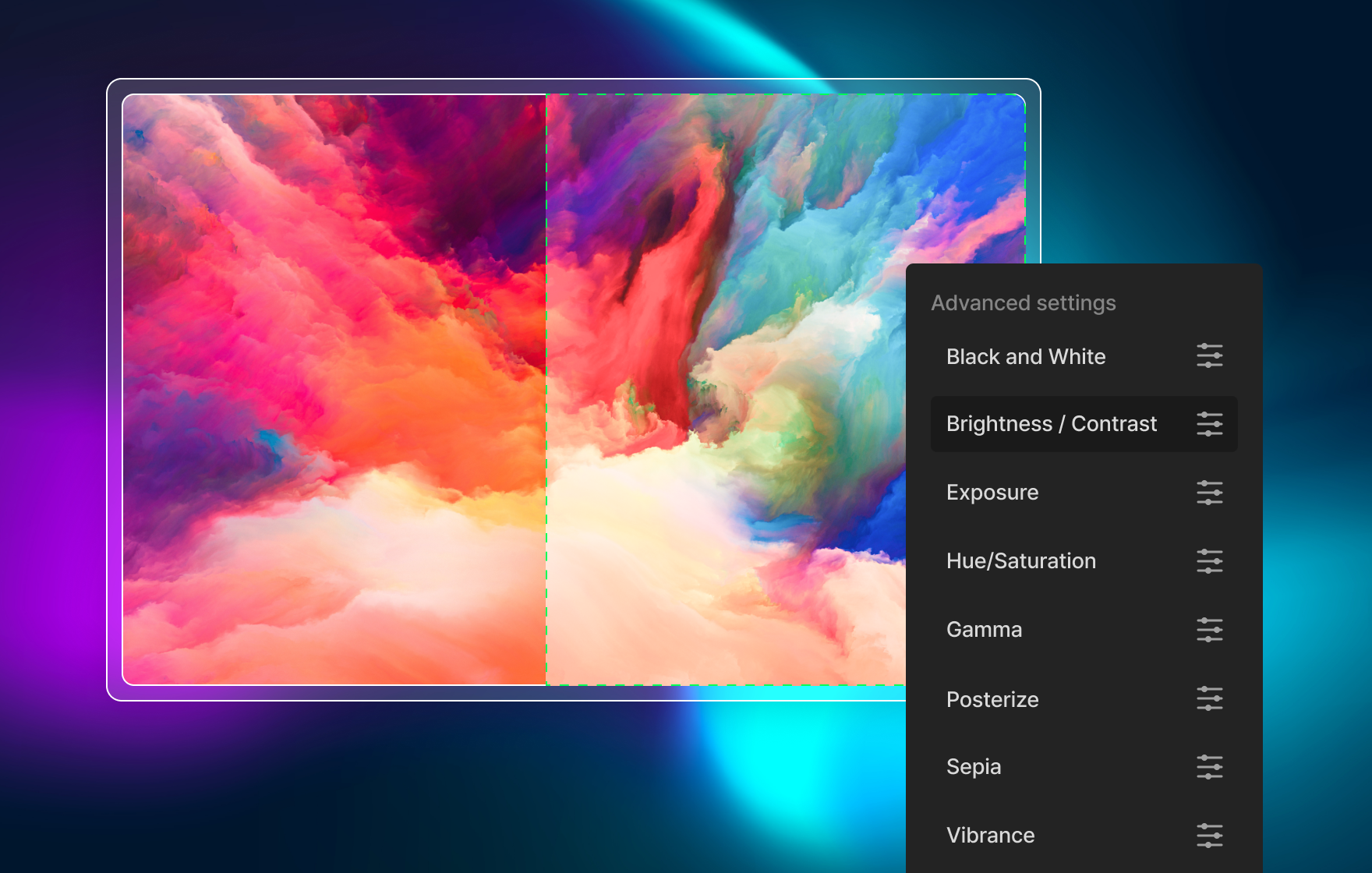
Create emotional images using detailed adjustments
Apply effects such as color inversion, auto correction, and gray effects with just a click.
Edit backgrounds and photos with your own unique sensibility by adjusting effects such as brightness/contrast, gamma, sepia, and vibrancy in detail!
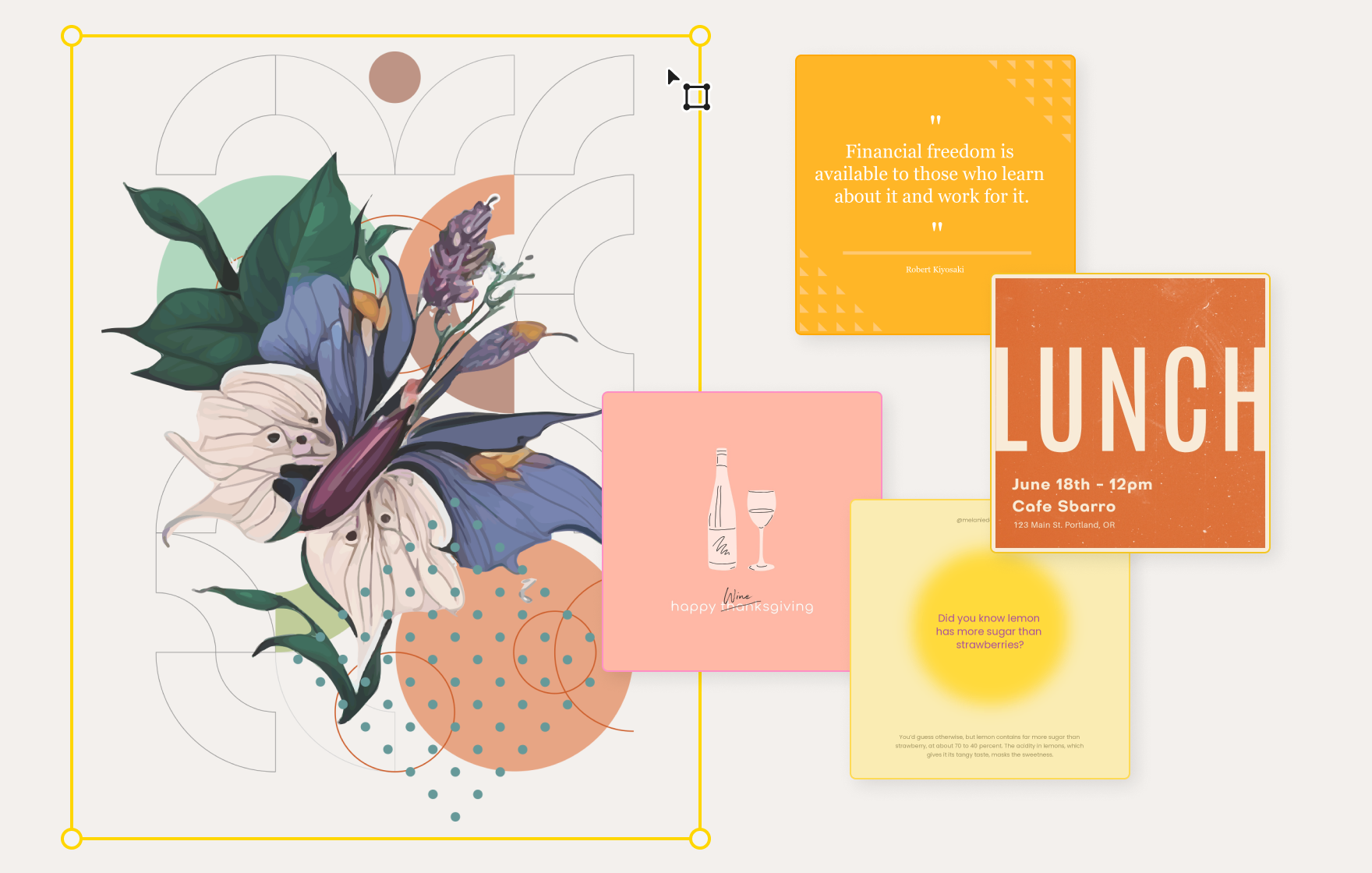
Quick and easy content creation with templates!
Use the 83 templates recommended by GOM Pic to create card news, social media thumbnails, etc. When you need to produce multiple images at once, you can easily edit images online.
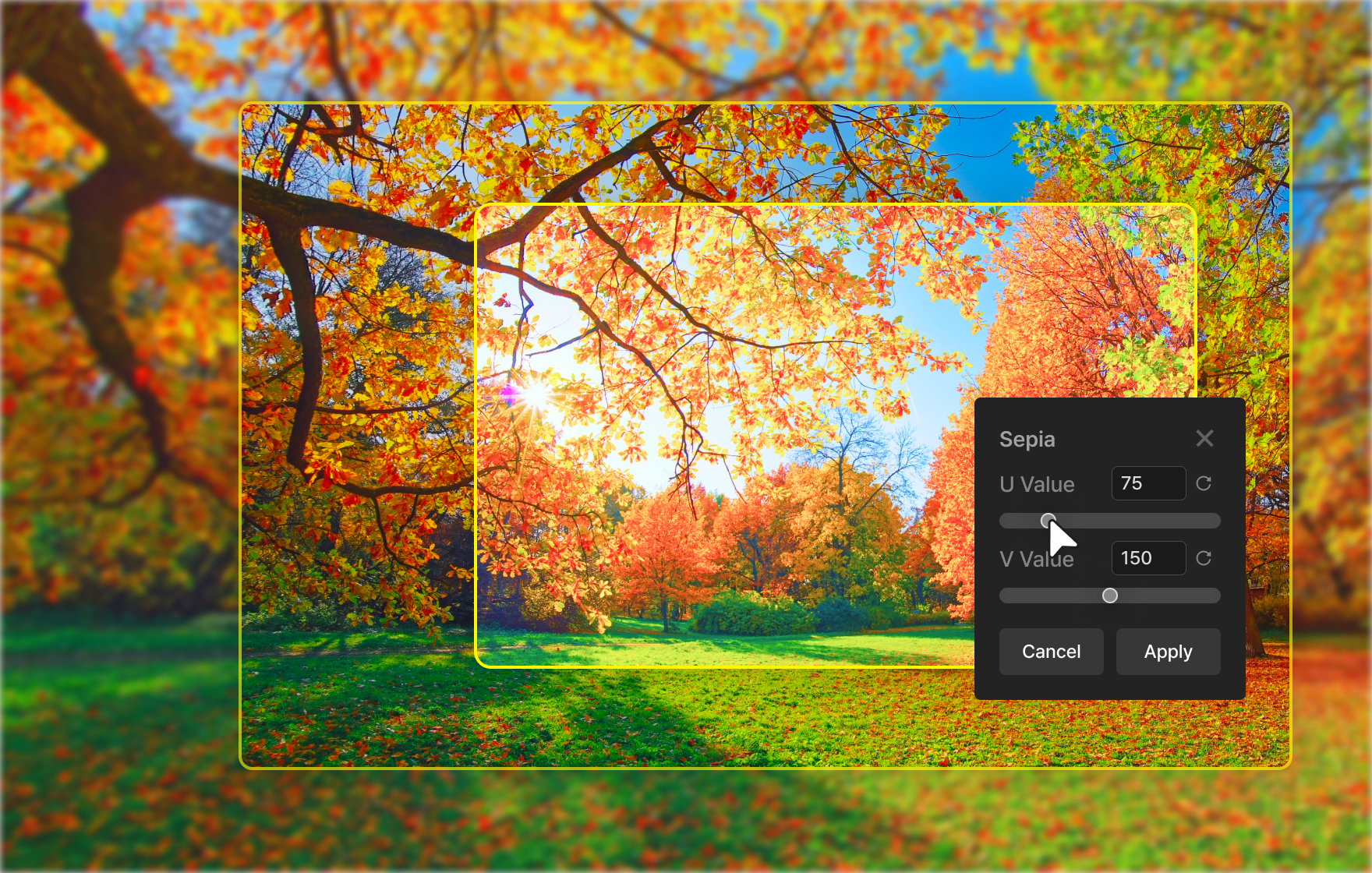
Simple photo correction is also possible
You can add simple correction effects to photos such as blur, glow, pixel effect, and sharpen filter functions. You can retouch your photos more easily.
Introducing GOM Pic Key Features
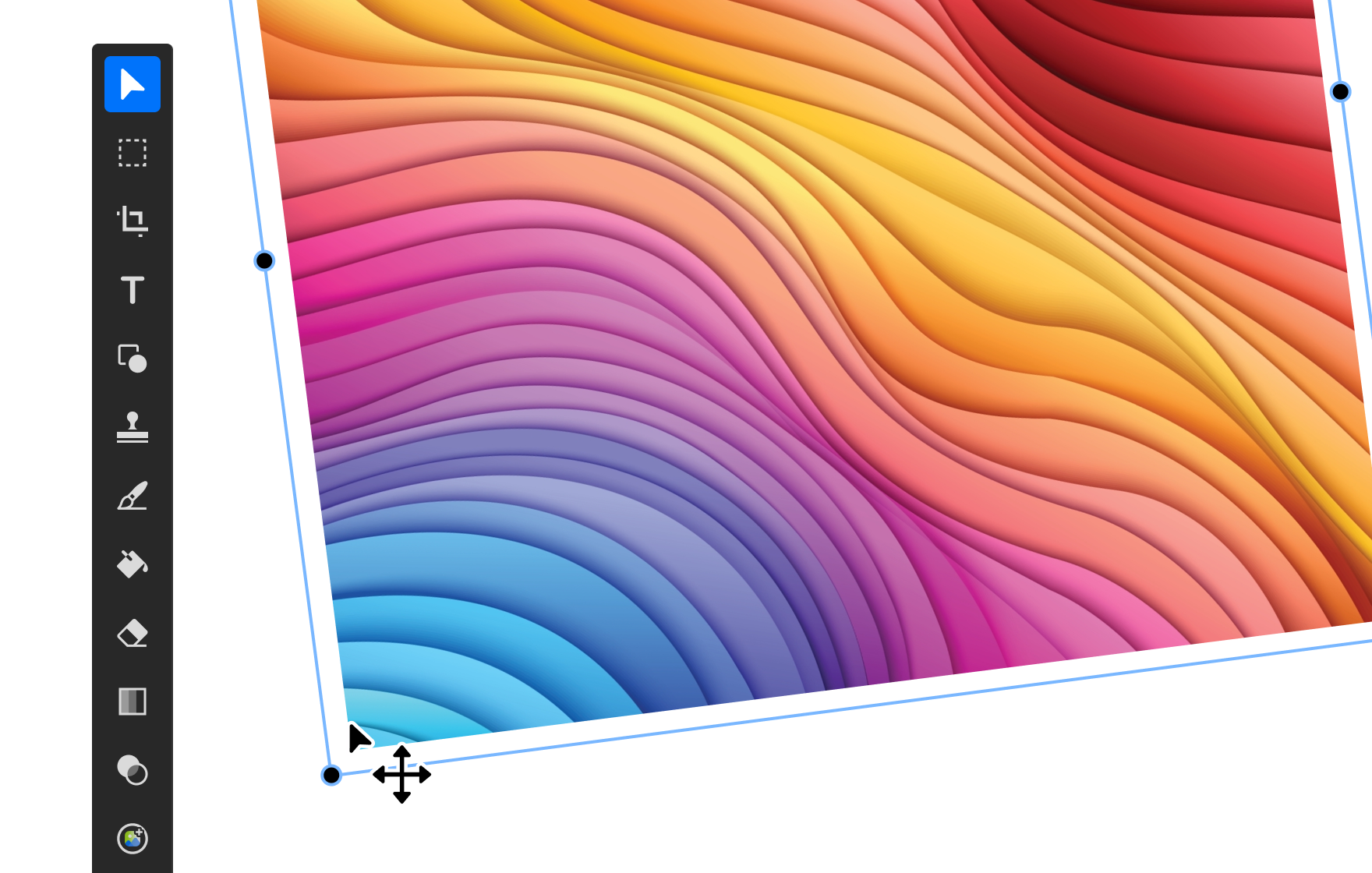
Essential tools
We provide essential editing tools such as crop, paint, brush, resize, add layers and more.
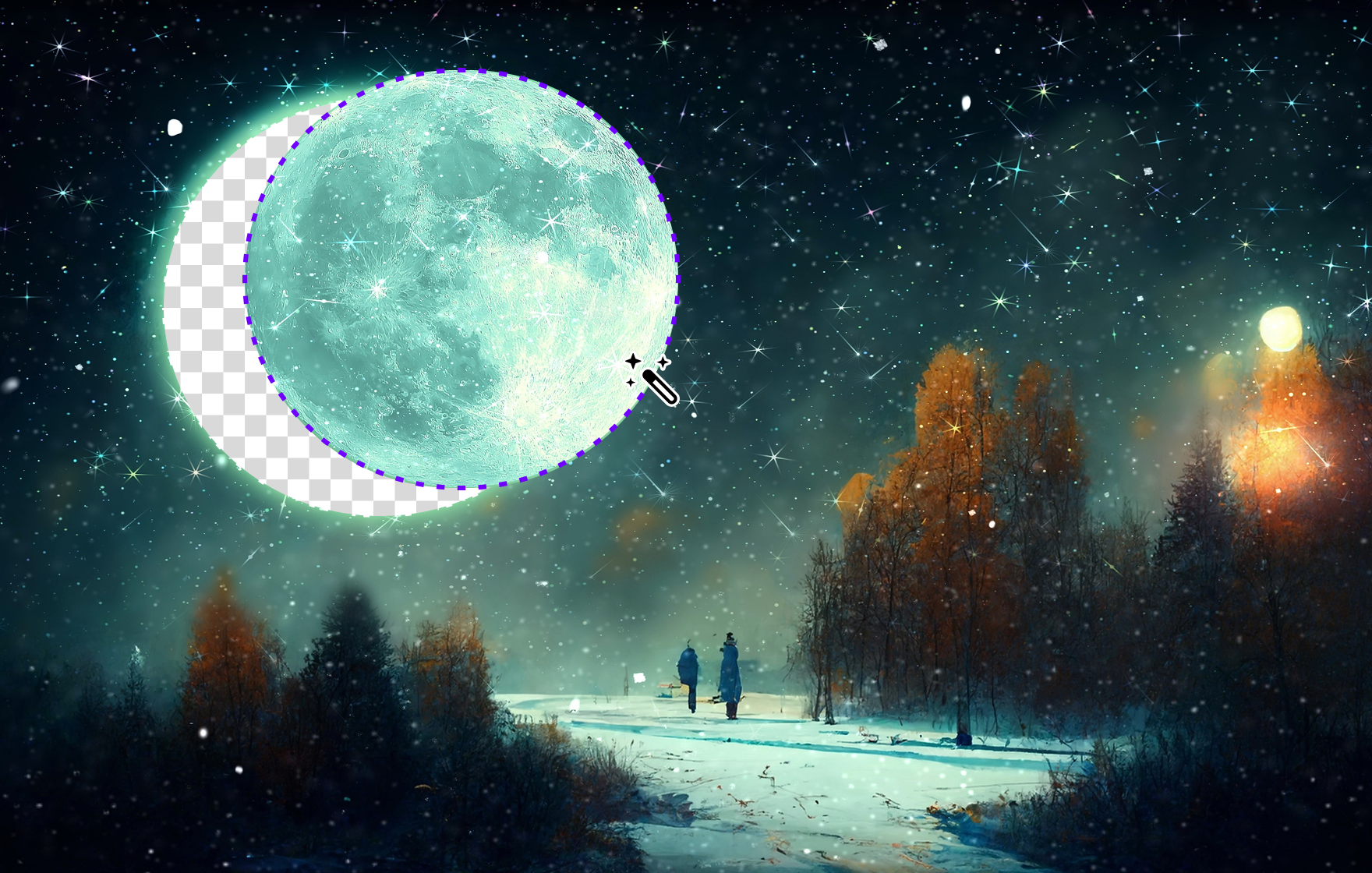
Easy area selection
Conveniently remove by selecting the desired area. Even the magic wand synthesis function can be used easily.
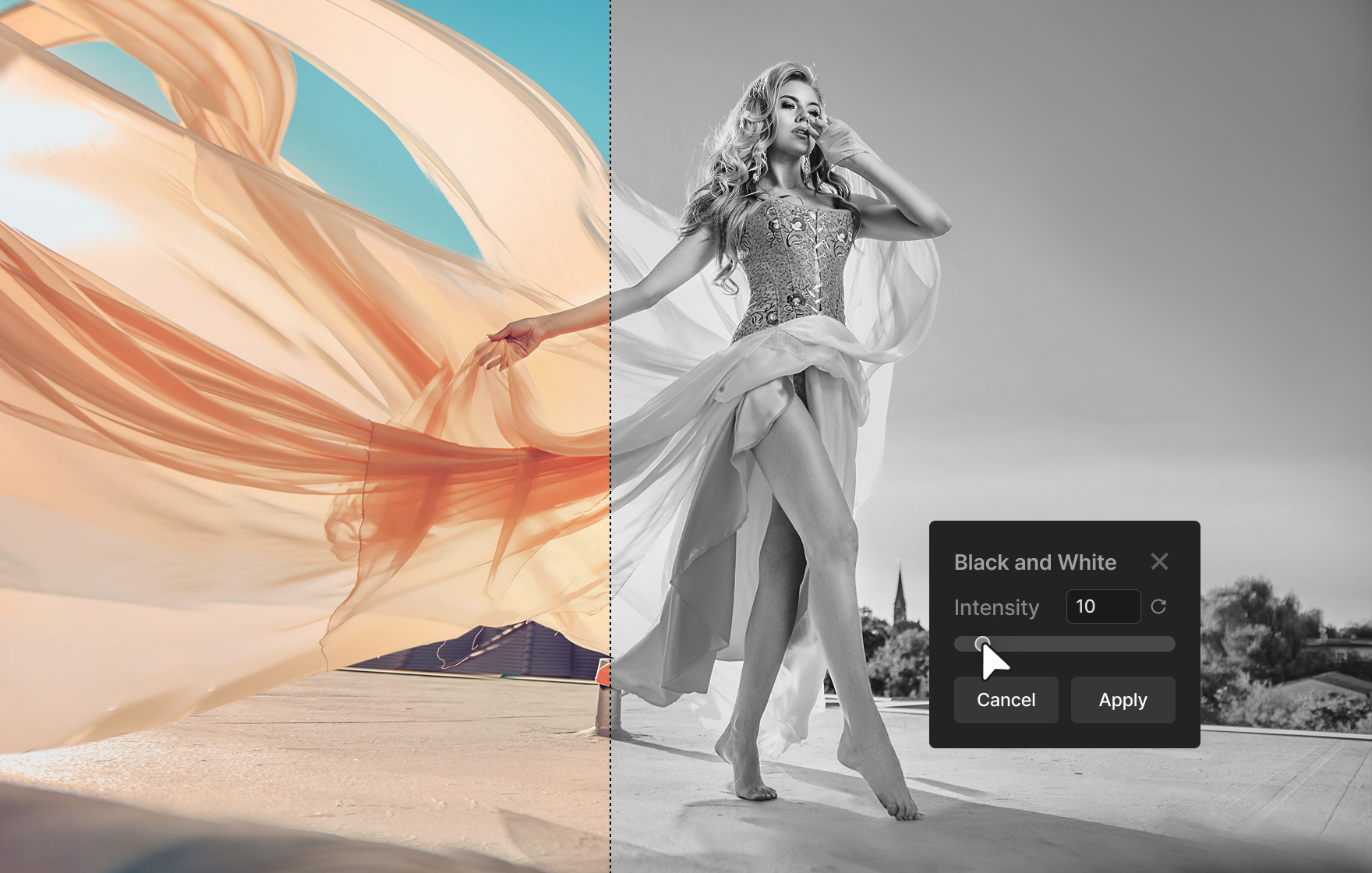
Various effects added
Create your own emotional photos with delicate color adjustments and filter effects.
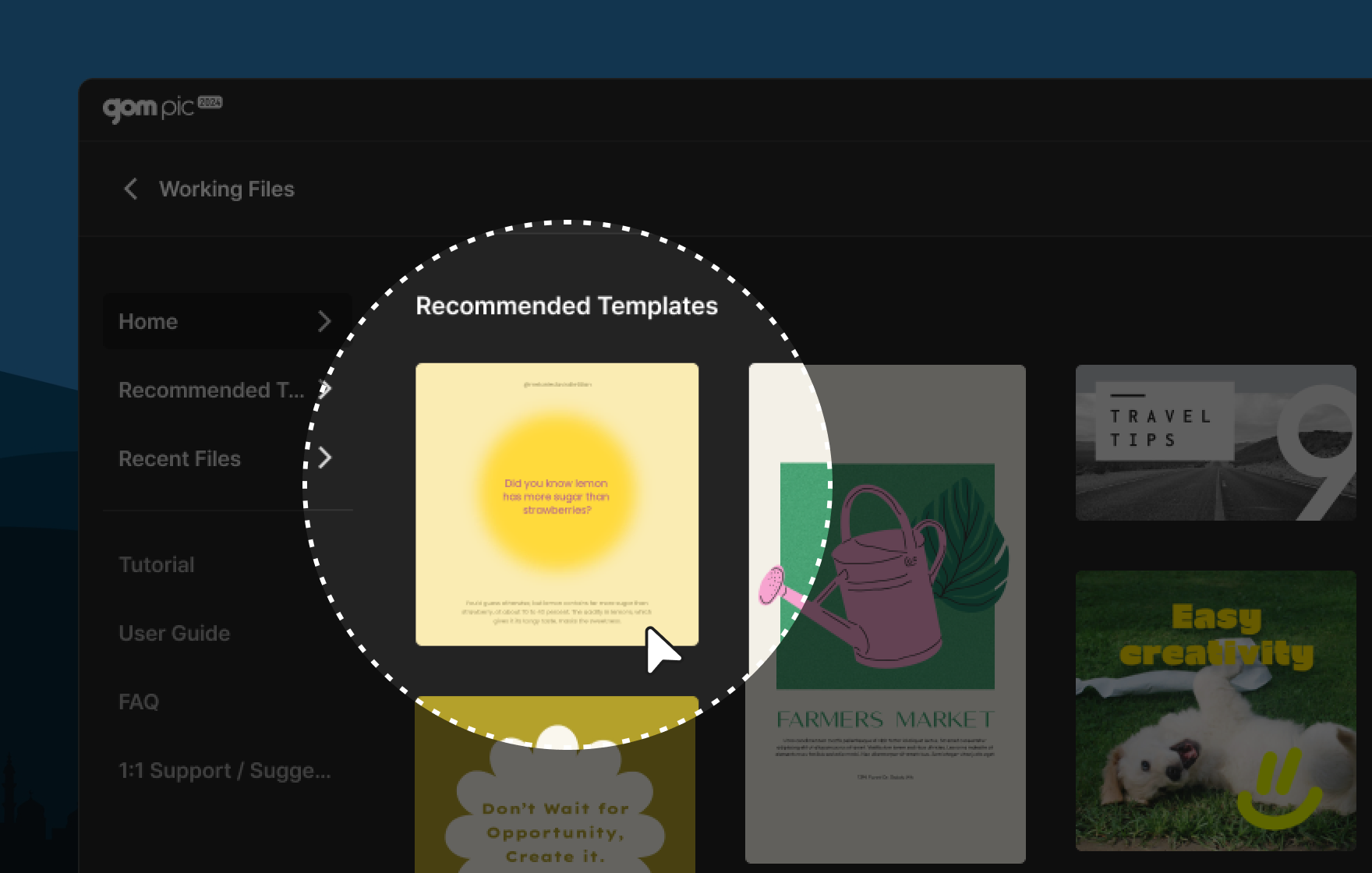
83 different templates
Create card news and social media thumbnails quickly by using easy and convenient templates that are useful for content creation.
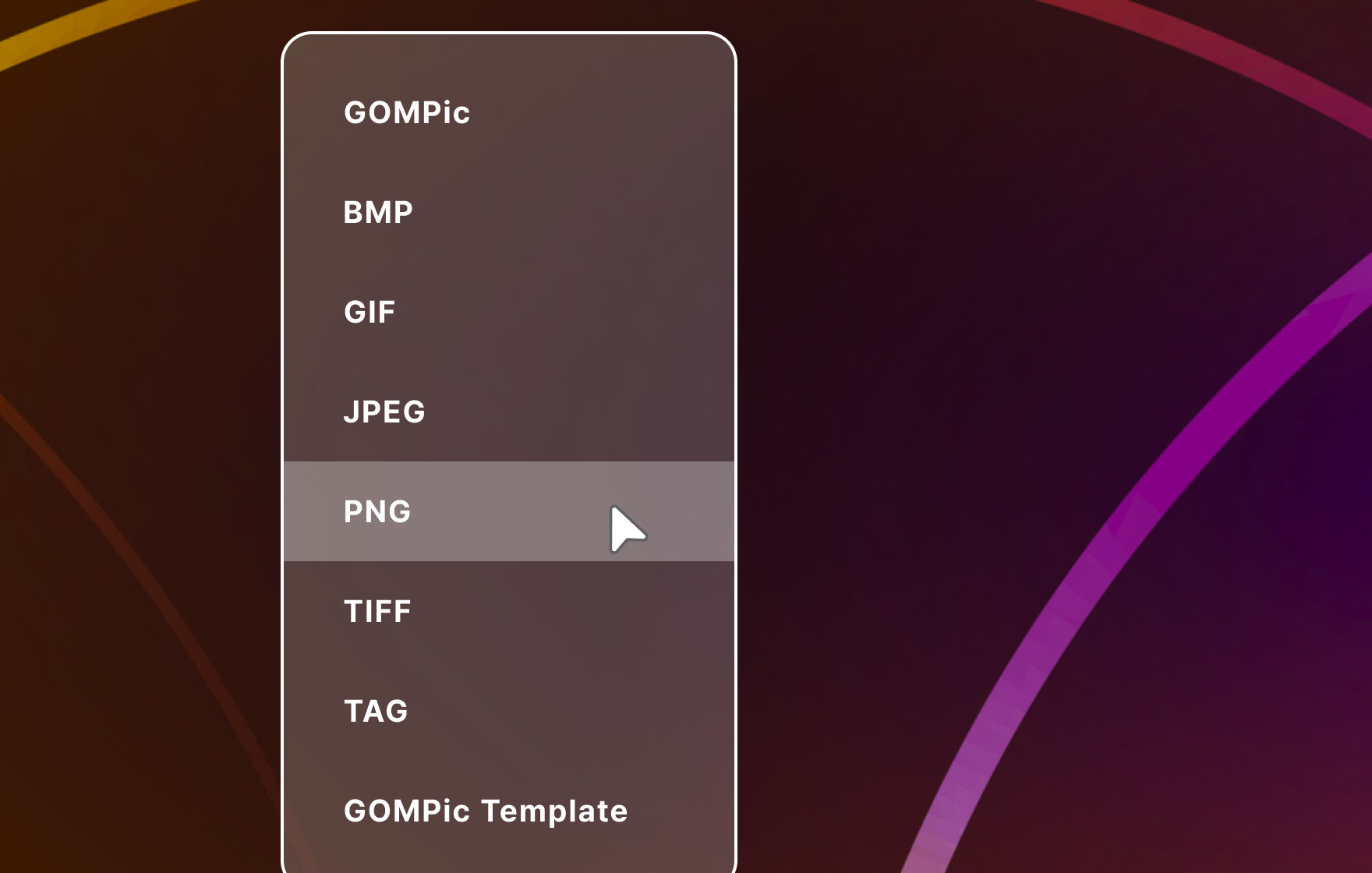
Wide format support
We support a wide range of formats from various image formats to dedicated project files.
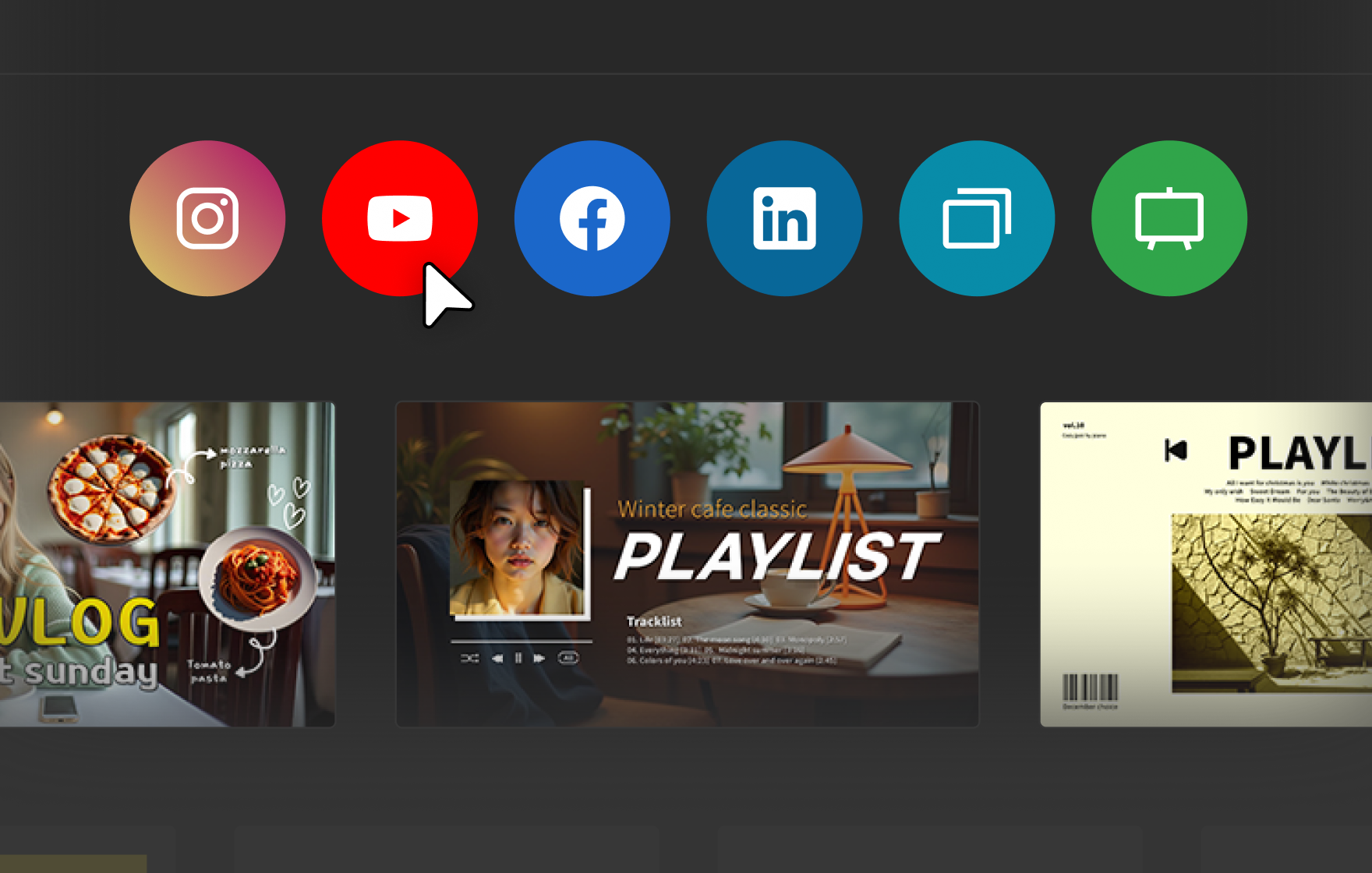
Create Size Matching Social Media Platform
With one click, produce content in the matching sizes for each social media platform.
Try variety of AI features of GOM Pic!
Try restoring low-quality images into high-quality images.
AI Upscaling
Preview available- Any images can be enlarged clean and clear.
Improve your photo quality easily. - Enhance facial details, remove/add noise
- Available in 5 types
- Using the BLUEDOT Model
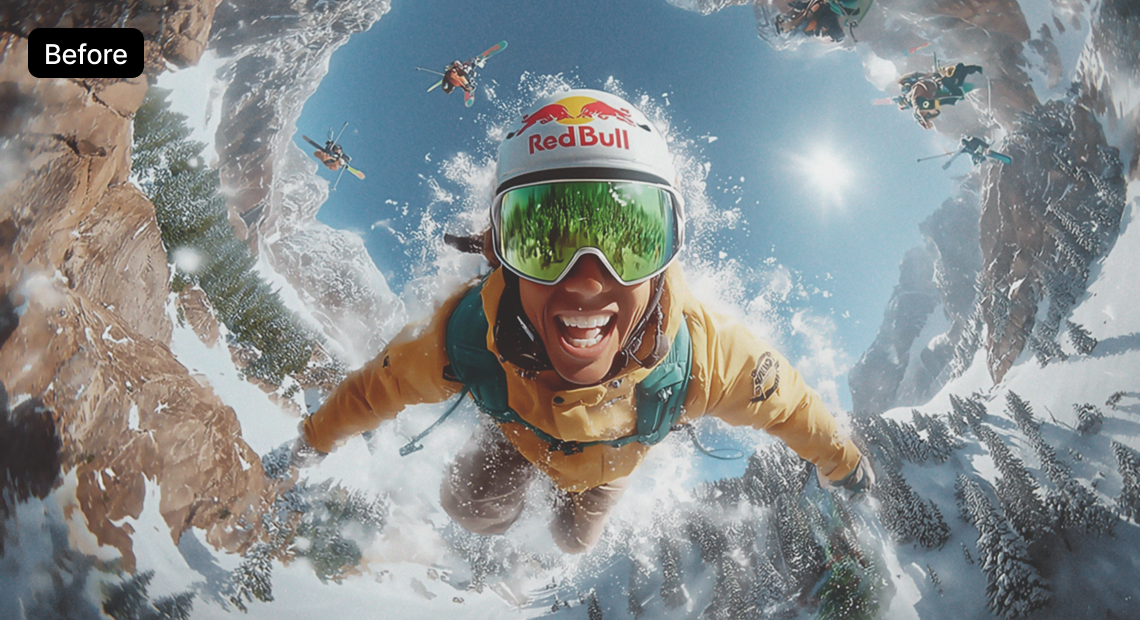
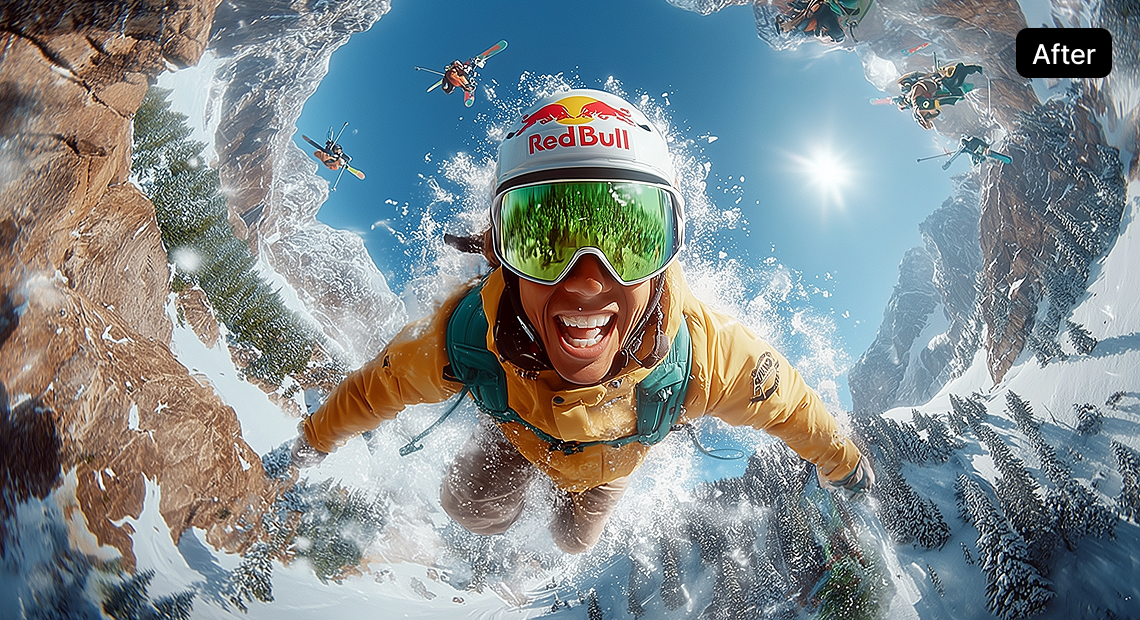
It is designed to help you understand and may be different from actual usage environment.
Generate your desired image with text.
AI Image Generator
- Generate high-quality images from imaginary scenes or abstract ideas.
- Providing 10 styles (Preset)
- Generate your desired image by writing a prompt directly.
- Using the GPT-Image-2 model
Prompt
"Fluffy" in plush fur 3D typography, pastel pink background, soft lighting, minimalist ad style.

It is designed to help you understand and may be different from actual usage environment.
Regenerate the image in your desired style.
AI Image Editing
- Generate a high-quality image by adding a new style or elements while maintaining the composition or form of the original image.
- Providing 10 styles (Preset)
- Edit the image as desired by writing a prompt directly.
- Using the GPT-Image-2 model
Prompt
Anime-style illustration, crisp cel shading, clean outlines, vibrant colors.

It is designed to help you understand and may be different from actual usage environment.
Buy Once, Use Forever? Use GOM Pic
Need Every AI Tool? Use GOM Easy Pass
87 Credits Monthly
Recommended

Subscription credits
Monthly Payment
- 30 days | 1 PC use at a time
- All-in-one Content Creation Package
- AI Features : AI Image Generator, AI Image Editing, AI Video Generator, AI Upscaling, AI Subtitles
- Get 113 Credits (Bonus Included) with Your First Purchase!
40 Credits
Best
Permanent License
- Permanent | 1 PC use at a time
- AI Features : AI Image Generator(new), AI Image Editing(new), AI Video Generator(new), AI Image Upscaling
- 【Event】 55% OFF from original price of $33.00

FAQ
View more-
How to Use AI Tools?
Select AI Tools from the toolbar to edit your images quickly and easily. The four main AI features available are as follows.
- AI Upscaling: Converts low-resolution images into sharp, high-resolution images.
- AI Image Generator: Easily creates new images from your imagination using just text prompts.
- AI Image Editing: Recomposes selected images based on your text prompts.
- AI Video Generator: Create vivid videos from images using your written prompt.
-
[GOM Pic] Product Specs Guide
Windows
Supported Software
Supported languages 한국어, English, 日本語 OS Windows 10 (64-bit) or later Minimum System Requirements CPU Intel Intel i5 or later recommended, 2GHz+. (Intel 6th gen or later) 4GB RAM or more (8GB or more recommended) 10GB or more of free hard disk space (SSD recommended) Supported Format
Image Format jpeg, jpg, bmp, gif, png, tiff, tga本語 -
Cut, resize and rotate tools only apply to the bottom image. I want to edit the image I want.
Cut, resize, and rotate tools can be set based on the bottom image.
To edit another image, you can select the layer of the image you want using direct selection, then edit the size, position, rotation, etc., and use area selection to remove areas other than the desired area.
-
The magic want feature is not working well.
Please select by adjusting the color gamut error.
The lower the %, the more likely it is that only colors with clear color differences will be selected.
-
I want to change only the part I selected.
When selecting a shape or lasso, you can change the size and location of the selected area by clicking the button at the bottom right of the selected area.


Update History
User Guide
If you need detailed instructions on how to use the product,
please refer to the user guide.