
 GOM Mix 10
Latest News
User Guide
Home
Audio Extraction
Use this feature when you quickly need only the audio from a video file. You can extract audio in a short time without creating a complex video editing project.
1. Getting Started with Audio Extraction
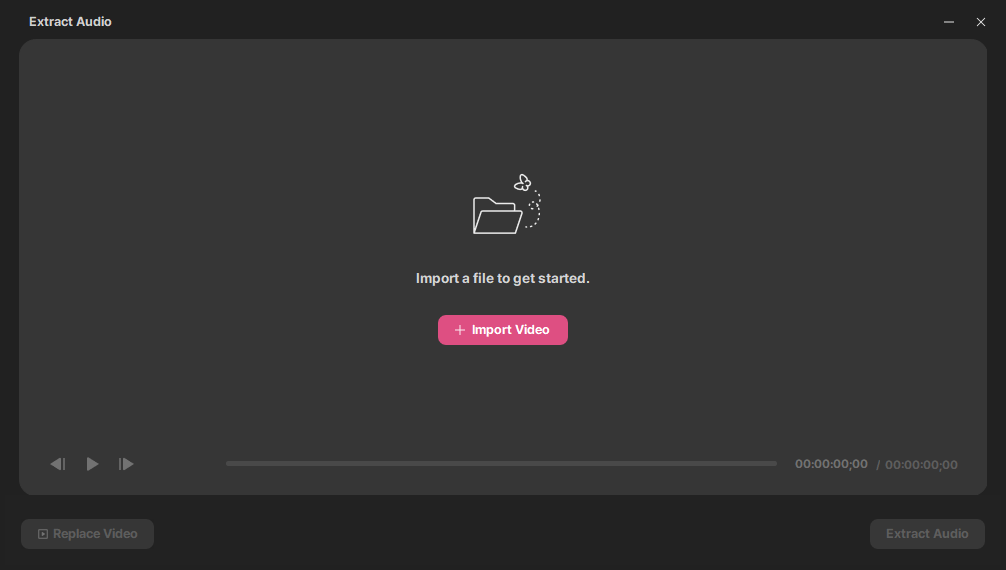
1) Selecting Audio Extraction File
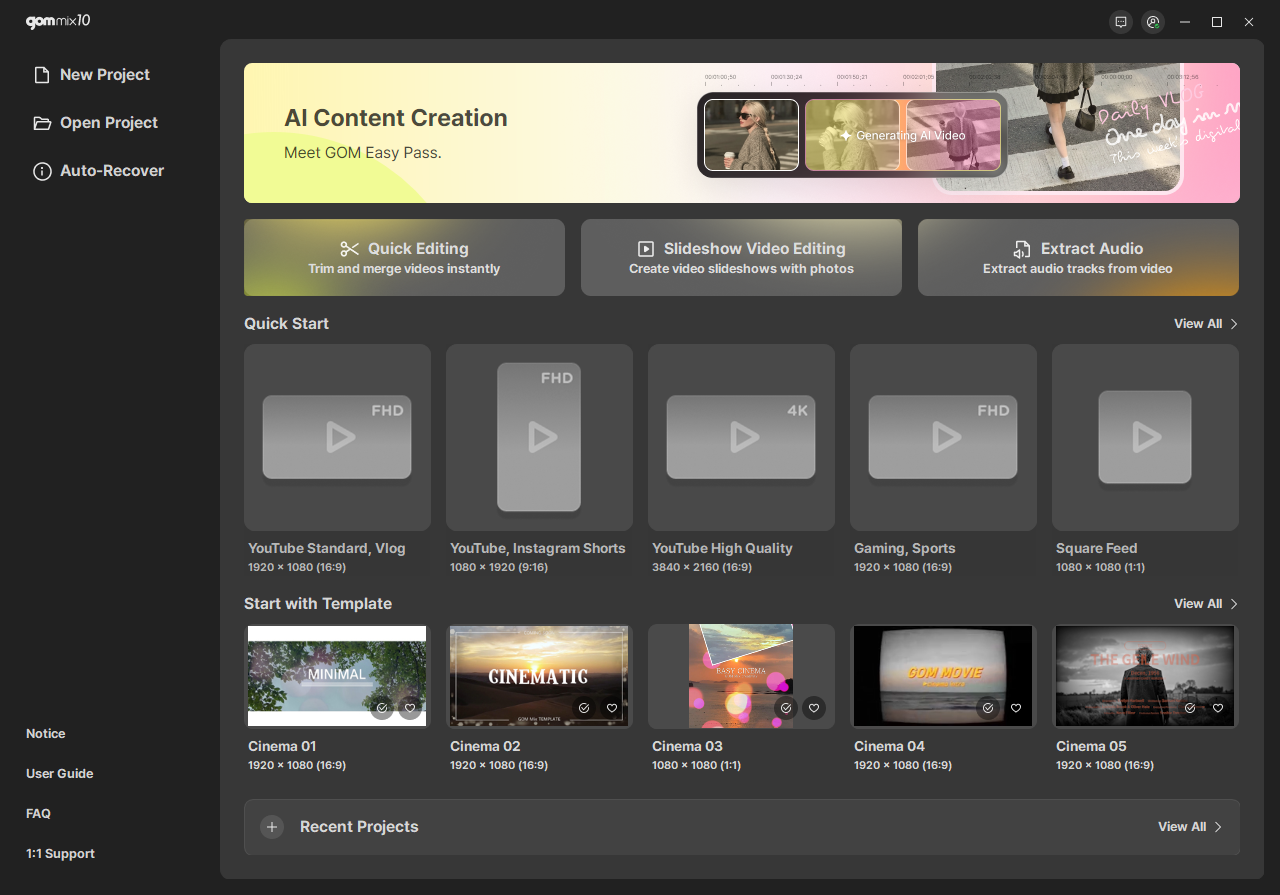
Clicking the [Audio Extraction] button displays the editing window for Audio Extraction. You can attach a file by clicking the [+ Import Video] button in the file attachment area or dragging and dropping a video file into the area. Note that audio files cannot be imported.
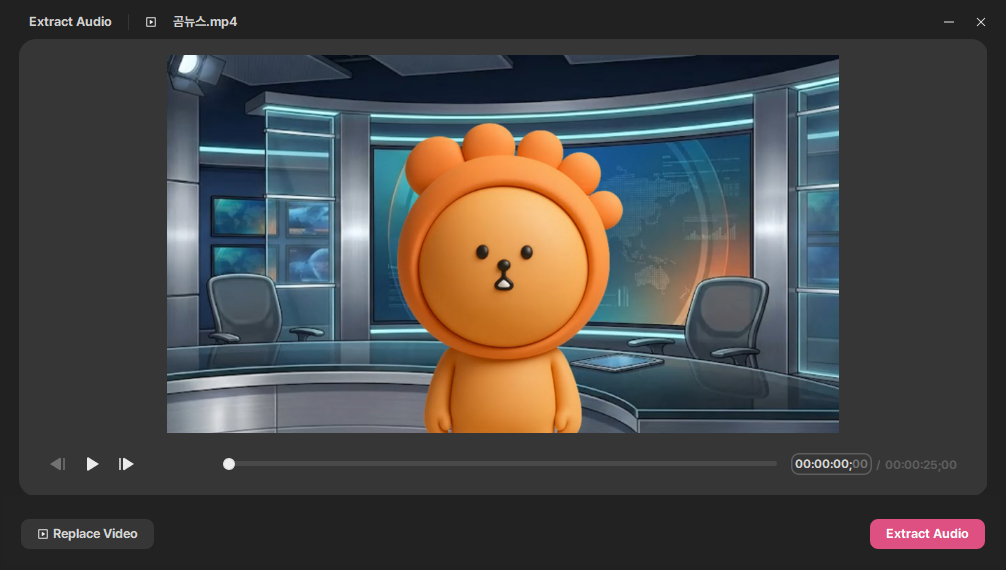
2) Previewing Audio Extraction File
After importing a video file, the bottom playback bar becomes active for playback. Clicking the [Replace Video] button allows you to import another video from File Explorer.
Once you have imported the video from which to extract audio, click the [Extract Audio] button to extract the audio.
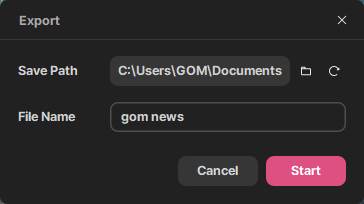
3) Audio Extraction Export
Clicking the [Extract Audio] button displays the Audio Extraction Export window.
Save Folder indicates the folder location where the encoded video/audio will be saved. The default folder retrieves the path configured in Preferences. Clicking  in the indicated area opens a File Explorer window to designate a save location, while clicking
  sets the save location back to the default path configured in Preferences. The File Name defaults to the imported file's name, but can be modified up to around 100 characters. After completing settings, clicking the [Start] button switches to the audio extraction rendering window.
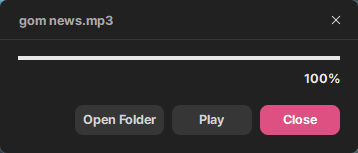
4) Audio Extraction Rendering
While extraction is in progress, real-time progress is displayed from 0 to 99%. Note that clicking the [Cancel] or [Close] buttons will cancel rendering and return you to the Audio Extraction main screen.
When extraction is complete, the [Open Folder] and [Play] buttons become active. Clicking [Open Folder] opens the directory where the extracted file is saved, and clicking [Play] plays the extracted audio file.