 GOM Mix 10
Latest News
User Guide
Home
Home Screen
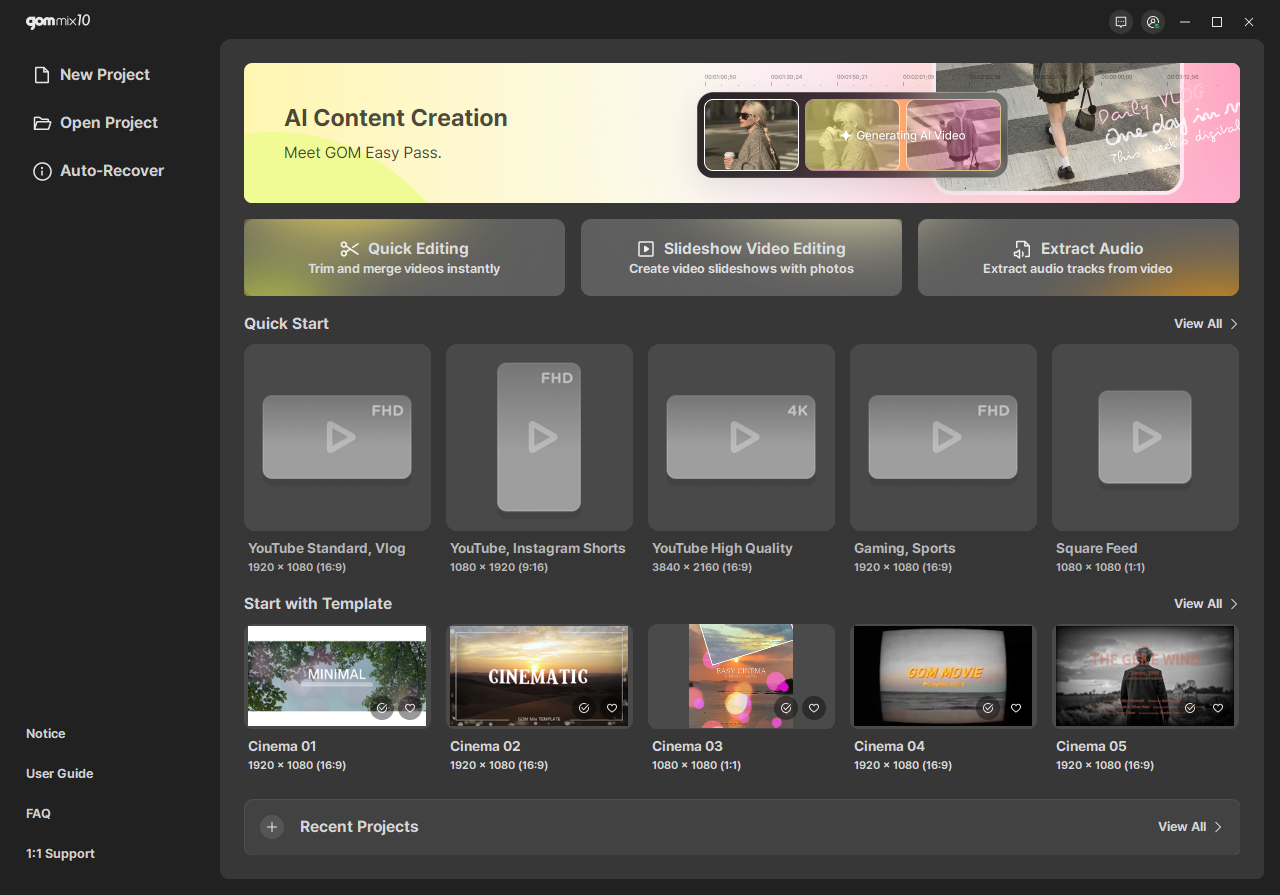
The Home Screen is the first screen of GOM Mix that is automatically displayed when the program is launched.
1. New Project
Clicking the [New Project] button displays the Project Settings pop-up window.
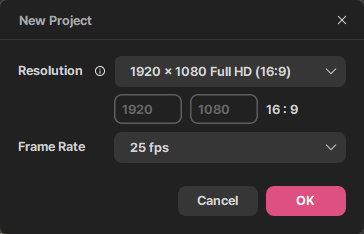
Select a resolution with your desired aspect ratio from various resolutions based on aspect ratio.
| Resolution | Custom Settings |
|---|---|
| 640 x 360 (16:9) | |
| 1280 x 720 HD (16:9) | |
| 1920 x 1080 Full HD (16:9) | |
| 3840 x 2160 4K (16:9) | |
| 360 x 640 (9:16) | |
| 720 x 1280 HD (9:16) | |
| 1080 x 1920 Full HD (9:16) | |
| 2160 x 3840 4K (9:16) | |
| 640 x 640 (1:1) | |
| 800 x 800 (1:1) | |
| 1080 x 1080 (1:1) | |
| 800 x 1000 (4:5) | |
| 1080 x 1350 (4:5) | |
| 1920 x 800 (12:5) | |
| 3840 x 1600 (12:5) | |
| 640 x 480 VGA | |
| 780 x 480 NTSC SD | |
| 720 x 576 PAL SD | |
| 1440 x 1080 HD |
Select the number of frames generated per second of video.
| Frame / Second | 29.97 fps |
|---|---|
| 30 fps | |
| 50 fps | |
| 59.94 fps | |
| 60 fps |
2. Open Project
Clicking the [Open Project] button opens File Explorer, allowing you to load previously worked project files.
3. User Guide
Clicking the [User Guide] button redirects you to the GOM Lab User Guide webpage.
4. FAQ
Clicking the [FAQ] button launches the GOM Lab FAQ page.
5. Quick Edit Mode
The Quick Edit Mode area includes Quick Editing, Slideshow Video Editing, and Audio Extraction. Clicking the button for your task displays the related editing window, allowing you to easily begin editing.
6. Quick Start
Clicking the Quick Start [View All] button allows you to quickly start by choosing various aspect ratios suited for the type of video you want to create, such as YouTube or Instagram. Easily edit Shorts, Vlogs, and feed videos without complex project setups.
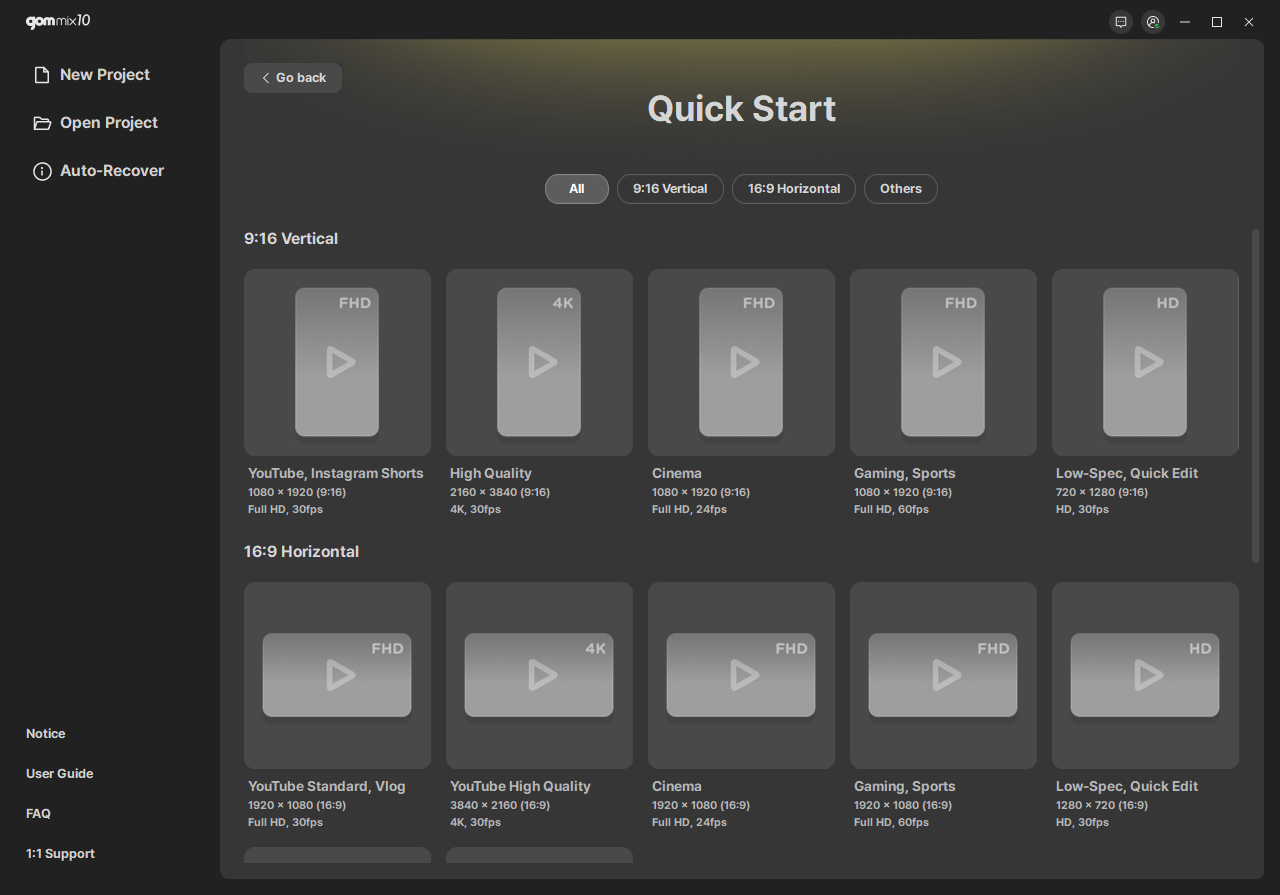
In the Quick Start category area, you can view templates collected by your desired aspect ratio. Selecting a Quick Start card from the Home Screen or Quick Start menu navigates to the edit screen, and the edit screen is configured with the content of that card.
7. Start with Template
Clicking the Start with Template [View All] button allows you to select various templates to easily begin video editing. In the Template category area, you can view collected templates by type. You can add frequently used templates to Favorites by clicking the  button.
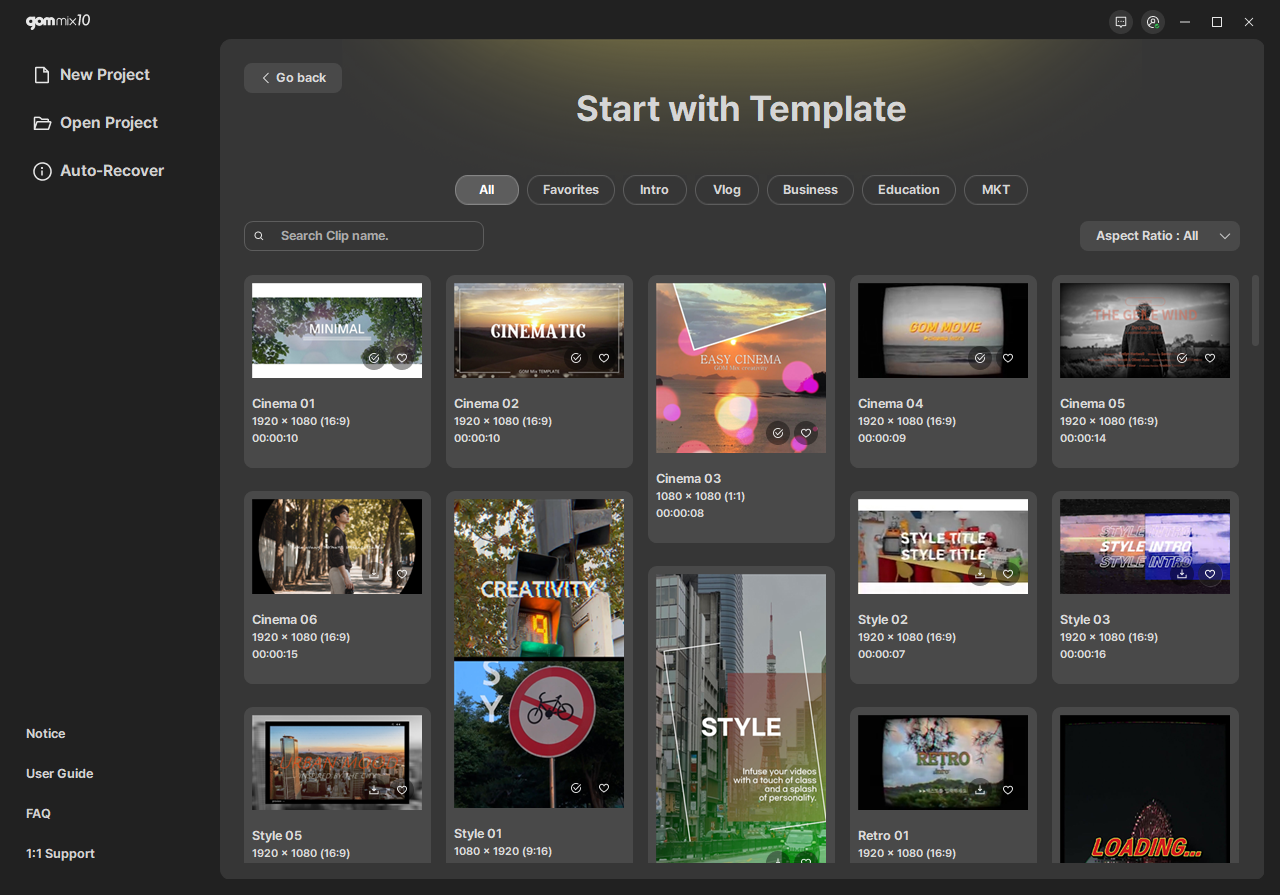
Selecting a desired template downloads the template and then displays the Start with Template settings window. In this window, you can check the template resolution and begin editing by choosing either Advanced Editing Mode or Storyboard Editing Mode.
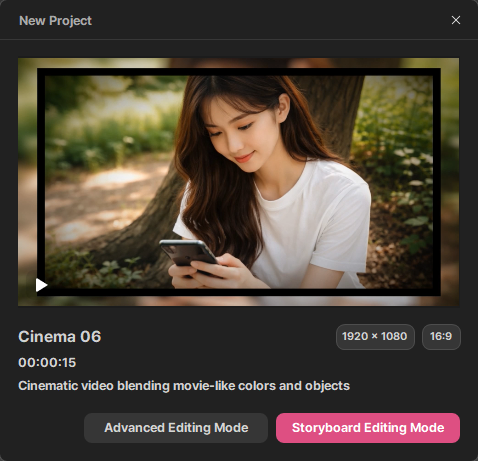
Clicking the [Advanced Editing Mode] button navigates to the workspace where you can perform detailed editing on all elements inside and outside the template.
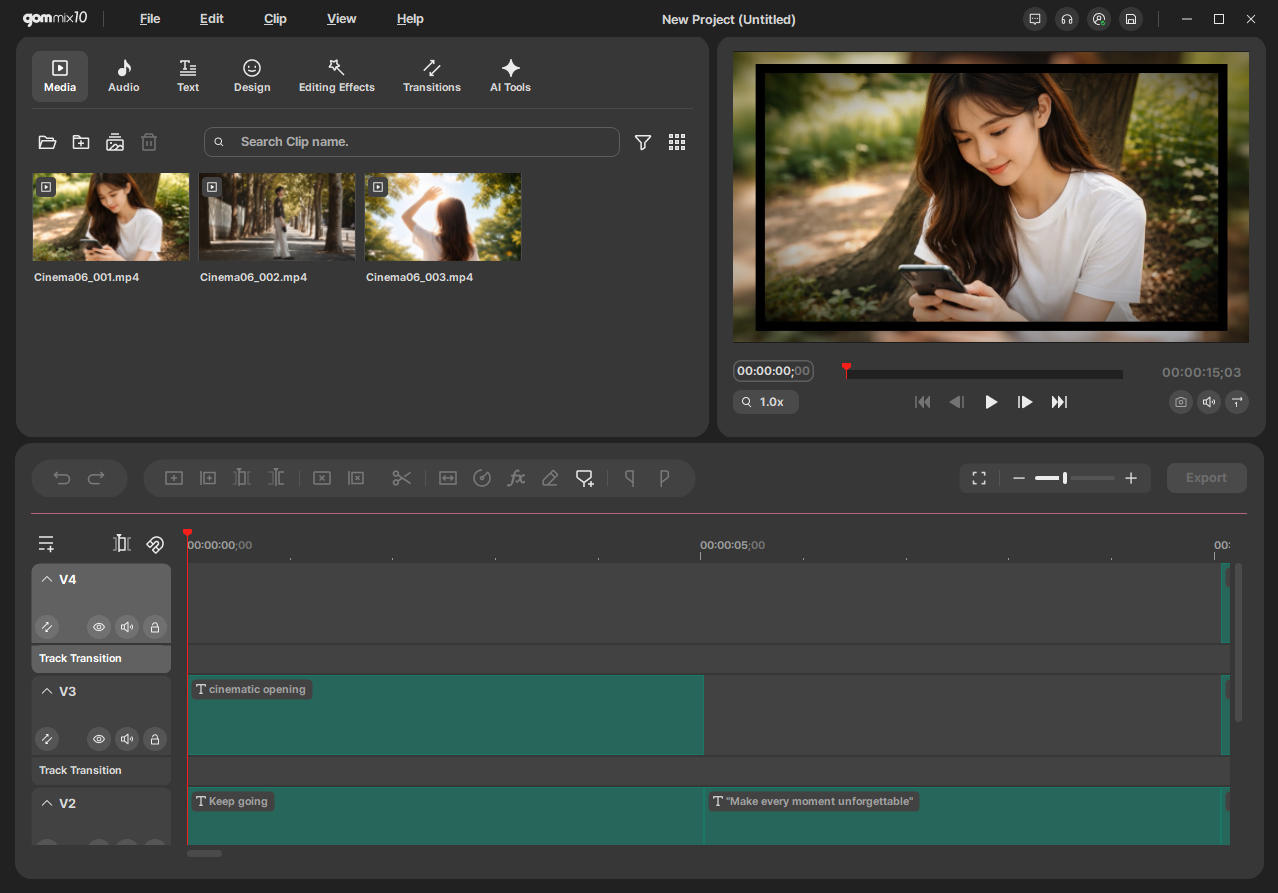
After loading a template, you can replace or add your own media (video/audio/image) clips. Pressing and holding the Alt key while dragging the desired clip moves it to the replacement position on the timeline. Sticker packs and video packs from Design Packs, as well as backgrounds and objects, can be changed in the same manner as replacing media clips. Double-clicking text you wish to edit on the timeline opens the Text Editing panel, allowing you to modify it to your desired wording. Various styles such as size and position can also be changed by adjusting various setting options.
8. Recent Projects
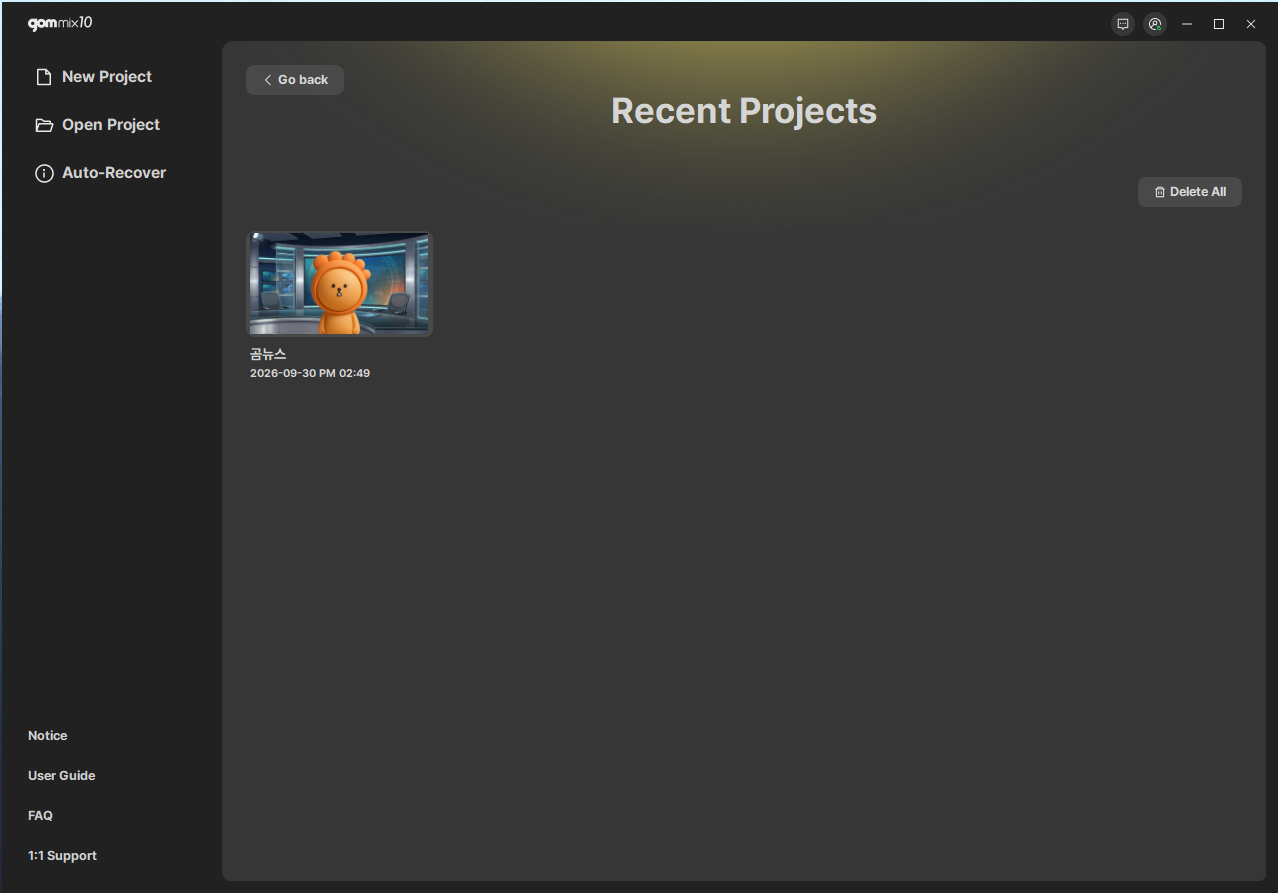
Activated when there are recently worked projects. Clicking the [+] button slides up the recent project list area from the bottom. Clicking [View All] moves to the full Recent Projects screen. Selecting a recent project card opens that project so you can continue editing.