
GOM PicUser Guide
Layer Area
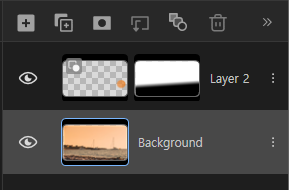
Open/Close Layer Panel

|
You can open or close the layer panel. |
|---|---|
Add New Layer

|
Add a new layer above the selected layer. |
Copy Layer

|
Duplicate the selected layer. |
Add layer mask

|
By adding a layer where you can set transparency effects, you can naturally composite the selected image with the image below. |
Clipping Mask

|
You can use two images to fit the image above to fit the shape of the image below. |
Blending Mode

|
Using various effects, you can composite between layers without damaging the original. |
Delete Layer

|
Delete the selected layer. |
Turn Layer On/Off

|
Turn the view of the selected layer on/off. |
Subject Information

|
If you click, an information pop-up is created and you can set the horizontal/vertical size of the selected object. |
| Layer name | You can edit the layer name by double-clicking on it. |
| Change Layer Order | long-press on a layer and then drag it, you can change the order of the layers. |