
GOM PicUser Guide
Editing Tool Menu Area

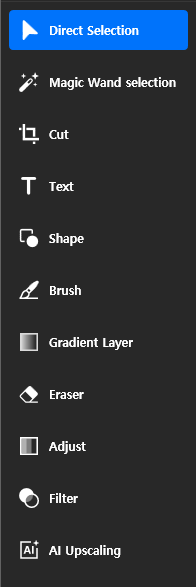
When you hover over the editing tool icon, you can see the name of the tool as shown above.
| Direct Selection | Basic selection tool in GOM Pic, allowing you to select objects such as images or text on the workspace. |
|---|---|
| Select Area | Tool for selecting specific areas on the canvas. When an area is selected, operations are only performed within that area. |
| Cut | Tool for cutting, flipping, and resizing images. |
| Text | Tool for creating and editing text objects on the canvas. |
| Figure | You can choose the shape you want among rectangles, rounded squares, circles, and straight lines. |
| Brush | Tool for freely drawing on the canvas. |
| Paint | Tool for changing specific areas of an image to desired colors. |
| Gradient Layer | This is a tool that allows you to paint the entire image or specific areas with a gradient. |
| Eraser | Tool for erasing areas on the canvas workspace. |
| Adjust | Tool for adjusting hue, brightness, contrast, etc., of images. |
| Filter | Tool for applying special effects to images. |
| AI Upscaling | A tool that uses Artificial Intelligence (AI) models to improve the resolution of images. |