
GOM PicUser Guide
AI Tools
Export
AI Upscaling
Once you have checked the AI Upscaling image in the preview, you can click ‘Apply’ to receive the result you want.
- 1. After completing all AI Upscaling settings, click the ‘Apply’ button
-
2.
In the settings pop-up, you can set the file name, file storage path, and file format before exporting.

-
3.
When the export is complete, the file is saved in the file storage, and you can open the file in GOM Pic using the method below.

AI Upscaling Export Open as New File Open only images that have completed AI Upscaling as a new file. Open with Current File Open as new layer in current file. Open Saved Folder Open folder in saved path
AI Image & Video
Once you have entered a description in the "Prompt" field and setup the image size, quality, and background settings, click ‘Generate’ to create your desired image with AI.
- 1. Once you complete all AI Image & Video settings, click the ‘Generate’ button.
-
2.
In the Export pop-up, you can set the name, file saving path, and file format to export the image.
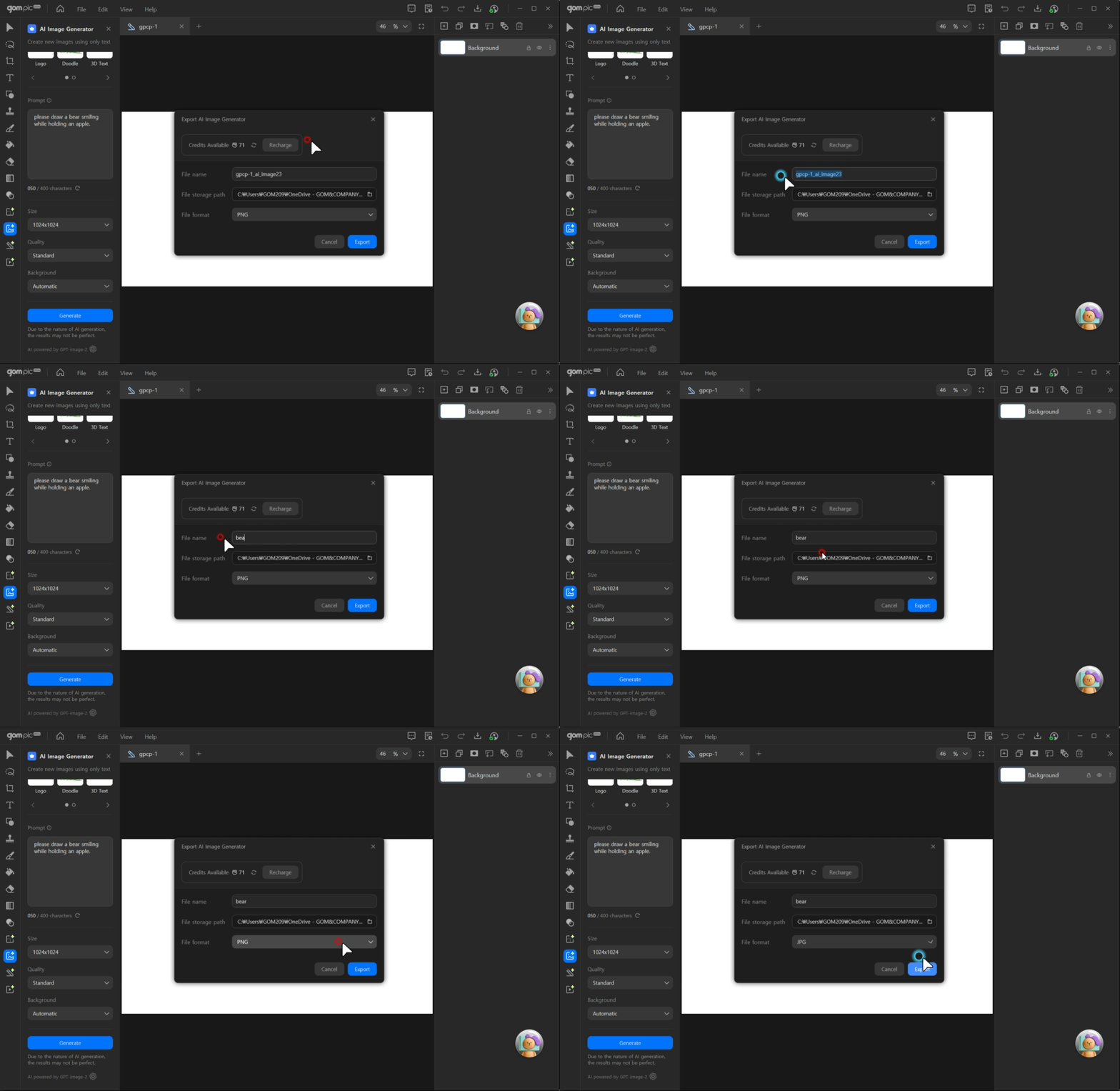
- 3. When exporting is complete, the file is saved to the designated path. You can open the file in GOM Pic using the methods below.
AI Image Generation, AI Image Editing
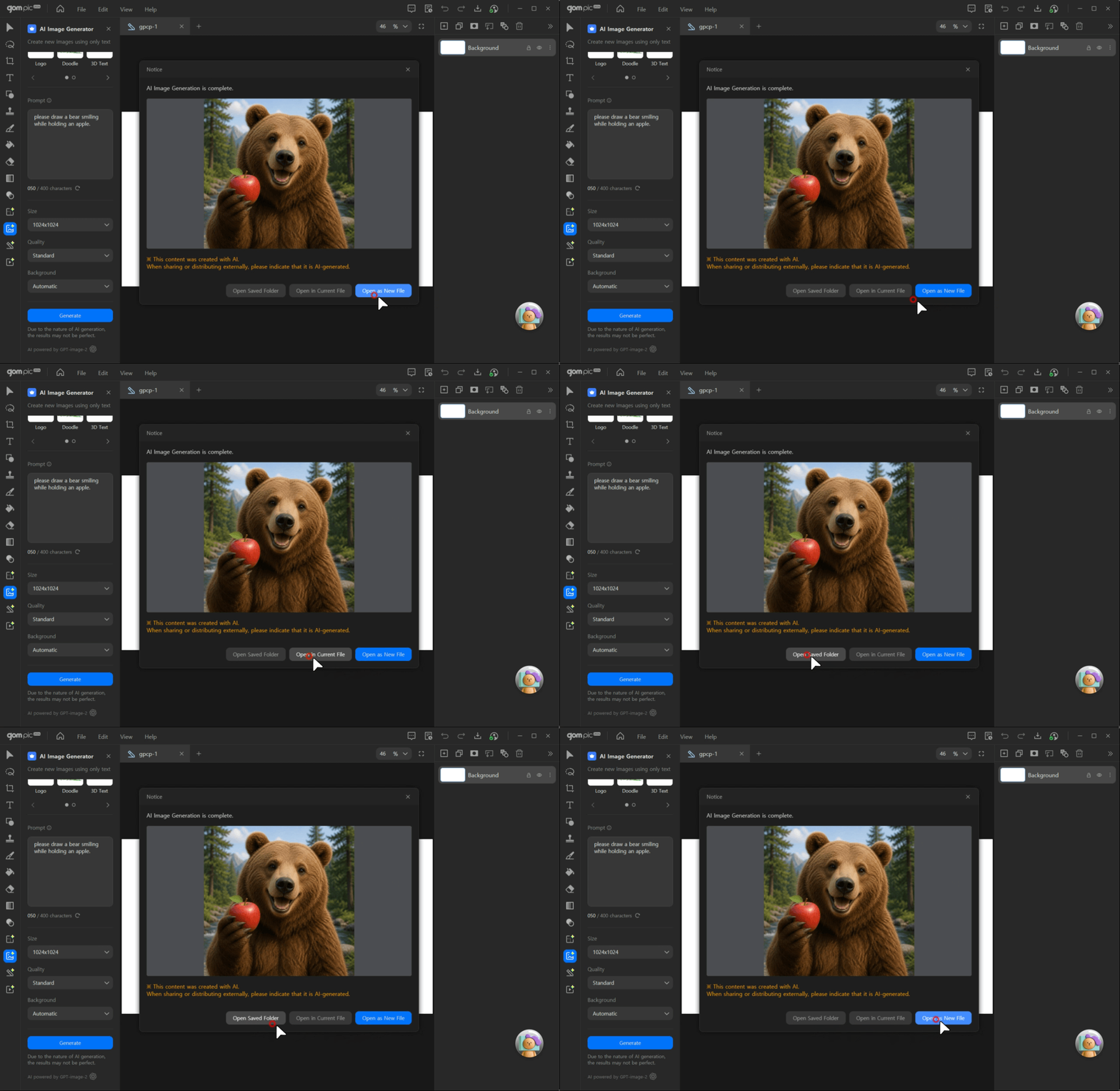
| Open as a New File | Open only the completed AI-generated image as a new file. |
|---|---|
| Open in Current File | Open as a new layer within the current file. |
| Open Saved Folder | Open the folder where the file was saved. |
AI Video Generator
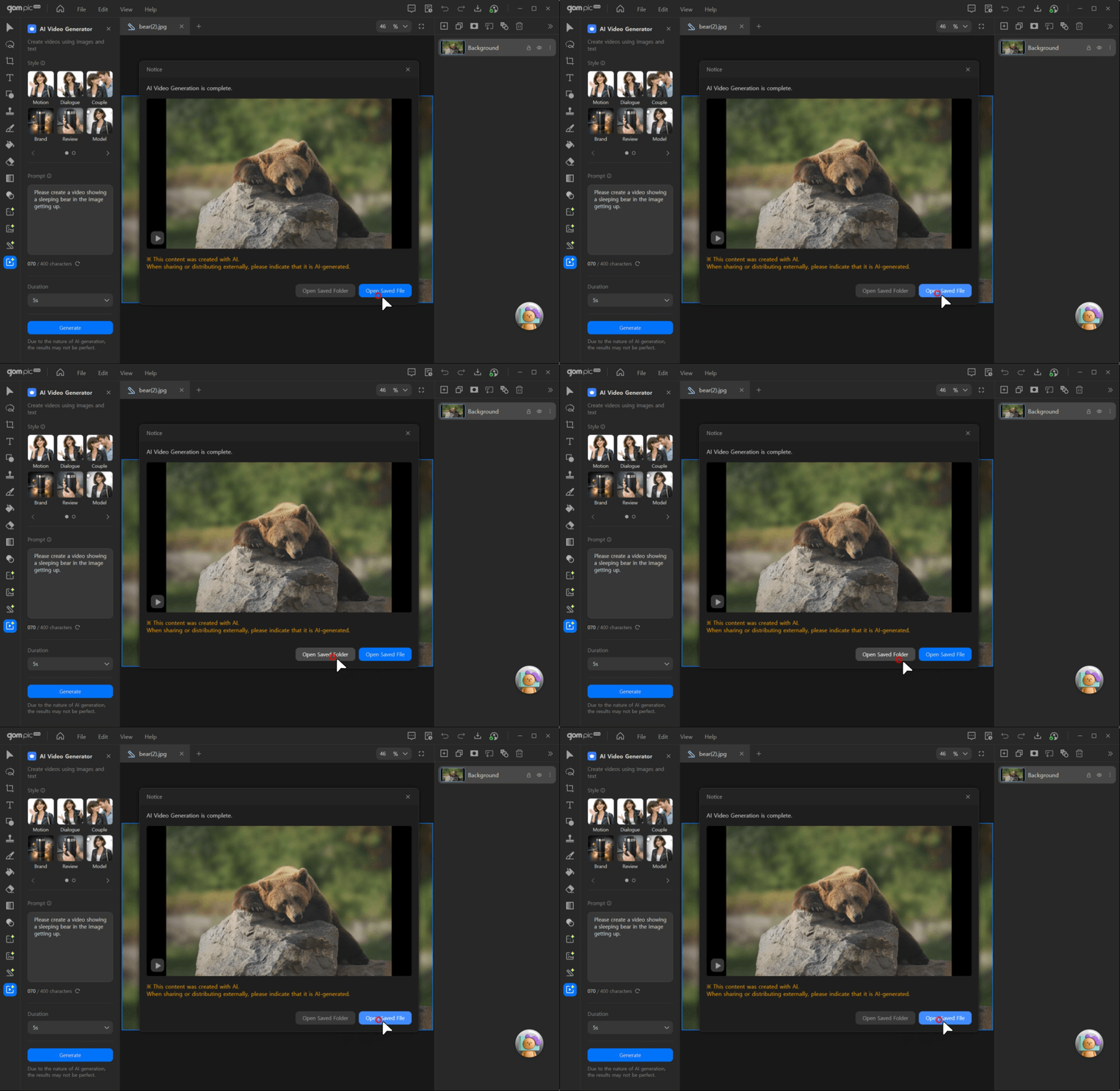
| Open Saved File | Opens the AI-generated video file. |
|---|---|
| Open Saved Folder | Opens the folder where the file was saved. |
- Before
- Next