
GOM PicUser Guide
Brush
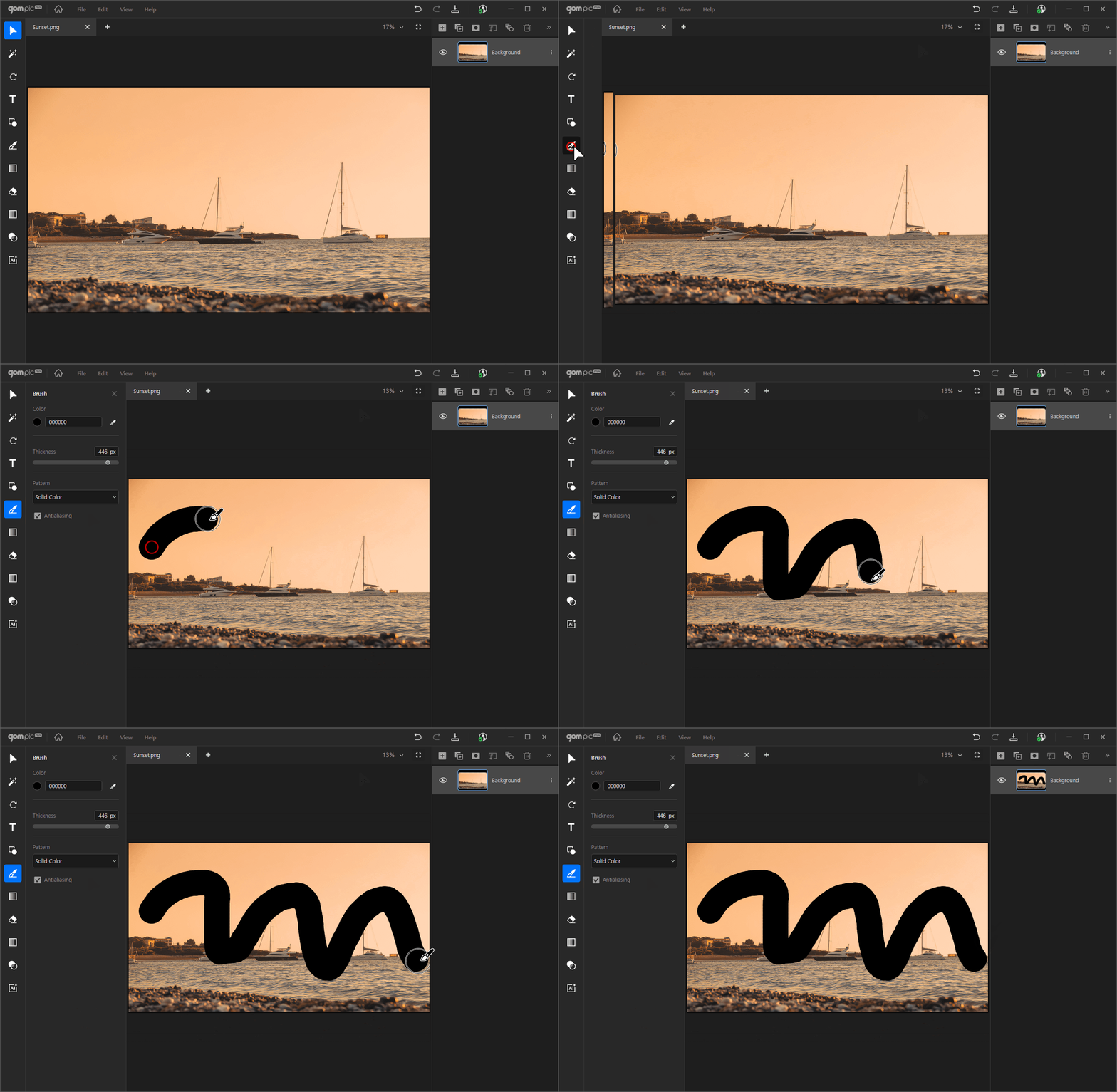
This feature allows you to draw freely on the image.
Clicking opens a detailed settings panel on the left side of the screen.
| Color | Changes the color of the brush. You can either select directly from the color palette or specify the desired color using the eyedropper tool. |
|---|---|
| Thickness | Sets the thickness of the brush. You can either directly input a number or drag the scroll to adjust it. |
| Pattern | Specifys the texture of the brush. You can freely choose from various patterns, not just solid colors. |
| Anti-aliasing | When activated, it prevents the brush from creating a stepped effect, resulting in smooth edges. |