
GOM PicUser Guide
Home Screen
Basic Menu
1. Top Menu Bar

| Working Files | Returns to the project file currently being worked on. |
|---|---|
| AI Upscaling | A tool that uses Artificial Intelligence (AI) models to improve the resolution of images. If you click, you will bring the image file saved on the PC. (The image currently editing can also be used using the AI upscaling tool.) |
| Import Image | Imports image files saved on the PC. After selecting the file, you can choose whether to 'Open as New File' or 'Open in Current File.' |
| New | Once you click, it will take you to the Create New page for each specification. |
2. Left Basic Menu
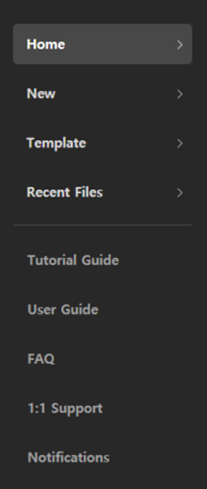
| Home | Moves to the home screen. |
|---|---|
| Templates | Moves to the list of recommended templates. |
| Recent Files | Moves to the list of recently worked-on project files. |
| Tutorial Guide | If you click, a pop-up window with basic instructions for using the software will appear. |
| User guide | Opens the official GOM Lab website's user guide page in the browser. |
| FAQ | Opens the official GOM Lab website's frequently asked questions page in the browser. |
| Notifications | Displays a popup window with update information when clicked. |
| 1:1 Inquiry | Moves to the official GOM Lab website's 1:1 inquiry page in the browser. |
3. Templates Area
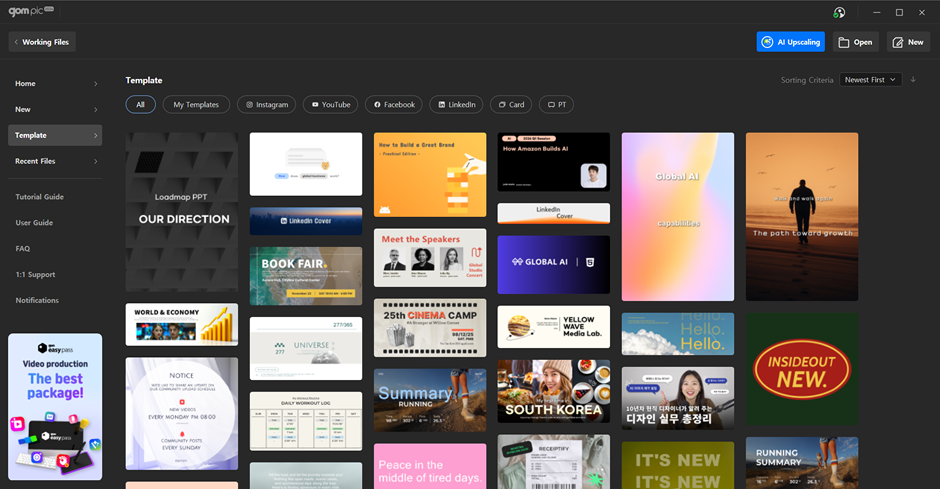
We will continue to add recommended templates. Clicking the '[See All]' button will navigate to the template tab screen.
You can browse GOM Pic's recommended templates by each category.
※ You can create your own template by clicking the Edit Screen > File > Save as Template button.