GOM Player+User Guide
AI Video Upscaling
Video Upload
In the video upload pop-up, select the video file you want to upscale and upload it.
1. AI Video Upscaling file upload Access
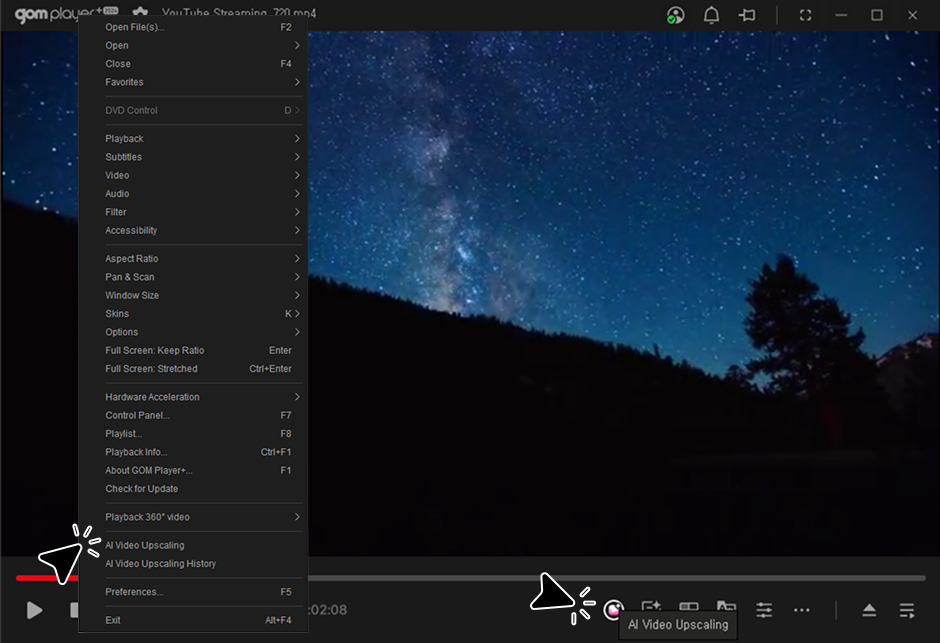
You can start uploading the original video file for AI upscaling by clicking the AI Video Upscaling icon button on the bottom control bar of GOM Player+ or by clicking the 'AI Video Upscaling' button in the context menu that appears when you right-click.
2. Select Video
Depending on the current video status, video selection is possible in two ways.
-
1)
With a video already selected in the player
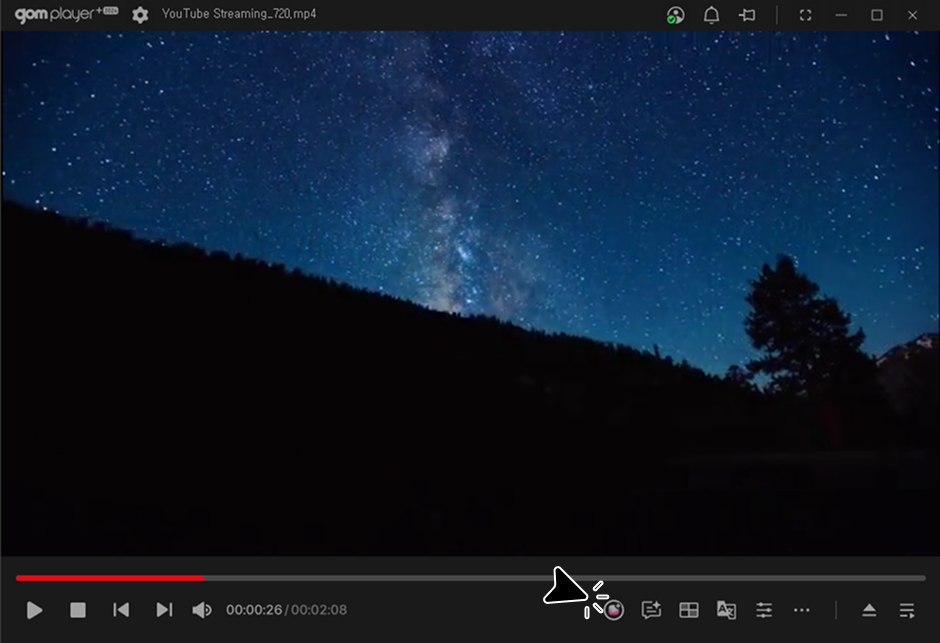
- While playing the video in GOM Player+, click the AI Video Upscaling button. A pop-up window will appear asking you to upload the AI Video Upscaling for that video.
-
2)
No video selected in the player
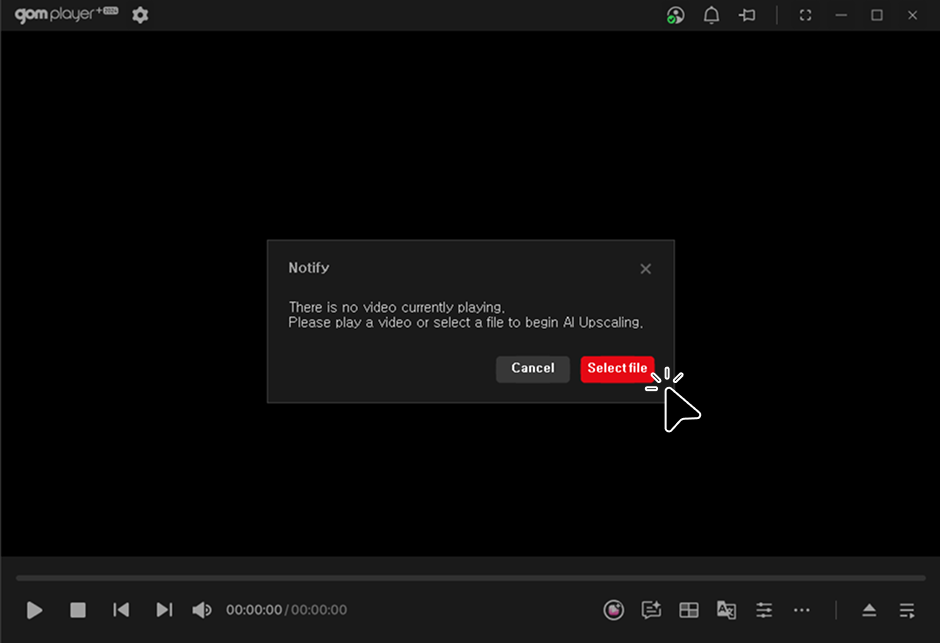
- If GOM Player+ is running but no video is playing, and you click the AI Video Upscaling button, the system will display the "Open File" box.
- Open File Dialog Box: In this window, navigate to the original video file you wish to upscale, select it, and click the "Open" button.
- Once file selection is complete, the AI Video Upscaling upload pop-up for the selected file will appear.
3. Upload Original Video
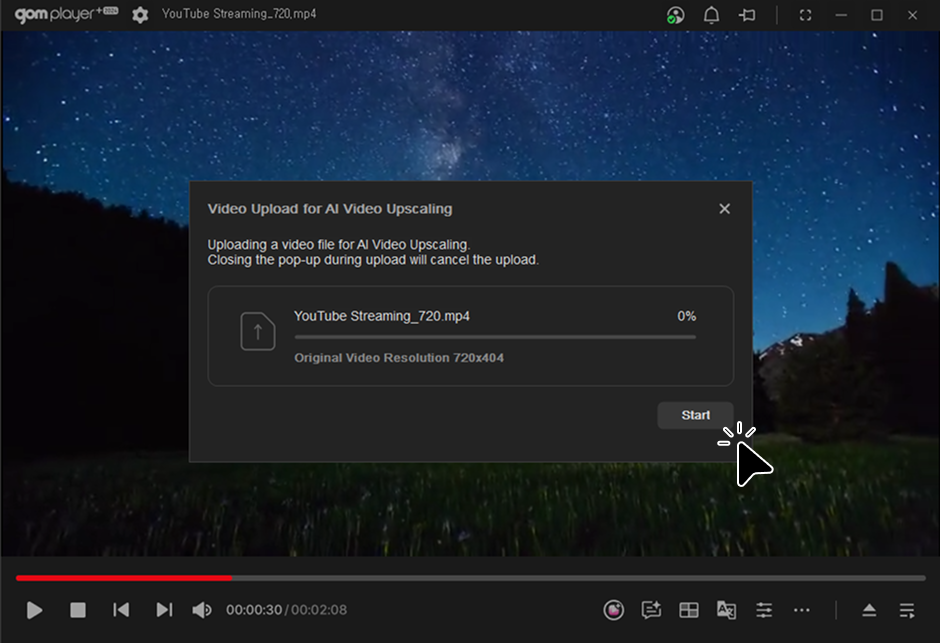
Click the Start button below to upload your original video.
Once the upload is complete, the AI Video Upscaling pop-up will appear.