
GOM MixUser Guide
Source and Effects Panel
Clip Transition Tab
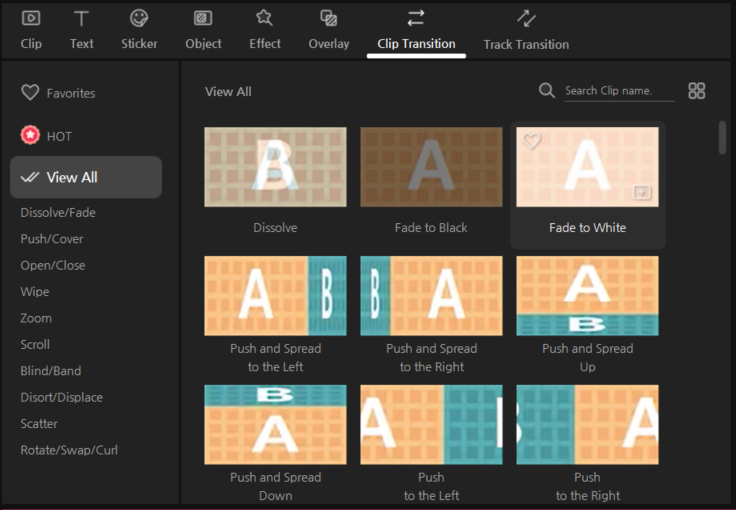
The Clip Transition Tab is a window in which transitions to be applied to clips are gathered. A Clip transition is an effect that switches from one screen to another.
Apply clip transition effect to clip A (left) and clip B (right). Clip transitions are classified into detailed categories and you can see similar types of clip transition effects in each category.
| Category | Description |
|---|---|
| Dissolve/Fade | This is the most basic type of transition, where one clip gradually fades out as another clip fades in. |
| Push/Cover | The new scene transitions in by pushing or covering the previous scene. |
| Open/Close | The screen opens or closes from both sides, or from a specific direction, to switch scenes. |
| Wipe | The transition wipes the screen in one direction, revealing the next scene. |
| Zoom | The screen zooms in or out to move to the next scene. |
| Scroll | The scene transitions by moving vertically or horizontally across the screen. |
| Blind/Band | The screen divides into multiple lines or bands as it transitions to the next scene. |
| Distort/Displace | The image becomes distorted or ripples like waves as the scene changes. |
| Scatter | The screen breaks apart into pixels or fragments, revealing the new scene underneath. |
| Rotate/Swap/Curl | The screen rotates or flips, creating a dynamic and engaging transition effect. |
Clip transitions are clip effects. After selecting a clip to apply a transition to, designate a clip transition. A “Clip transition control clip” will be shown in the clip you wish to apply the transition to.
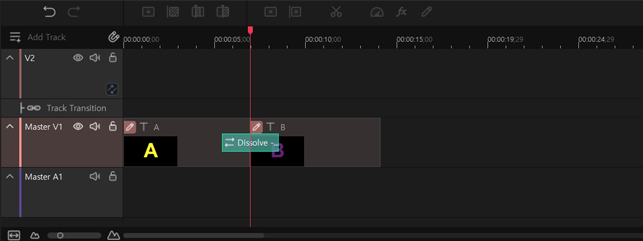
1. Apply Clip Transition
Apply a video transition effect between the two clips
The left clip is “A clip” while the right clip is “B clip”. If the position of transition clips is switched (from the right clip to the left clip), then press the “Select Front/Back to Add Transition” button to select the location of transition to be added.
Let me explain how to set the dissolve track transition to two clips with the duration of 10 seconds in an easy way.
-
1)
Place left and right clips next to each other. Select a clip to apply.
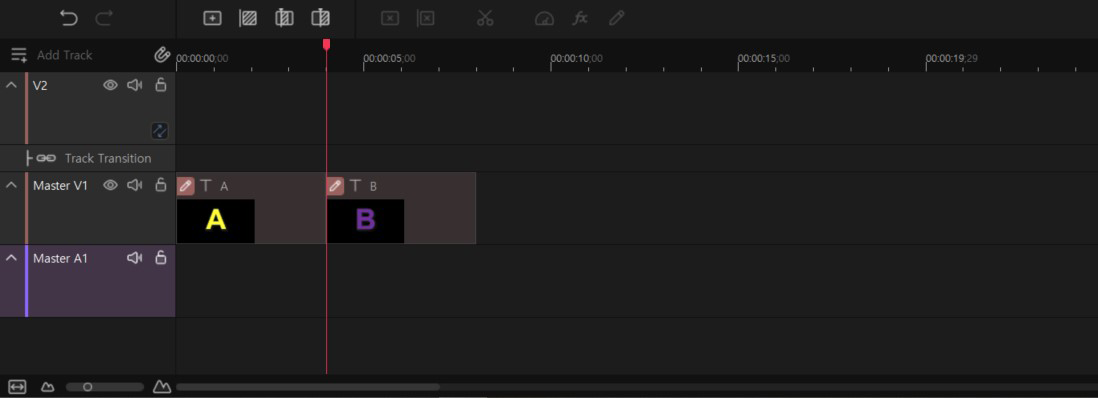
-
2)
Go to the Clip Transition tab and select “Dissolve” effect under the “Dissolve/Fade” category.
-
3)
Place a “Dissolve” between the two clips to apply.
-
4)
This is the “Dissolve” effect dialog box. The clip transition effect can be applied after selecting a clip to apply in the timeline panel.
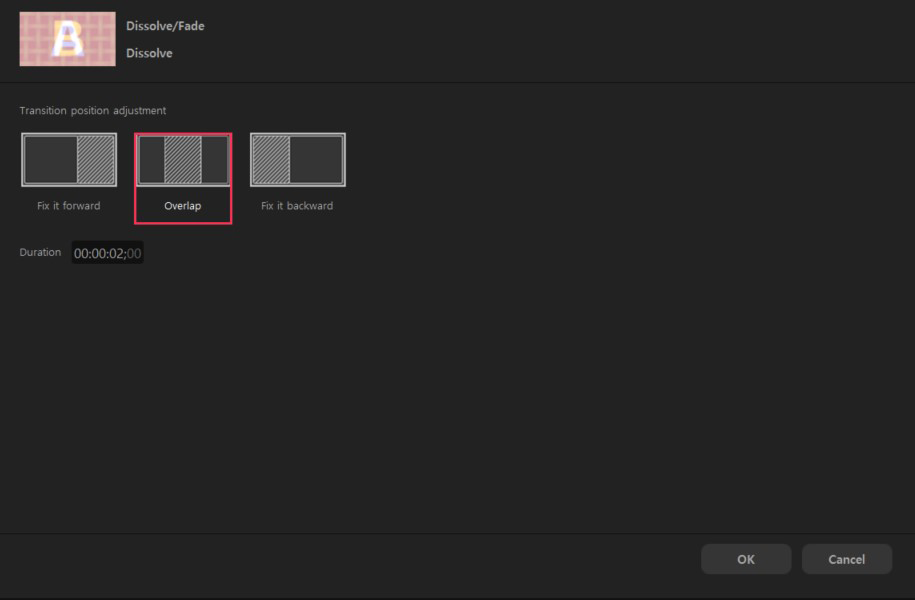
“Dissolve” effect dialog box Transition Position Adjustment Set the transition position to select how to transit between the left and the right clips. Duration It is the time duration for clip transition to last.
If the time is modified, the duration of “Clip transition control clip” is changed. - 5) After changing the property, move the playback head to play. If a clip transition is successful, press the “OK” button to apply a clip transition.
To create a video transition effect, move the playback head to the front of the transition clip and select the clip at the top and set the desired track transition type. If no clip is selected, the transition effect cannot be applied. Once the transition effect is applied, there will be clip transition controls between clips. You can adjust the length of clip transition control to change the transition time.