GOM MixUser Guide
AI Tools
AI Subtitles
* The service is available with GOM Lab Credits
It supports a total of 18 languages with STT (Speech-to-Text) technology that automatically converts the voice of a video or audio into text subtitles.
1. Start AI Subtitles
Click the AI Subtitles button in the clip tab menu, or if you have a clip with voiceover on the track, right-click the clip and click AI Subtitles.
2. AI Subtitles Setup
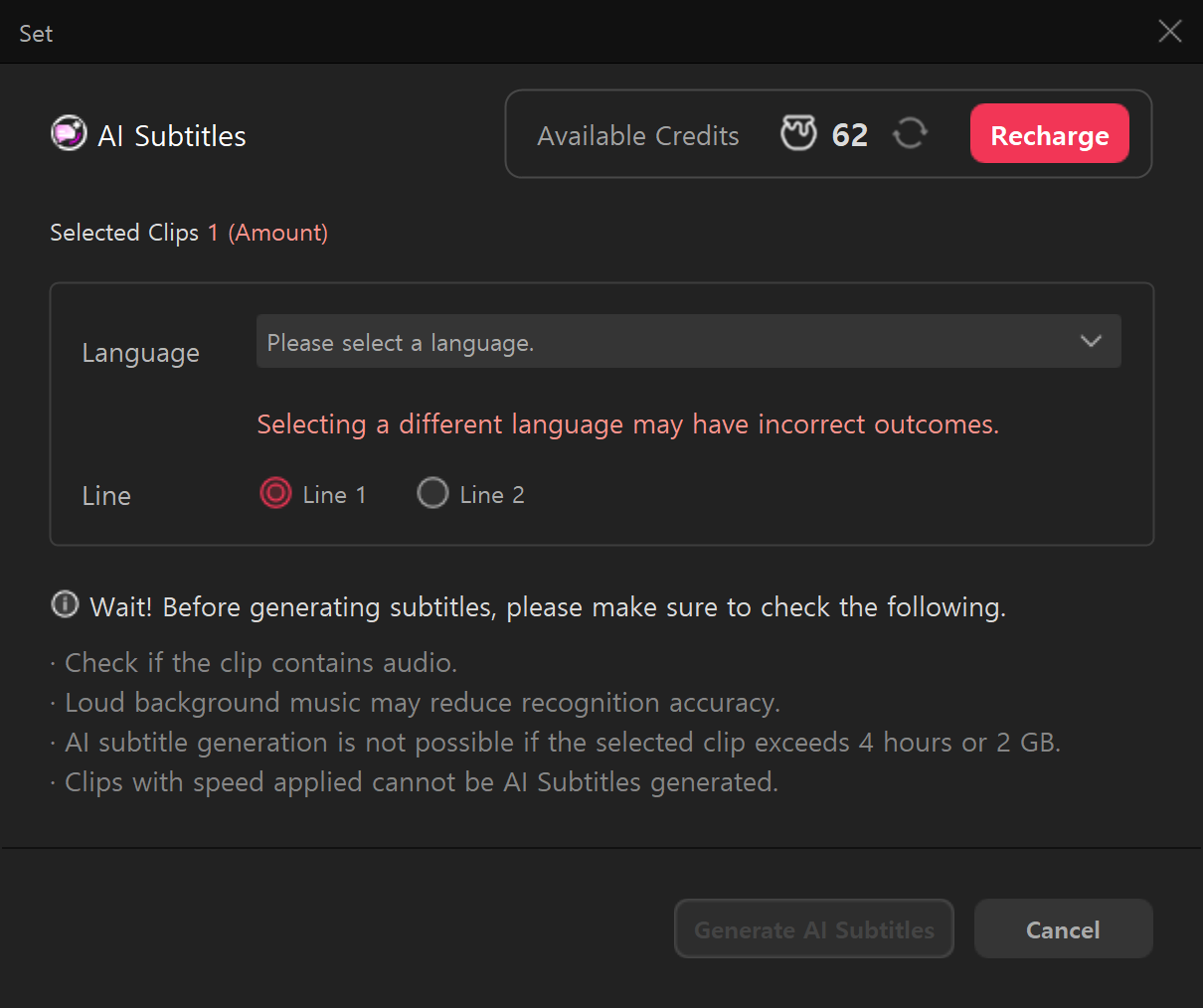
Please select the correct audio language for subtitles. If the language is different from the audio, AI subtitle generation may not function properly.
Subtitles can be displayed in one or two lines. Select the desired number of lines from the line drop-down menu.
Once you’ve selected the language, click on  button. Credits will deduct when generating AI Subtitles.
Supported Languages
Korean, Korean + English, English, Japanese, Chinese (Simplified), Geman, Spanish, French, Italian, Russian, Vietnamese, Dutch, Hindi (India), Thai, Indonesian, Swedish, Persian (Iran), Czech
*AI subtitle generation is not possible if the length of each video clip exceeds 4 hours or the size exceeds 2 GB.
3. Editing AI Subtitles
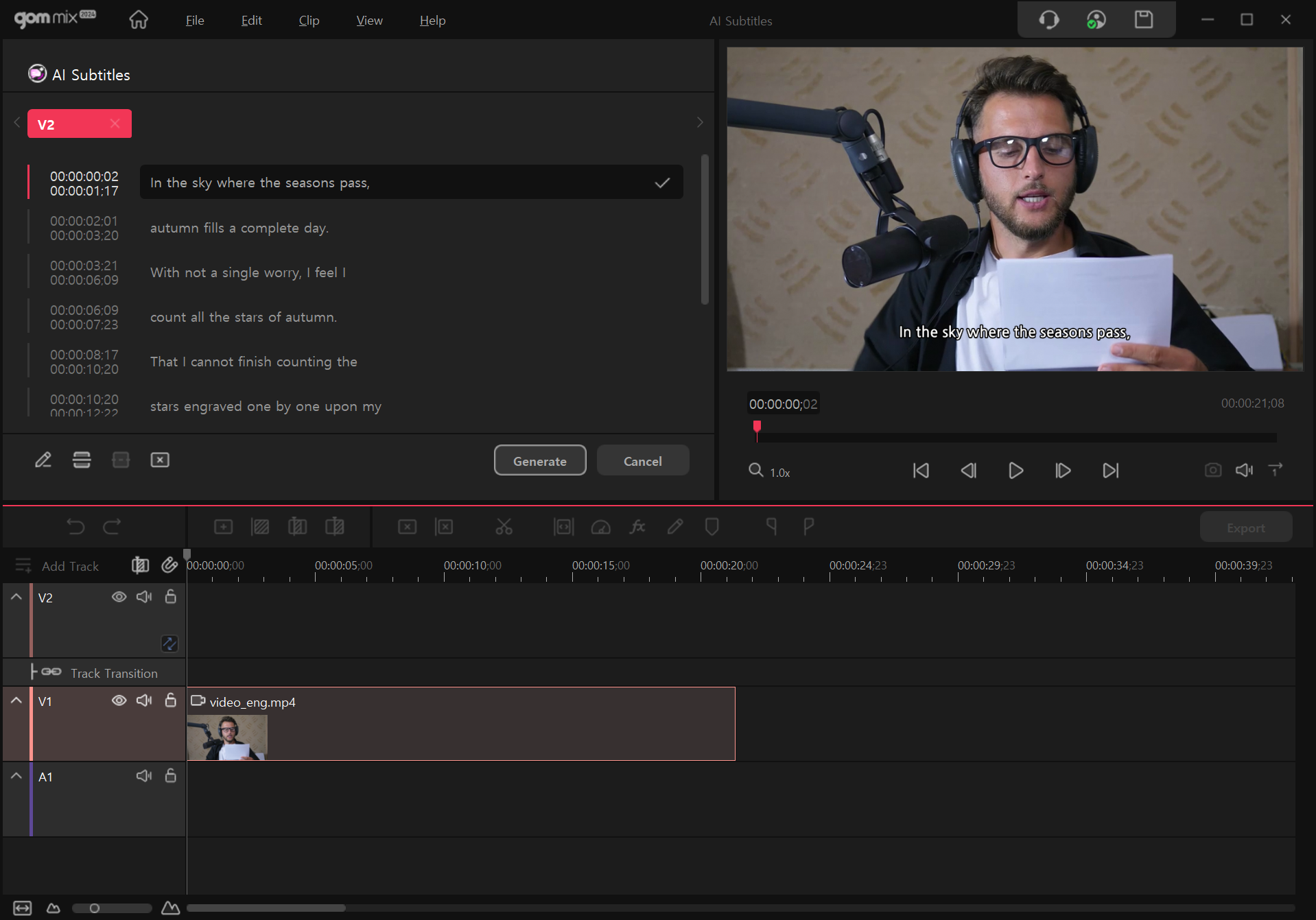
You can edit or delete the generated AI Subtitles. You can edit the subtitles before generating a text clip, merge two or more subtitles into one or split a single subtitle into two clips.
If multiple voices are present in the same timeline, a subtitle clip will be generated from each voice clip, resulting in more than one subtitle track.
Once you finish editing the subtitles, Click on  button to generate text clip.
Edit

|
Edit content of the subtitle. |
|---|---|
Split

|
Split the subtitle into two clips. The same content will be copied. |
Merge

|
Merge 2 or more subtitles into one. |
Delete

|
Delete selected subtitle. |
4. Create Subtitle Text Clips
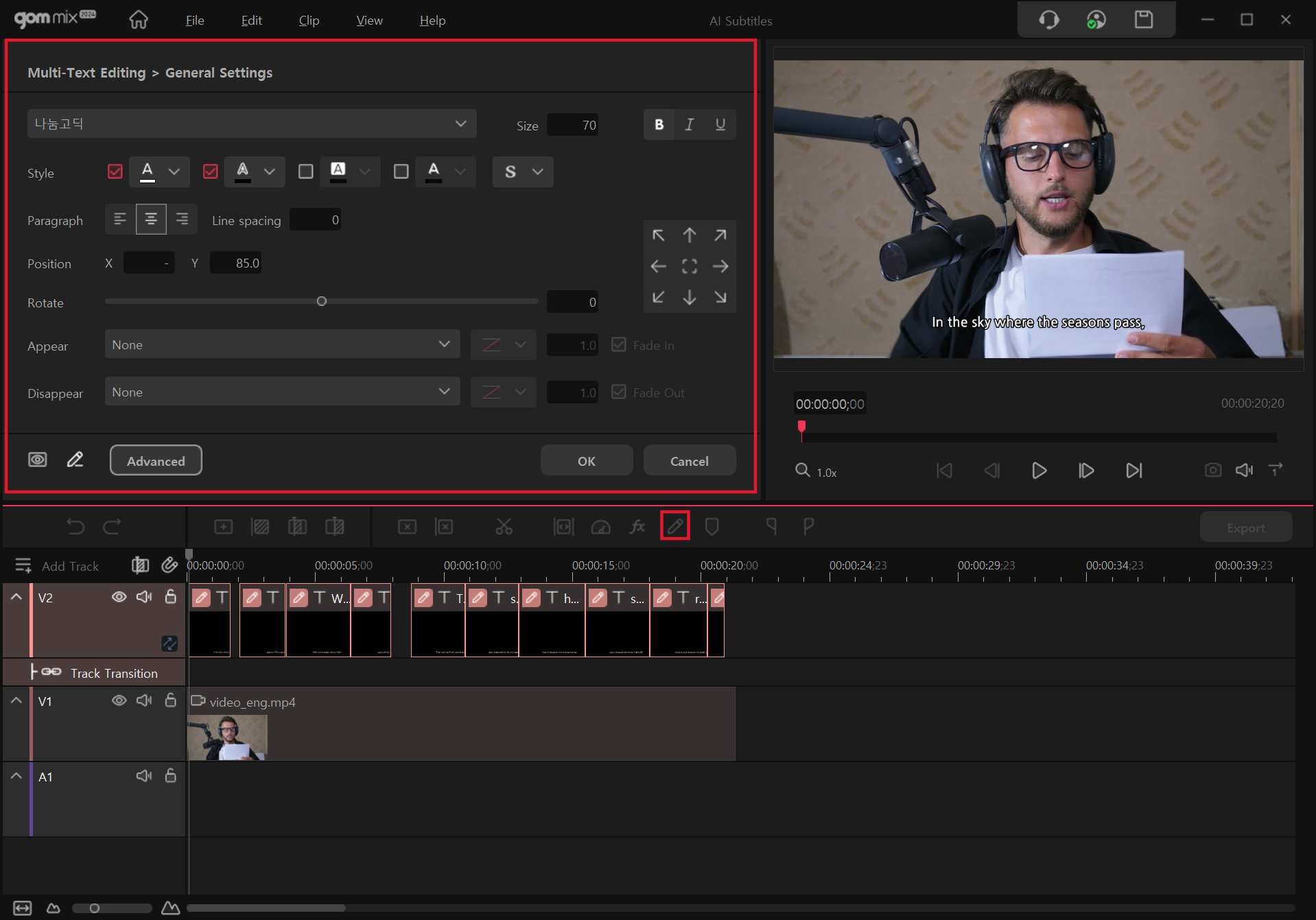
Once AI Subtitles generation is complete, text clips will be created on a new track. Text clips will be all selected, and you can change the font, size, position, etc. of the text by clicking the  button.