GOM MixUser Guide
AI Tools
AI Voice
* The service is available with GOM Lab Credits
Text-to-Speech (TTS) technology converts text into human voices, offering 199 different characters and 67 different voice tones. Add life to your content by choosing a voice that matches your desired gender, age, and topic. It supports Korean, English, and Japanese.
1. Start AI Voice
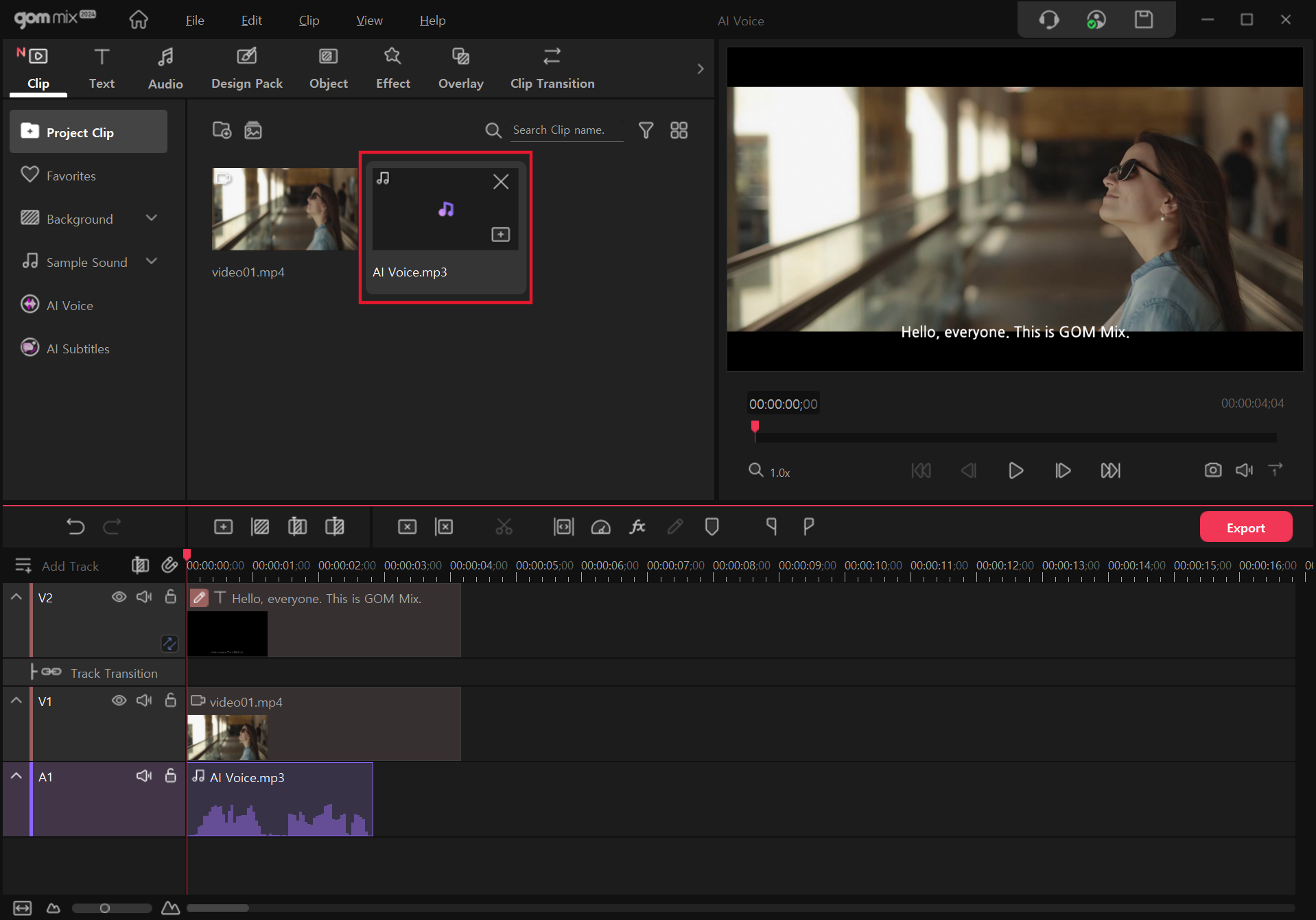
Click the AI Voice button in the Clip tab menu or if there is a text clip on the track, right-click the text clip and click AI Voice.
2. Choosing AI Voice Characters
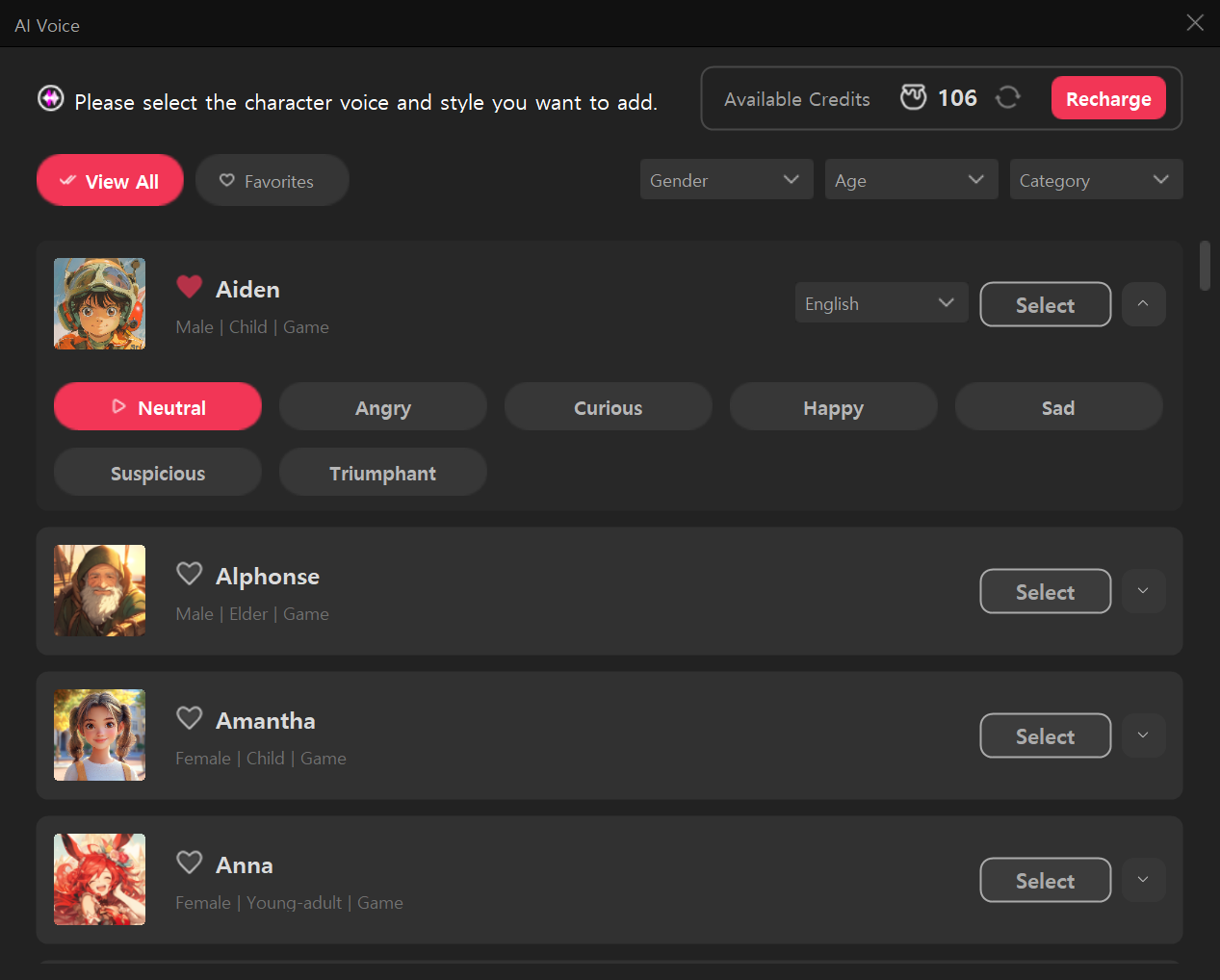
Check out the list of characters provided by AI Voice. You can search by category to find a character that matches your desired gender, age, or topic.
You can preview the emotions provided by each character by clicking the  button.
You can select your favorites by clicking the  button.
Click on  button to choose the character you want.
| Main Category | Sub Category |
|---|---|
| Gender | Male, Female |
| Age | Child, Young-adult, Middle-Aged, Elder |
| Category | Game, Announcement, Education, AudioBook, Advertisement, Documentary, Meme, Narration |
*All characters support Korean, English, and Japanese. The emotions varied by characters.
3. AI Voice Setup
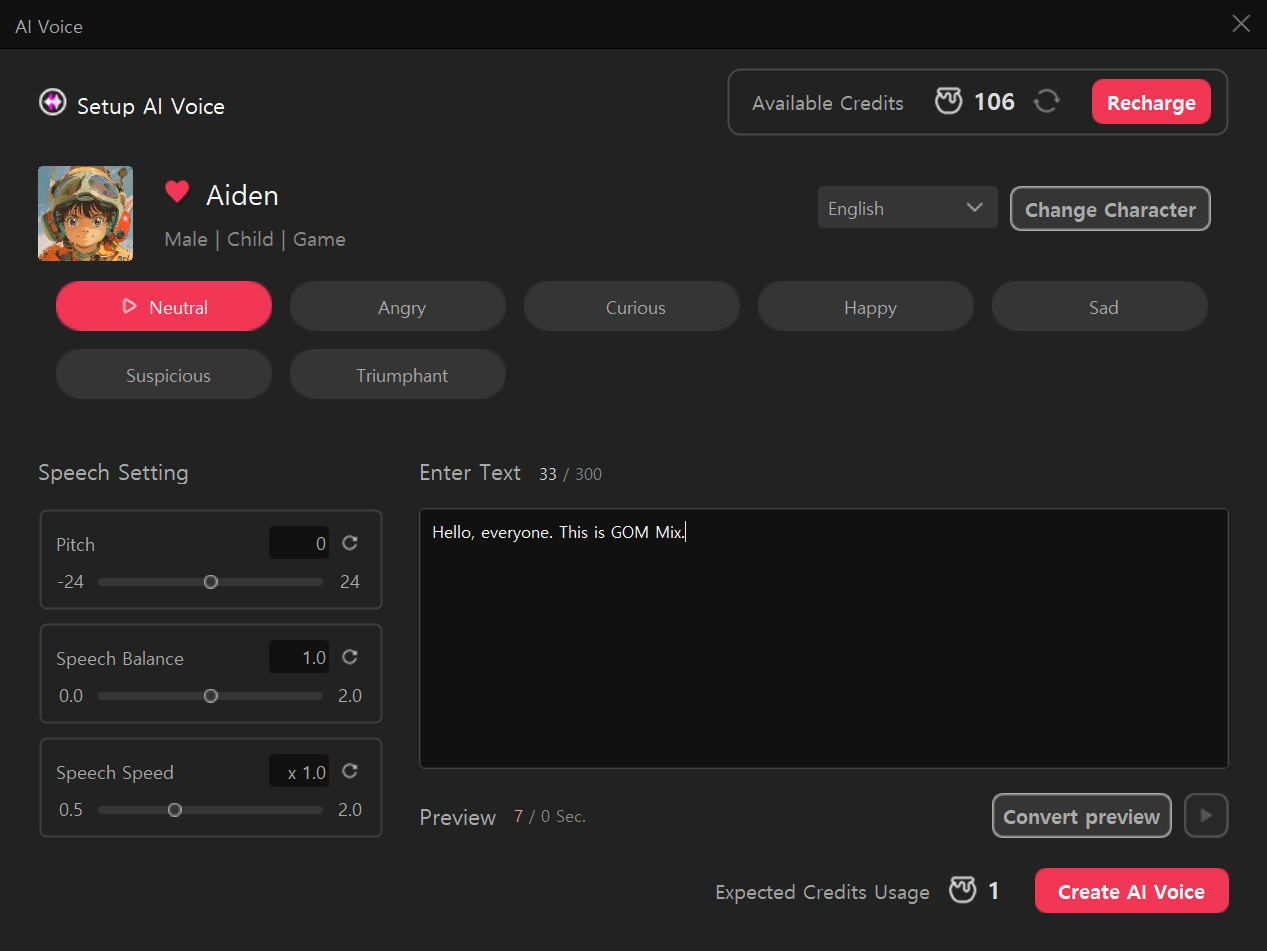
Enter what you want to convert in the text input field.
Click the  button to see how the AI voice will read your text. You can adjust the pitch, balance, and speed of the speech.
AI voices can be generated for up to 300 characters per conversion.
Once you've finished entering the text, click the  button to create a voice clip.
4. Create AI Voice Clip
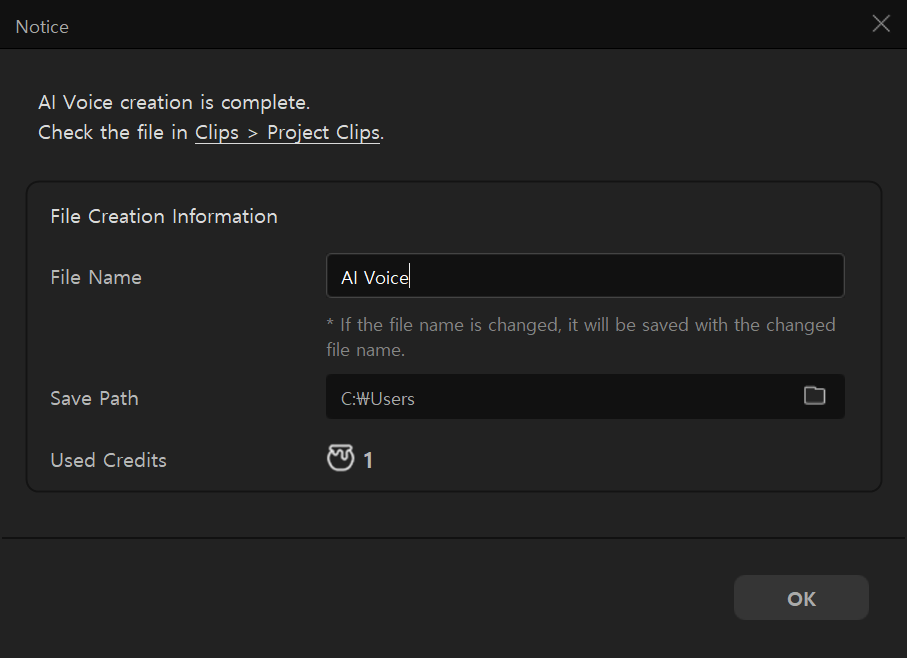
Credits will be used based on the text entered during AI Voice generation. After generating is complete, you can name the clip file and save.
The generated clip file can be viewed in the Project Clips window. Add the generated voice clip to the desired timeline.