
GOM CamUser Guide
Export
1. Export Settings
You can export your edited video to complete the video or audio file.
Click the [Export] button on the right side of the timeline area, and the export pop-up will appear.
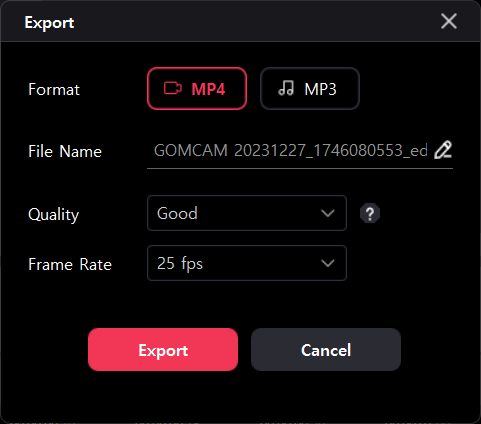
| Format | Sets the format of the file. There are two formats to choose from: MP4 and MP3. |
|---|---|
| File Name | Specify a name for the file. |
| Quality |
Select the quality of the file.
|
| Frame/Seconds | It is enabled if you have selected the MP4 format. Select the number of frames of the video file to complete. You can choose among 24, 25, 30, 50, 60 fps. |
| Export | After finishing the export settings, you can click the [Export] button to complete the file. |
| Cancel | Cancel the Export pop-up. |
2. Proceed and Complete Export
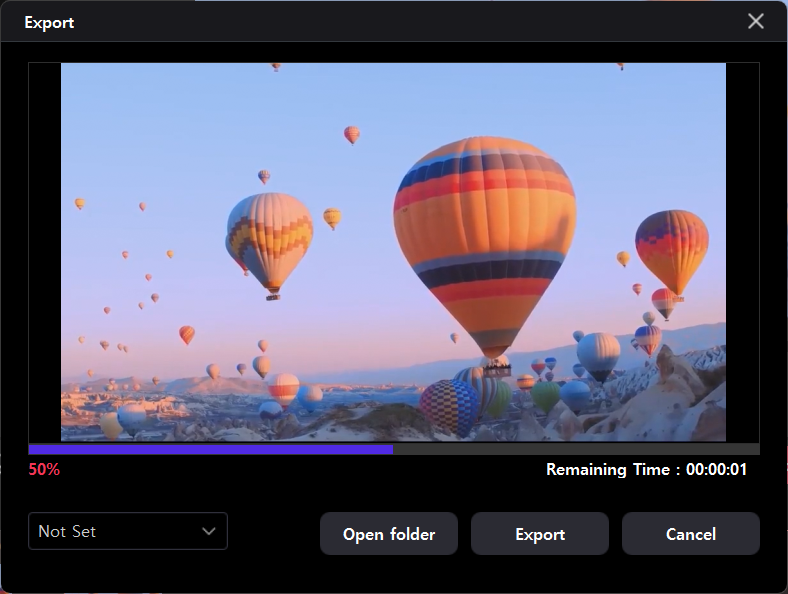
When you click the [Export] button, the export progress pop-up appears as follows, and the encoding proceeds.
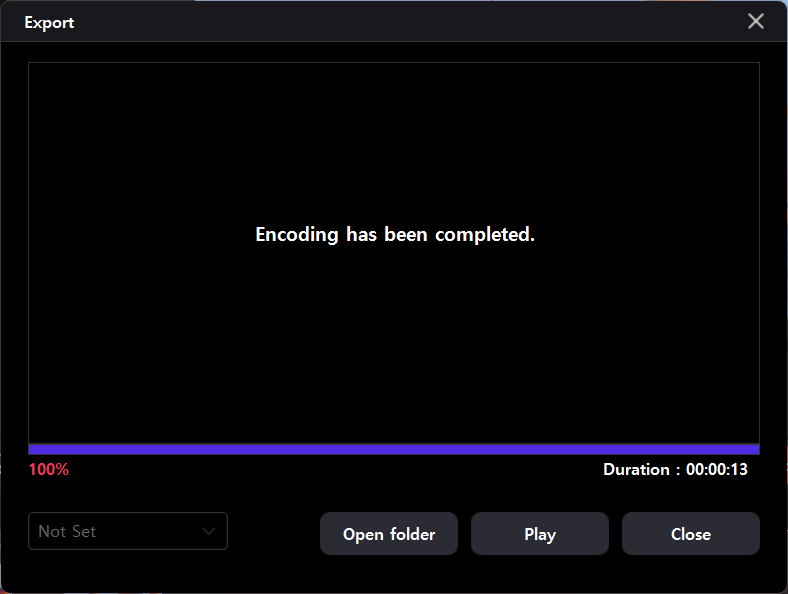
When the encoding is complete, the Export Complete pop-up will appear and the file will be completed as shown below.
| Preview | The file that you are encoding appears |
|---|---|
| Shutdown Settings | You can set the behavior when the encoding is complete. You can use a sound to indicate the end of encoding, or you can exit the program. |
| Open Folder | Opens the folder where the encoding file is stored. |
| Play | Plays encoded file via the video player. |
| Close | Close the Export popup. |