
GOM CamUser Guide
Top Bar and Main Menu
1. Top Bar Area

Logo

|
You can check the program version information. When clicking, you will see the version of the program in the pop-up. If it is not the latest version, you can proceed with the update. |
|---|---|
Minimize

|
The program is minimized and displayed in the form of an icon on the taskbar at the bottom of your PC. |
Close

|
The close button is for exiting the program. Clicking on it will immediately close the program. |
2. Main Menu Area
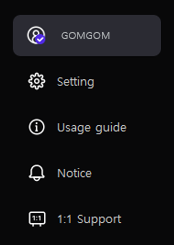
My Account Information

|
This button allows you to check your account information. When clicking, a pop-up will appear where you can check your account information. In your account information, you can find the nickname, email information, and voucher information. |
|---|---|
Settings

|
The settings pop-up appears, where you can change the General, Device, Recording, and Hotkey settings. |
User Guide

|
This is the button to check the GOM Cam usage guide. When clicking, you will be taken to the GOM Lab My Guide page. |
Notifications

|
A notification pop-up will appear where you can check the newly updated features and information. |
1:1 Inquiry

|
You can submit any questions while using GOM Cam in 1:1 inquiry. When clicking, you will be taken to the 1:1 inquiry page in GOM Lab. |