Getting Started with GOM Mix Max
1. Clip
A clip refers to the smallest element in the video editing program.
Types of Clips
| Video Clip | Video files in MP4, AVI, MOV, and FLV formats that are used as videos. | |
| Image Clip | Image files in JPG, PNG, BMP, and GIF formats that are used as images, clip arts, and etc. | |
| Audio Clip | Audio files in MP3 and WAV formats that are used as background music and sound effects. | |
| Text Clip | Inside text files of the GOM Mix Max that have the properties of texts which are used as titles and subtitle. | |
| Background Clip | Background files in the GOM Mix Max that are used as the background of videos. | |
| Object Clip | GOM Mix Max object files that offer objects in the form of presets. | |
| Clip/Track Transition Control Clip | This GOM Mix Max's internally controlled clip/track transition control clip shows the areas that have been added with video transition, blending, and track matte. It is created in the middle of a clip or a track.
|
Video clips, images clips, and audio clips are generally referred to as a media clip.
You need at least one clip and more in the timeline to make a video.
However, you can go select the "Export Clips"the context menu, in the project clip list window to export that selected clip only.
2. Mouse Sliding in the Edit Control
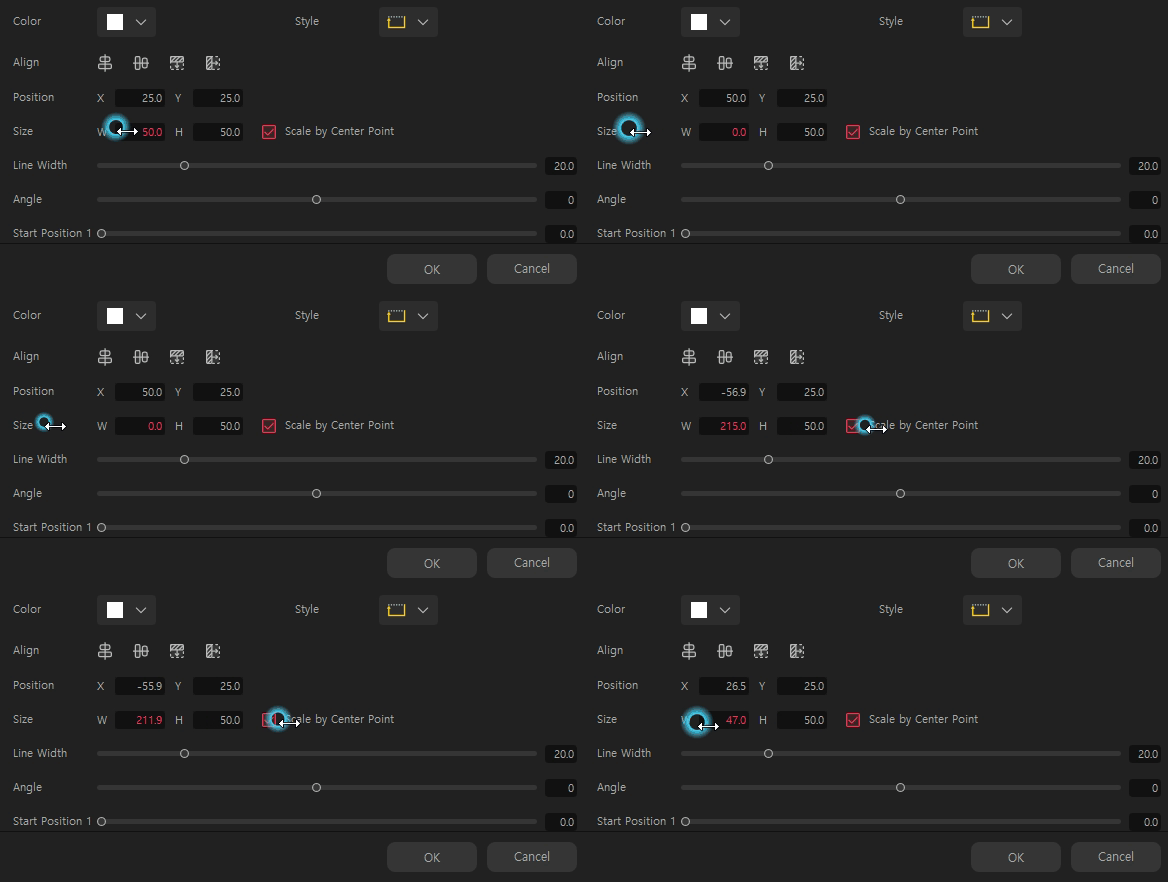
When you are trying to input the variable value in the properties setting window, hover your cursor on the edit control, and it will be changed into  .
.
Drag the cursor to the left to decrease the value and to the right to increase the value.
3. Designate Key Frames

Videos are created in frames, the smallest unit of image screen.
In order to give that animation effect, you must change the properties, such as the size of a frame or
the location between the frames.
But first, you must set the standard value of the properties change, and this designated frame is called
the “keyframe”
There must be at least two keyframes (the start keyframe and the end keyframe) in a clip.
Let us try to set the keyframe.
Insert a background clip into the timeline,
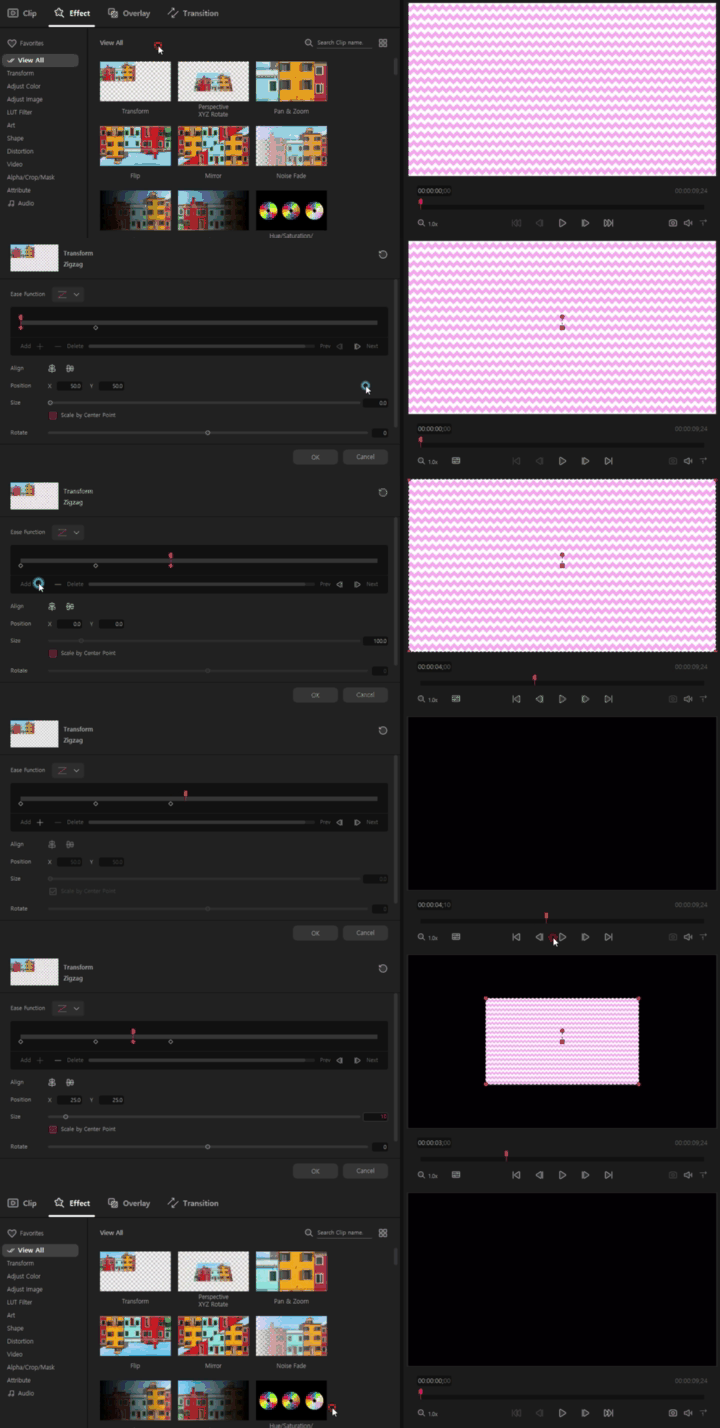
and let us try to make an animation in which this background clip grows from size 0% to 100% in two seconds.
| 1. | First, make a background clip and insert it in the timeline work area.

|
||
| 2. | Select the background clip in the timeline and open the effects tab of the Source and Effects Panel.
In the "Transform " category of the effects tab, choose the “Transform ” effect. And a setting window will appear for the effect. |
||
| 3. | Since we want the starting size of the background to be 0%, let us go to the “Size”to change it from 100% to 0%. | ||
| 4. | In order to change the size to be 100% after two seconds, move the playhead to 00:00:02:00.
There are three ways you can move the playhead. Option 1: Drag the monitor playhead of the monitor window to the two-second mark. Option 2: Drag the keyframe playhead at the two second mark while looking at the time of the monitor screen. Option 3: Click the time edit control located at the left bottom in the monitor screen and type “2” in the slot for seconds. |
||
| 5. | Once you move the playhead to the two second mark in the clip, this  button will appear in the keyframe control of the effects properties setting window. button will appear in the keyframe control of the effects properties setting window.
Click on the button to set the keyframe in that frame. When you make a keyframe for the first time, the start keyframe will be automatically created as well. A diamond shaped keyframe button
 will appear, and change the size from 0% to 100%. will appear, and change the size from 0% to 100%.
The properties value of the keyframe can be set only in the location the keyframe is set. In other words, you need to remain clicking on the keyframe button and move the playhead to the keyframe to change the properties value
|
||
| 6. | Click on the  button, you will see that the clip will grow in size from 0% to 100% in the span of two seconds. button, you will see that the clip will grow in size from 0% to 100% in the span of two seconds. |
||
| 7. | Now, move the playhead to the four second mark and add a keyframe. Change the size to 0%.
If you play from the start, you will see that the clip will grow in size only to become small and disappear right after. |
||
| 8. | If you wish the clip to remain at 100% for one second, add a keyframe at the three second mark and change the size to 100%.
Play the clip, and you will see that it will grow in size and remain unchanged for one second. Afterward, it will get small again. If you don't want to animate the clip for a certain time, just add a keyframe and set its value the same as the previous keyframe. And there will be no changes. |
||
 |
|||
| 9. | Try to change the motion graph to see at what speed the background clip appears.
And explore how the clip animates and changes by making changes in the rotation, opaqueness, location value. |
||
| 10. | If you wish to delete a keyframe, click on the keyframe button and click on  button. button.
If you wish to move a keyframe, drag the to the time you wish it to be at.
|
||
| 11. | If an effect is applied to a trimmed area, the first mark of the keyframe will be changed to  ,
and a record of the previously-applied keyframe effect will remain. ,
and a record of the previously-applied keyframe effect will remain.
|
||