GOM Mix Max Project Screen
The screen is largely divided into Top Bar Panel, Source and Effects Panel, Preview Panel, and Timeline Panel.
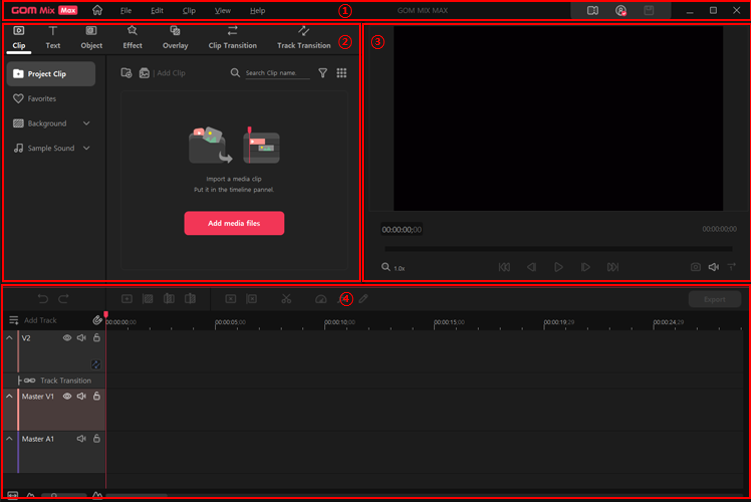
① Top Bar Menu Panel
| You can manage and change the settings of the files, projects, and panels. |
② Source and Effects Panel
|
This panel allows you to bring or make source clips and provides you with categorized effects, you can add to them.
It is composed of Clip, Text, Object, Effect, Overlay, Clip Transition and Track Transition tabs. A video clip used in the project can be uploaded into the project list. You can choose and add effects, overlay, or clip transitions, track transitions in the selected clip in the Timeline panel. |
③ Preview Panel
|
This panel allows you to get a peek of the clips in the project clip list. It is a monitor screen that shows you the output video of the project you are working on.
|
④ Timeline Panel
|
This editing panel shows you the time and status of your videos, and clips are placed into the tracks for edit. |
Source and Effects Panel and Timeline Panel each offer their own toolbar.
By hovering the cursor in the border areas of each panel, the cursor will change into either  or
or
 .You can adjust the width of height of the panel.